Regshape Editing Workflow
Regshapes represent structured machining features, such as: holes, slots, rectangles, hexagons, keyholes.
Each regshape has specific attributes that can be changed in the Regshape Attributes Panel.
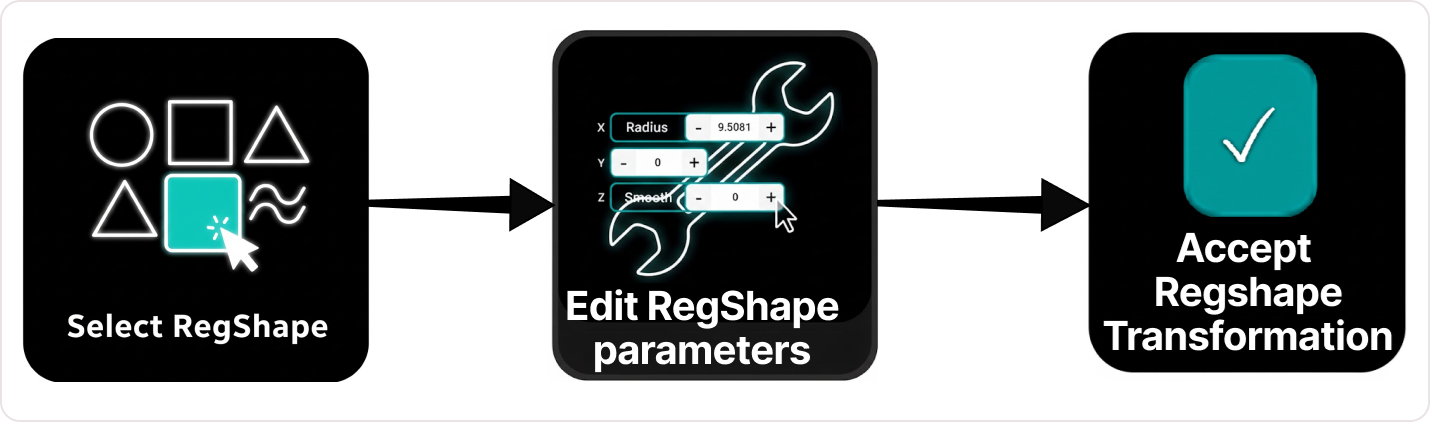
Workflow Steps
Step 1: Select the regshape
You can select:
- from the NC Editor by clicking its main line - the system automatically applies pattern recognition and selects the full block
- from the 3D Viewer, any point belonging to the regshape by clicking the point directly
Step 2: Edit regshape parameters
Once selected, the Regshape Attributes Panel becomes active.
Depending on the regshape type, you can modify specific parameters.
Optional: If the regshape needs to be moved or rotated, not only resized, you can apply Pivot Teach.
Step 3: Accept regshape transformation
Press Accept in the Regshape Attributes Panel.
All geometry points belonging to the regshape block are transformed together, preserving the geometric shape.
Workflow Regshape Edit
Operator insights
- Regshapes are recognized automatically, making editing safer and preventing incomplete modifications.
- All regshape attributes update synchronously between the NC Editor and 3D Viewer.
- When Pivot is selected as the reference, it is placed at the center of the regshape, and its XY plane aligns with the regshape’s own plane, even if the approach point lies on a different XY plane orientation.
- Press Accept after every transformation to finalize changes.
Was this page helpful?