Single-Point Selection
Purpose
Before modifying a program point, it is important to understand how point selection works. Selecting a point is the first step for most editing workflows: it selects the related program line, updates the 3D selection, and prepares the available editing tools.
Single Point Selection helps the user identify which program element is currently active in the NC Editor and the 3D Viewer, and can be done either from the NC Editor or directly from the 3D Viewer. Both views stay synchronized, so selecting a point in one view updates the other view automatically.
What Single-Point Selection Helps You Do
Use Single-Point Selection when you want to:
- inspect one motion point in detail
- edit one line or one point with precise control
- prepare a local correction before applying transformations
- confirm the exact toolpath location in the 3D Viewer
- start Pivot Teach or Axis Teach from a single selected point
💡 Tip: Point Selection does not modify the program. It only defines the active point or element for the next editing action.
The selection workflow is consistent across supported controllers. However, program syntax, command names, and motion definitions may differ depending on the selected controller.
How the Single Point Selection works
Point Selection in Shopfloor Assistant is fully bi-directional between the NC Editor and the 3D Viewer.
- A selection in the NC Editor selects the matching point or path in the 3D Viewer.
- A selection in the 3D Viewer selects the related line in the NC Editor.
This lets you work from the view that is more convenient for the task.
This means:
- selecting a line in the NC Editor highlights the related point in the 3D Viewer
- selecting a point in the 3D Viewer highlights the related line in the NC Editor
- the machine position in the 3D scene is updated to the selected point
- the Pivot Manipulator appears when Pivot is the active reference system
The behavior also depends on the selected element type. A linear motion point, a circular motion point, and a regshape block can behave differently because they represent different program structures.
💡 Quick definition: The active selection is the point, line, or grouped feature that Shopfloor Assistant will use for the next action.
This active selection is the basis for preview, transformation, and teach-related workflows.
Step 1 — Select from the NC Editor
Clicking a motion line in the NC Editor automatically highlights the corresponding point or points in the 3D Viewer, updates the machine position, and activates the Pivot Manipulator when Pivot is the active reference system.
Result:
- the selected line becomes active in the NC Editor
- the related point or path is selected in the 3D Viewer
- the machine position is updated
- the manipulator appears at that location
- the selection is ready for the next editing action
- the related editing tools become available
Why this is useful:
This is useful when you want to start from the program text and check the matching location in the scene.
The existing guide also treats the 3D Viewer as the place to verify which points will be affected before applying transformations.
You can select:
Linear Motion (G01)
Selecting a linear motion highlights the corresponding point in the 3D Viewer.
The machine head and the manipulator are positioned directly at the point coordinates.

Circular Motion (G104)
Selecting a circular motion block automatically activates both the via or mid-point and the end point that define the circular motion.
- the via point
- the end point
In the 3D Viewer, these points are highlighted together with the full arc segment.
This selection positions the machine head and the manipulator at the end point of the arc.

Note
For circular motions, Shopfloor Assistant highlights the full geometric definition of the arc, not just a single visual point.
Regshape Blocks
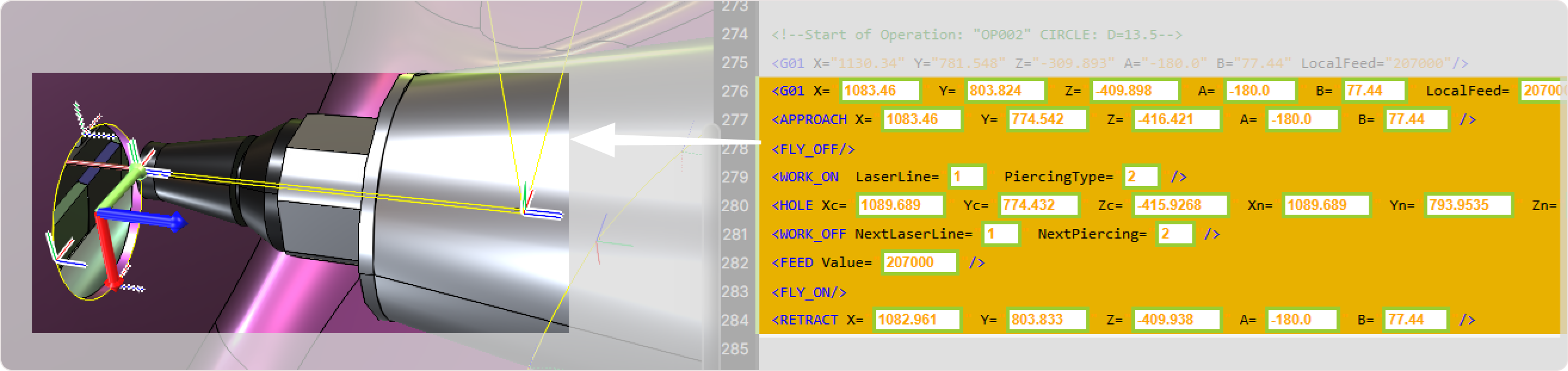
Selecting a regshape block such as a hole, slot, rectangle, keyhole, or hexagon automatically activates the selection of the block that belongs to the regshape, including approach and retract.
This may include:
- the approach point
- the retract point
- the internal shape points
When selecting a regshape line:
- the machine moves to the start point of the regshape
- the manipulator is positioned at the center of the regshape
- all regshape points, including approach and retract, are highlighted as a grouped structure
Note
Regshape elements are treated as a single structured feature. Editing operations applied to the selection affect the entire regshape block.
Step 2 — Select from the 3D Viewer
Points can also be selected directly from the 3D Viewer.
When a toolpath point is clicked:
- the corresponding NC motion line is highlighted in the NC Editor
- the machine moves to the selected position
- the Pivot Manipulator appears at that location when Pivot is the active reference system
Result:
- the selected point becomes active in the 3D Viewer
- the machine position is updated
- the manipulator appears at that location
- the related program motion is selected in the NC Editor
- the selection is ready for the next editing action
- the related editing tools become available
Why this is useful:
This is useful when you see the toolpath first and want to find the matching line before editing.
It is also helpful when you want to inspect the selected point visually before continuing.
You can select:
Linear Motion Point (G01)
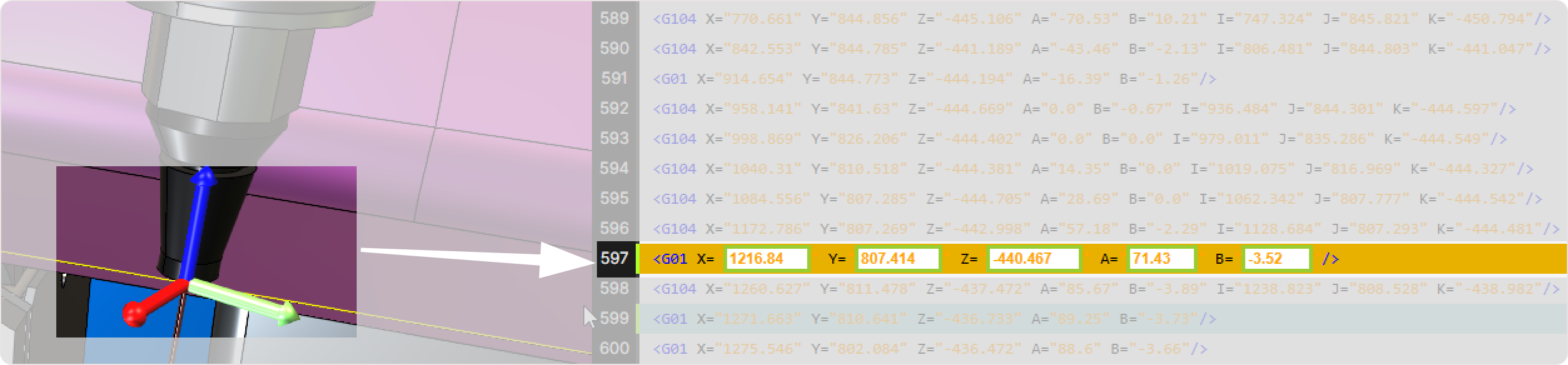
Clicking a point in the 3D Viewer selects the corresponding G01 motion line in the NC Editor.
Selecting the point instantly moves the machine to that position and aligns the manipulator onto the selected point, providing a precise visual reference for further adjustments.
Circular Motion Points (G104)
For circular motions, the 3D Viewer allows selecting the individual points that define the arc.
You can select either of the two points that define the arc.
Arc End Point

Arc Via Point

Selecting either point highlights the associated G104 NC line and positions the machine and manipulator at the selected location.
Each selection positions the machine and the manipulator on the chosen point, giving precise control when refining circular trajectories.
Individual Points Inside a Regshape
Each point belonging to a regshape block can be selected individually in the 3D Viewer.
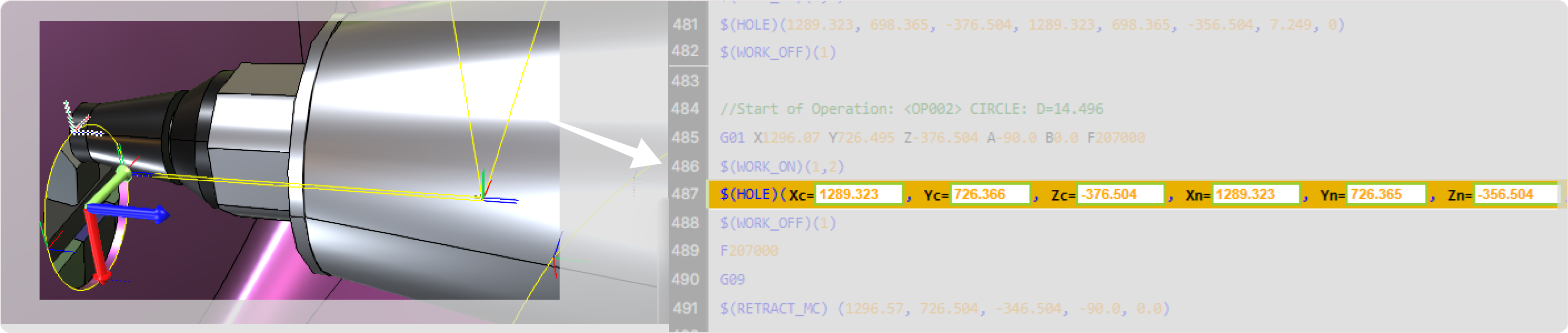
When selecting a regshape point:
- the machine moves to the selected point
- the manipulator snaps to the center of the regshape
This reflects the fact that the regshape is treated as a single grouped feature with a central pivot.
Each time you select a point belonging to a regshape, the machine moves to the selected point, while the manipulator snaps to the center of the regshape.
Note
Even when an individual regshape point is selected, the pivot behavior remains regshape-based, not point-based.
Step 3 — Review the Result After Selection
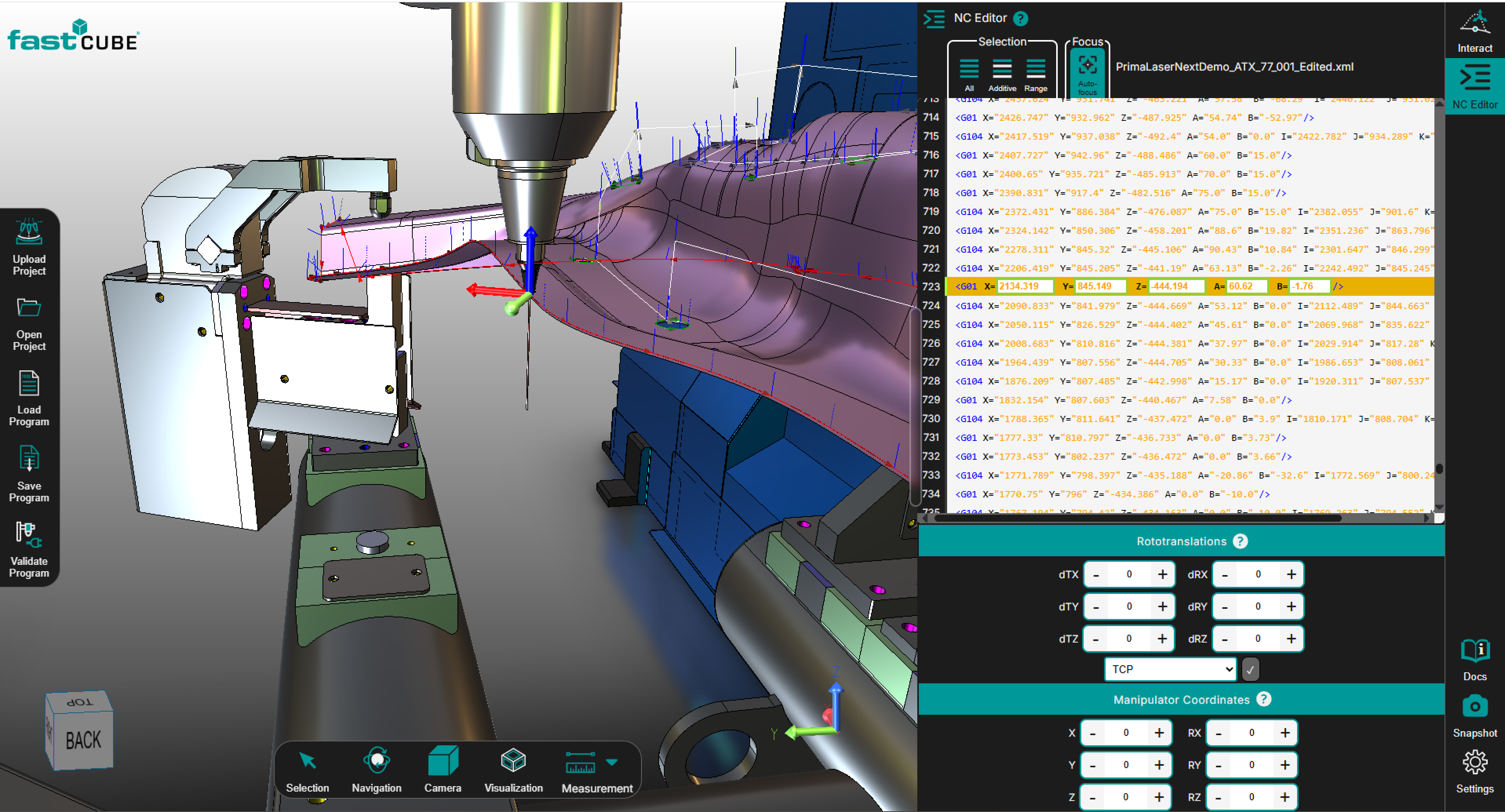
After selecting a point, either from the NC Editor or directly from the 3D Viewer, the system automatically synchronizes both interfaces.
The following actions occur:
- the corresponding NC line is selected in the NC Editor
- the selected point is highlighted in the 3D Viewer
- the machine positions itself at the selected point
- the Pivot Manipulator appears at the corresponding location when Pivot is the active reference system
Operator insights
- Selection is fully bi-directional. Choosing a point in the NC Editor or directly in the 3D Viewer always keeps both interfaces synchronized.
- Use the 3D Viewer for visual confirmation. This is especially helpful when points are close together or the program contains dense toolpath regions.
- The Pivot Manipulator appears automatically on the first selection when Pivot is the active reference system, providing an immediate visual anchor for editing.
- Controller behavior is consistent across supported controllers, but NC commands and motion definitions may vary depending on the controller.
- Think of Point Selection as a preparation step: select first, verify second, edit third.
- Selection does not modify the program. It only prepares the point or block for the next action.