Opening Projects
Purpose
Once a project has been uploaded, you can open and explore your process scenario at any time.
The Open Project function allows users to load a previously uploaded project into Shopfloor Assistant. This restores the prepared scene and makes the relevant setup data available in the 3D Viewer.
The Open Project function loads directly into the Shopfloor Assistant interface previously saved setups, and can restore context such as:
- resource configuration
- workpiece or geometry data
- fixtures
- other project-related setup elements used for review and analysis
Procedure
Step 1 — Start the Open Project Command
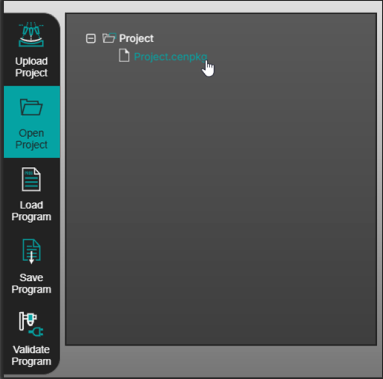
Click the Open Project button located in the left-side panel of the user interface.

Step 2 — Select Your Project Scenario File
Choose a previously uploaded .cenpkg file.
Step 3 — Confirm the Selection
The system begins loading the project and initializes the 3D Viewer.
Step 4 — Wait for the Scene to be Rendered
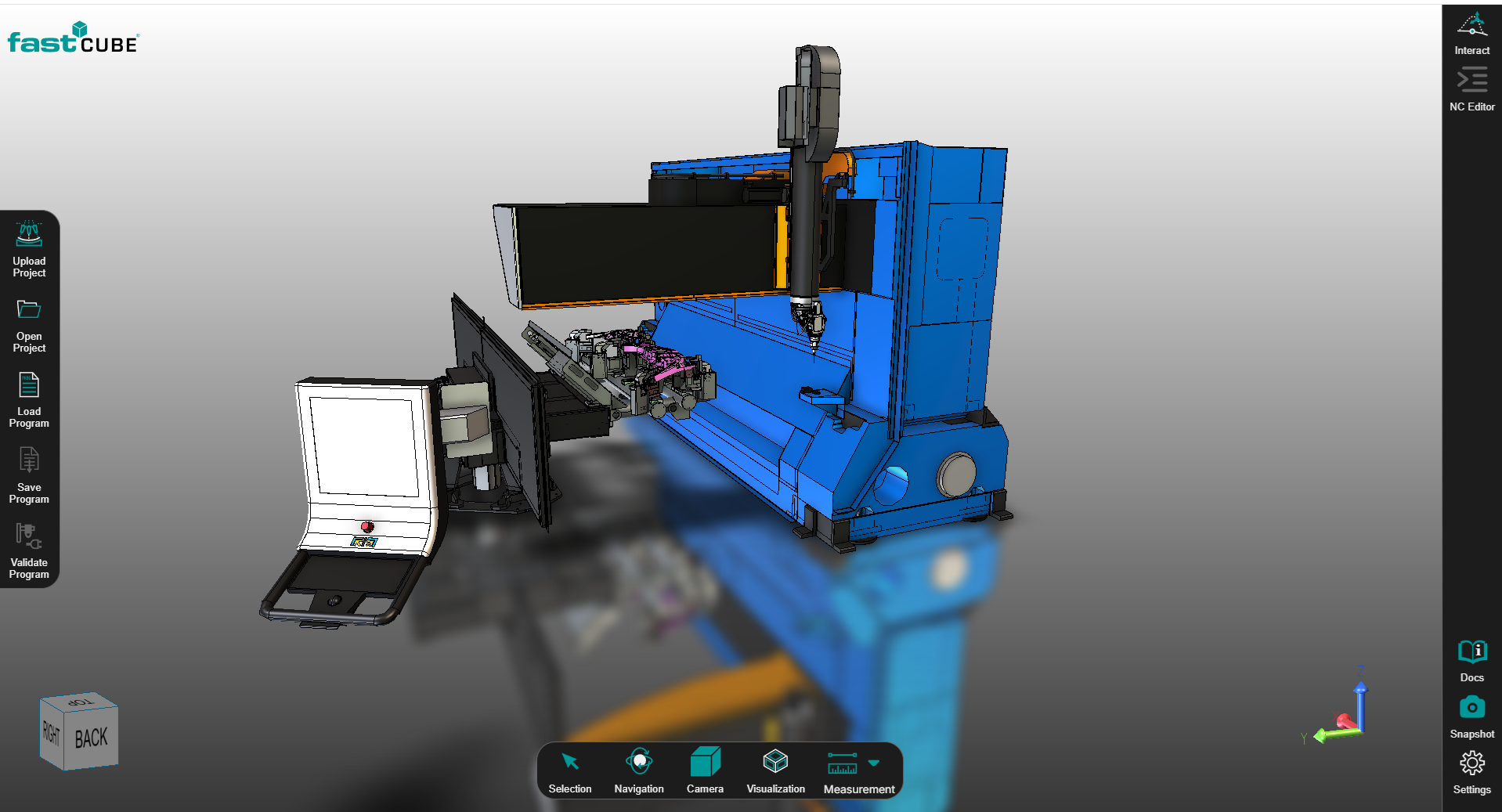
After loading is complete, the machining environment becomes visible in the 3D Viewer.
The scene includes:
- machine components
- fixtures
- workpiece geometry
Operator insights
- The Open Project function is optimized for fast loading and full restoration of the workspace. After the project has been opened once, subsequent openings are significantly faster.
- Use consistent file naming to easily identify saved scenarios.
- After opening, check geometry alignment and fixture placement in the 3D Viewer.
- Opening a project restores the full machining context, including geometry, machine configuration, and workpiece.
Was this page helpful?