Multi-Line Selection
Purpose
Multi-Line Selection allows you to select multiple program points or structured blocks at the same time. Use it when you want to modify a larger toolpath segment, shift several points together, or apply a transformation to a complete feature.
Once multiple lines are selected, the corresponding points are highlighted in the 3D Viewer. If Pivot is active, the Pivot Manipulator appears at the first selected motion point. This first selected point acts as the pivot for transformations unless another reference system, such as Base Frame, is selected.
💡 Tip: Multi-Line Selection does not modify the program by itself. It only defines the group of selected lines for the next editing action.
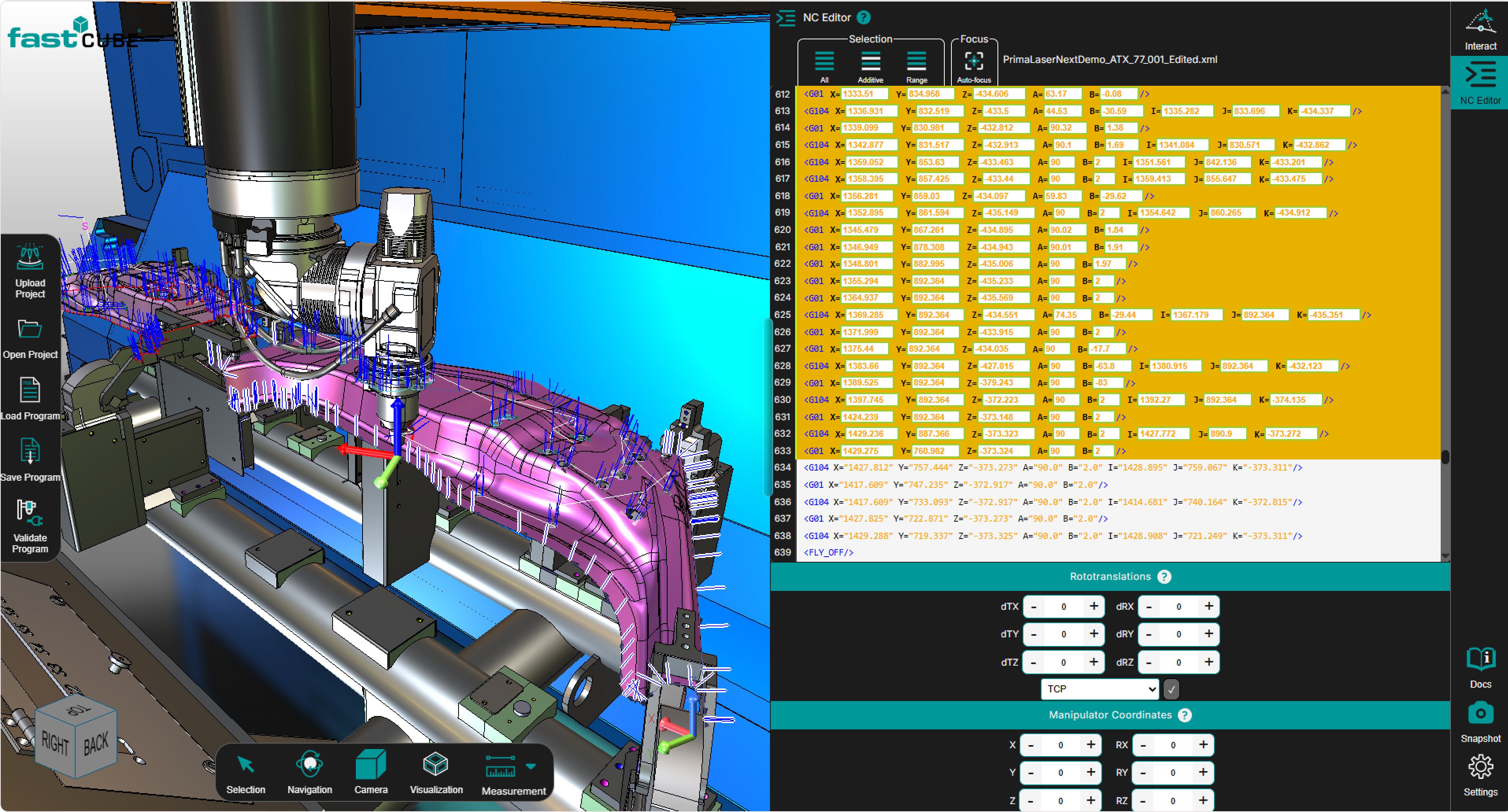
What Multi-Line Selection Helps You Do
Multi-line selection is useful when you want to:
- adjust a toolpath segment
- transform multiple points together
- select a full regshape or structured feature
- apply Pivot Teach to more than one point
- prepare a complete block for inspection or editing
💡 Tip: Selection remains synchronized between the NC Editor and the 3D Viewer. Selecting lines in the NC Editor selects the related points in the 3D Viewer, and selecting points in the 3D Viewer selects the related lines in the NC Editor.
How the Multi-Selection works
Shopfloor Assistant supports multiple selection methods. You can select a continuous range, add individual points, or combine multiple separate ranges.
The available selection methods are:
- SHIFT — Range Selection
- CTRL — Additive Selection
- CTRL + SHIFT — Additive Range Selection
- selection buttons in the NC Editor
These methods help operators select exactly the points that should be affected by the next operation.
When multiple lines are selected:
- the Pivot Manipulator appears on the first selected motion point
- all other selected points are highlighted in the 3D Viewer
Selection remains bi-directional:
- selecting lines in the NC Editor highlights the corresponding toolpath points in the 3D Viewer
- selecting points in the 3D Viewer highlights the corresponding NC lines in the editor
Step 1 — Use Keyboard Shortcuts to Select Lines
Shopfloor Assistant supports three keyboard-based multi-selection methods.
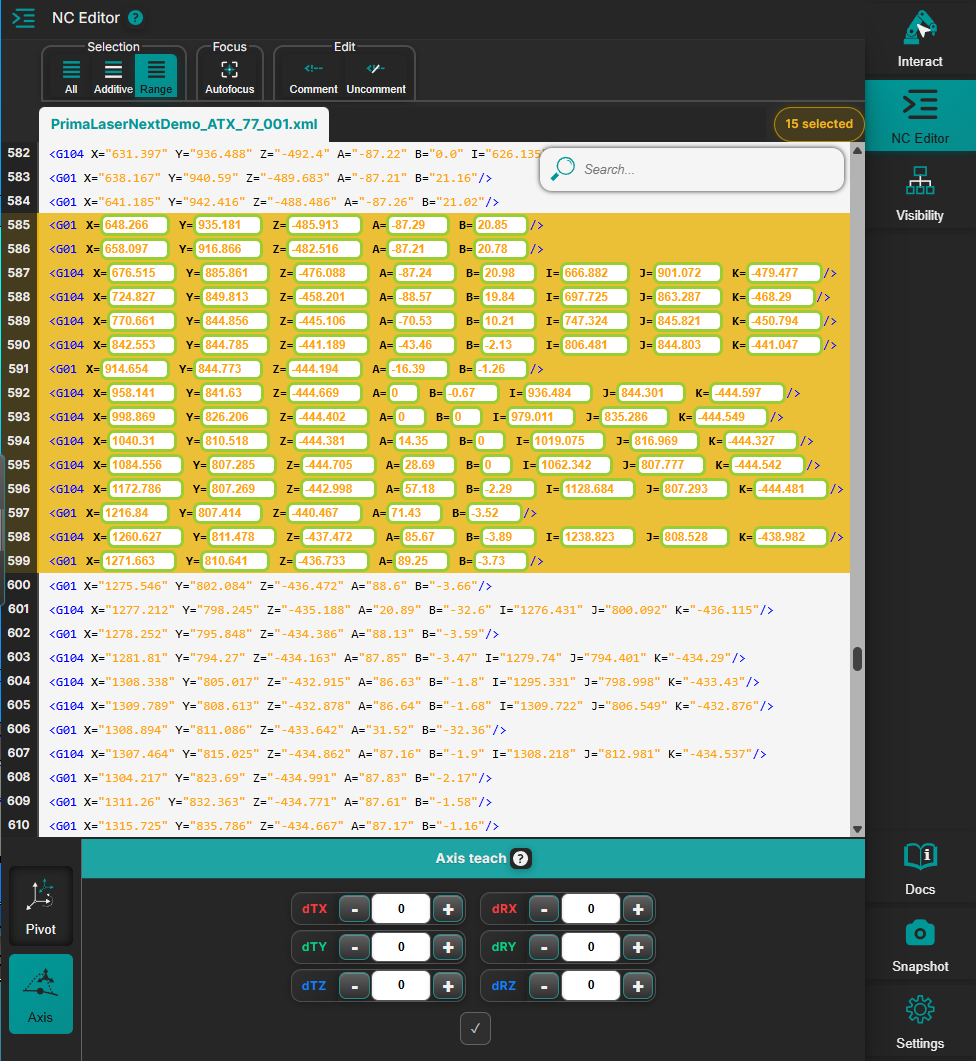
SHIFT — Range Selection
Use this to select a continuous range of lines, similar to selection in Windows Explorer.
How it works
-
selects all lines between the range anchor and the clicked line
-
automatically deselects lines outside the range
-
selecting a regshape or approach point expands the selection to the full pattern block
When to use it
Use Range Selection when you want to adjust:
- one continuous machining segment
- one arc block
- one grouped trajectory or grouped block
CTRL — Additive Selection
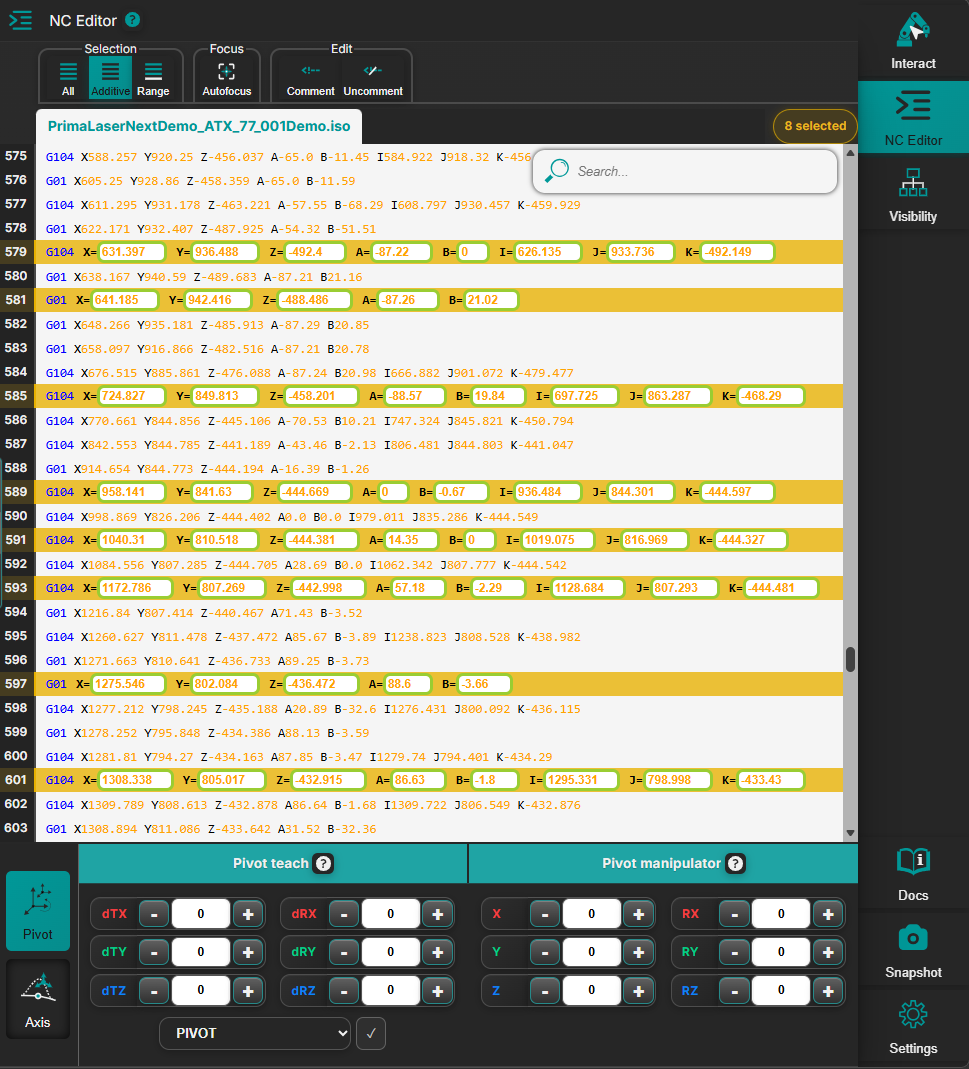
Use CTRL when you want to add or remove individual lines or blocks without clearing the existing selection.
How it works
- adds or removes a line without clearing the existing selection
- selecting a regshape line adds the entire regshape block
- selecting a non-motion line preserves the previous selection while updating the range anchor
When to use it
Use Additive Selection when you want to:
- build a custom selection of specific lines
- add grouped blocks one by one
- exclude one line without clearing everything else
CTRL + SHIFT — Additive Range Selection
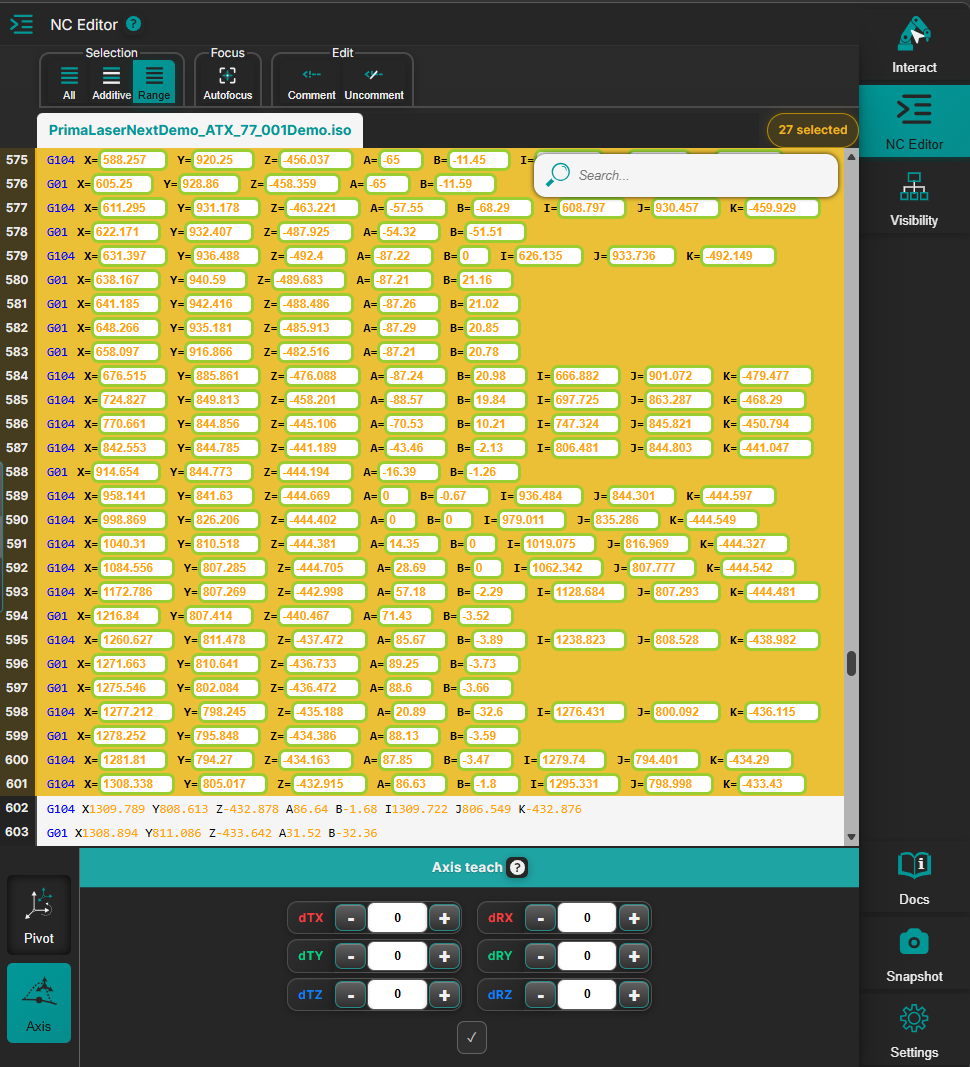
Use CTRL + SHIFT when you want to select multiple separate ranges.
How it works
- adds a continuous range to the existing selection
- does not clear previously selected ranges
- respects pattern-recognition logic (approach + geometry + retract)
When to use it
Use Additive Range Selection when you want to edit several non-adjacent regions in one operation.
Step 2 — Using the NC Editor Panel Buttons
The NC Editor panel includes buttons that mirror the keyboard shortcuts.
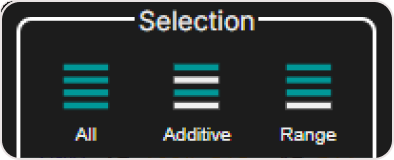
Available buttons:
- Additive Selection — equivalent to CTRL
- Range Selection — equivalent to SHIFT
- Additive + Range Selection — equivalent to CTRL + SHIFT
- Select All — selects all lines in the NC Editor, all regshape blocks, and all motion lines
This option is useful for global adjustments, such as shifting the entire program by an offset.
Step 3 — Check the Visual Confirmation in the 3D Viewer
After multi-line selection, always check the result in the 3D Viewer.
The 3D Viewer helps you confirm:
- which points are selected
- where the pivot is located
- which toolpath region will be affected
- whether the selected points belong to the intended feature or path segment
💡 Tip: The first selected motion point is important because it can define the pivot for transformations when Pivot is used as the reference system.
If Pivot is active, the Pivot Manipulator is placed on the first selected motion point. If a regshape block is selected, the manipulator can be positioned according to the regshape behavior.
Clearing the Selection
You can clear the selection by:
- clicking outside the toolpath in the NC Editor
- selecting an empty area in the 3D Viewer
- performing a single selection without CTRL or SHIFT on any line
Operator insights
- Selection behavior adapts intelligently depending on CTRL, SHIFT, or both. The system follows structured logic to avoid accidental partial selections.
- Pattern recognition keeps operations safe: selecting any regshape or approach line automatically expands selection to the full logical block.
- The Pivot Manipulator always appears on the first selected motion point, ensuring predictable transformation behavior.
- Use the 3D Viewer as a visual checklist. Verify that only the intended points are selected before applying translations or rotations.
- CTRL + SHIFT is especially powerful for multi-region edits and is ideal for patching several toolpath segments in one operation.
- If you see unexpected deselection, it is usually because a non-motion line was clicked before a motion line. The system safeguards consistent selection blocks.
- Reference system matters:
- If Pivot is active, the manipulator is visible and editable.
- If Base Frame is active, the manipulator is hidden, but transformations still apply correctly.
- Remaining selected points are highlighted in the 3D Viewer, giving a clear visual representation of the multi-line selection.
- Any selection made in the NC Editor is reflected in the 3D Viewer, and any selection made in the 3D Viewer updates the selection in the NC Editor, maintaining bi-directional synchronization.
- Panel buttons are convenient for repetitive or structured selection tasks.