Navigation Cube
The Navigation Cube, located in the lower-left area of the 3D Viewer, provides quick orientation control for the camera. It allows users to switch to predefined viewing directions without manually rotating the scene.
The Navigation Cube helps users understand the current view direction more easily and return to standard orientations when inspecting the scene. It is especially useful in larger or more complex 3D setups, where fast reorientation improves efficiency and spatial understanding.
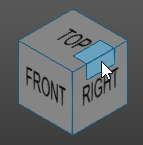
How to use the Navigation Cube
- Click a face - Clicking a face of the Navigation Cube switches the camera to a standard view.
Available orientations include:
- Top
- Bottom
- Front
- Back
- Left
- Right
These predefined views help users quickly align the scene to a known orientation and inspect the setup from a consistent direction.
- Click an edge or corner - Clicking an edge or corner of the Navigation Cube switches the camera to an angled view. This is useful when users want to inspect several sides of the setup at the same time or get a more balanced perspective of the scene.
Additional view reset options
Users can also reset the view to a default orientation by:
- clicking the FastCube icon in the upper-left area of the interface
- double-clicking in an empty area of the 3D Viewer
Operator insights
- Use the Navigation Cube to quickly return to a known camera orientation after rotating, panning, or walking through the scene.
- Use standard views when reviewing geometry from a fixed direction.
- Use angled views when you need a broader overview of multiple visible sides.
Was this page helpful?