Circular Motion Refinement Workflow (G104 Arcs)
Circular motions (G104) consist of two defining points:
- Via / Mid-Point
- End Point
Refining an arc requires careful control of these points to maintain the correct trajectory. Shopfloor Assistant makes this easy through bi-directional selection.
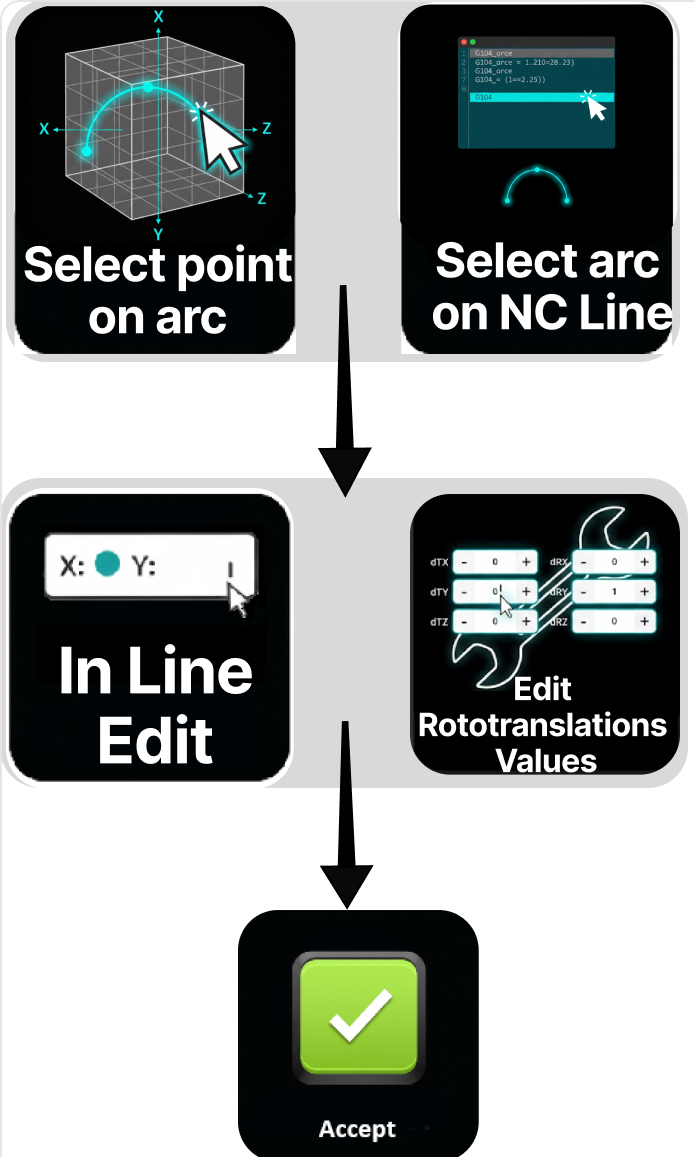
Workflow Steps
Step 1: Select the arc segment to refine
You can select the circular motion (G104) segment from either interface:
- From the NC Editor - Select the G104 line. Both the via or mid-point and the end point are automatically highlighted in the 3D Viewer, and any transformation applies to the full arc.
- From the 3D Viewer - Click directly on either of the arc points:
- Via / Mid-Point
- End Point
Step 2: Apply corrections
Depending on the correction type, you may use:
- Option A: NC Editor - Line-by-Line Editing - Modify parameters such as X, Y, Z, A, B, or tool orientation when needed. This is ideal for fine numeric adjustments.
- Option B: Pivot or Axis Panel - Precise transformations - Use Pivot Teach Workflow or Axis Teach Workflow when the arc point needs more controlled spatial refinement.
Step 3: Accept the changes
Press Accept in Line-by-Line Editing or in the Pivot Teach Panel.
This action:
- updates the selected arc point
- automatically redraws the circular segment
- reflects changes in both the NC code and the 3D Viewer
- shows collision and reachability feedback instantly
Workflow Circular Motion Refinement
Operator insights
- Selecting the G104 block from the NC Editor selects both defining points, which is ideal for full arc visualization.
- For subtle curvature adjustments, edit the via or mid-point.
- For endpoint alignment issues, adjust the end point instead.
- When using Pivot reference, the Manipulator gives intuitive visual refinement of arc geometry.
- Use SHIFT or CTRL multi-selection when adjusting arc segments that must remain continuous.
- Always re-check collision and reachability after adjusting arc points.
- Selecting points from the 3D Viewer gives you more flexibility because you can apply rototranslation offsets to only the selected point (via or endpoint).
Was this page helpful?