Loading an NC Program
Purpose
Loading a program is a key step in the Shopfloor Assistant workflow.
It brings the program content into the NC Editor and makes the corresponding motion path available in the 3D Viewer for inspection, editing, and validation.
Programs can be loaded either together with an already opened project or independently, depending on the task. When a full scene is available, the program is shown in the context of the loaded setup. When no project is opened, the program can still be reviewed and edited on its own.
When a machine model is present, the NC program links the digital machining setup with the actual toolpath logic, enabling you to inspect the process by positioning the machine at the desired point directly within the application.
Procedure
Step 1 — Open the Load Program Command
Click the Load Program button located in the left-side panel of the Shopfloor Assistant interface.
Step 2 — Select the NC File
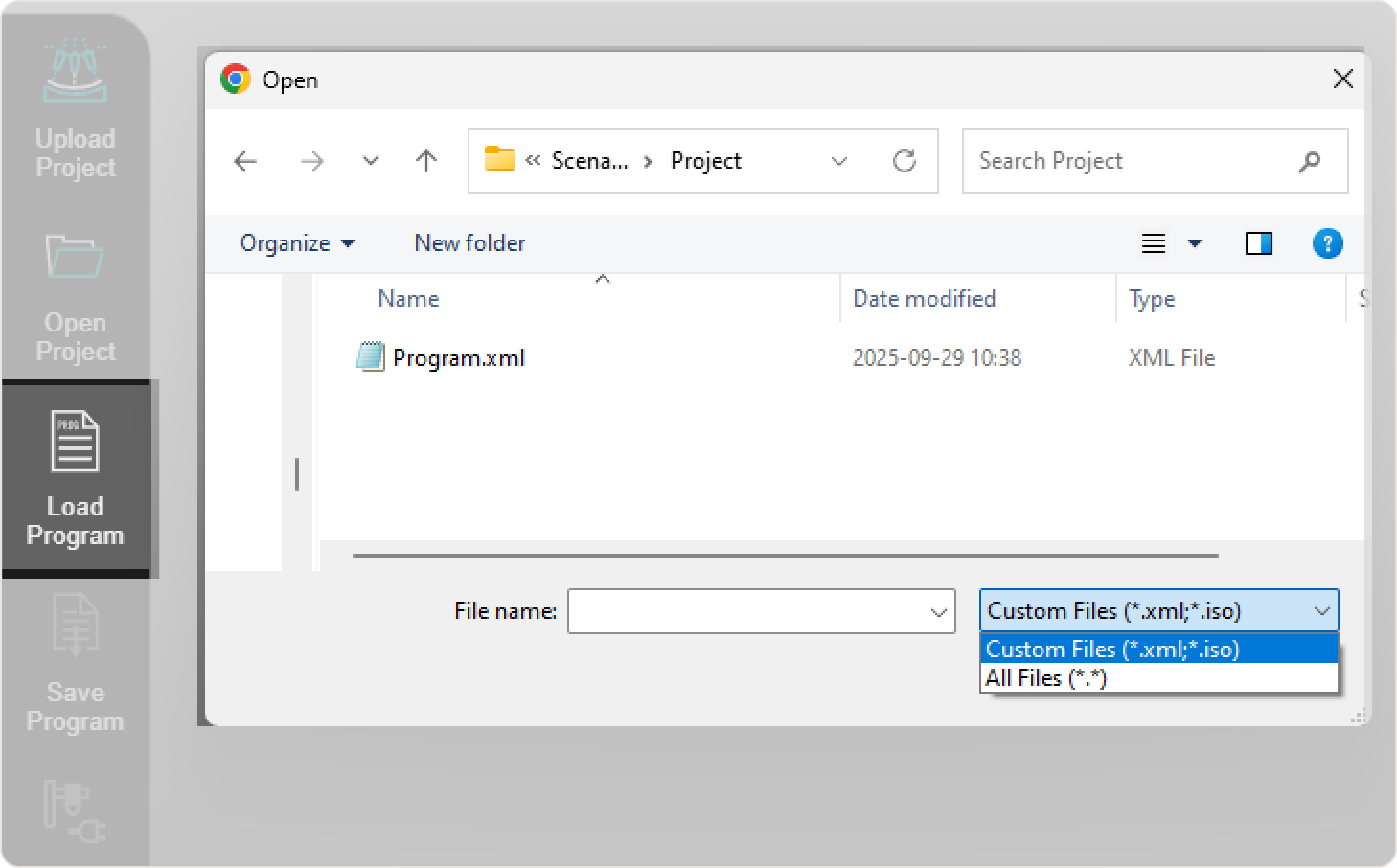
Select your program file. The exact supported format depends on the current workflow and configuration.
Step 3 — Confirm the Selection
The system parses the NC file and begins loading the program.
Step 4 — Wait for Program Initialization
After loading is complete:
- the NC Editor displays the program line-by-line
- the 3D Viewer visualizes the corresponding toolpath geometry
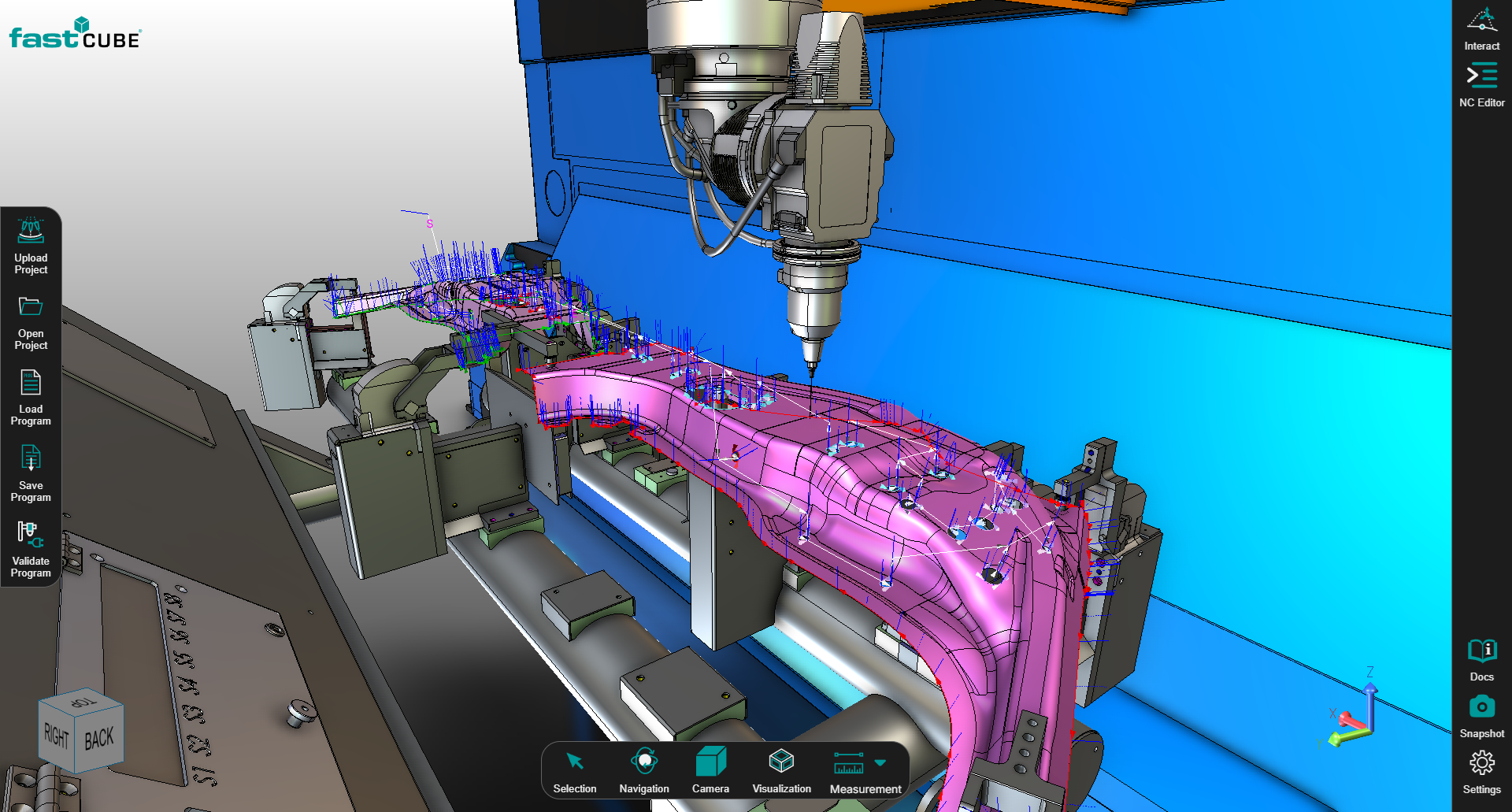
NC Program with Machine Geometry
Shows the NC program loaded along with the machine, fixtures, and workpiece.
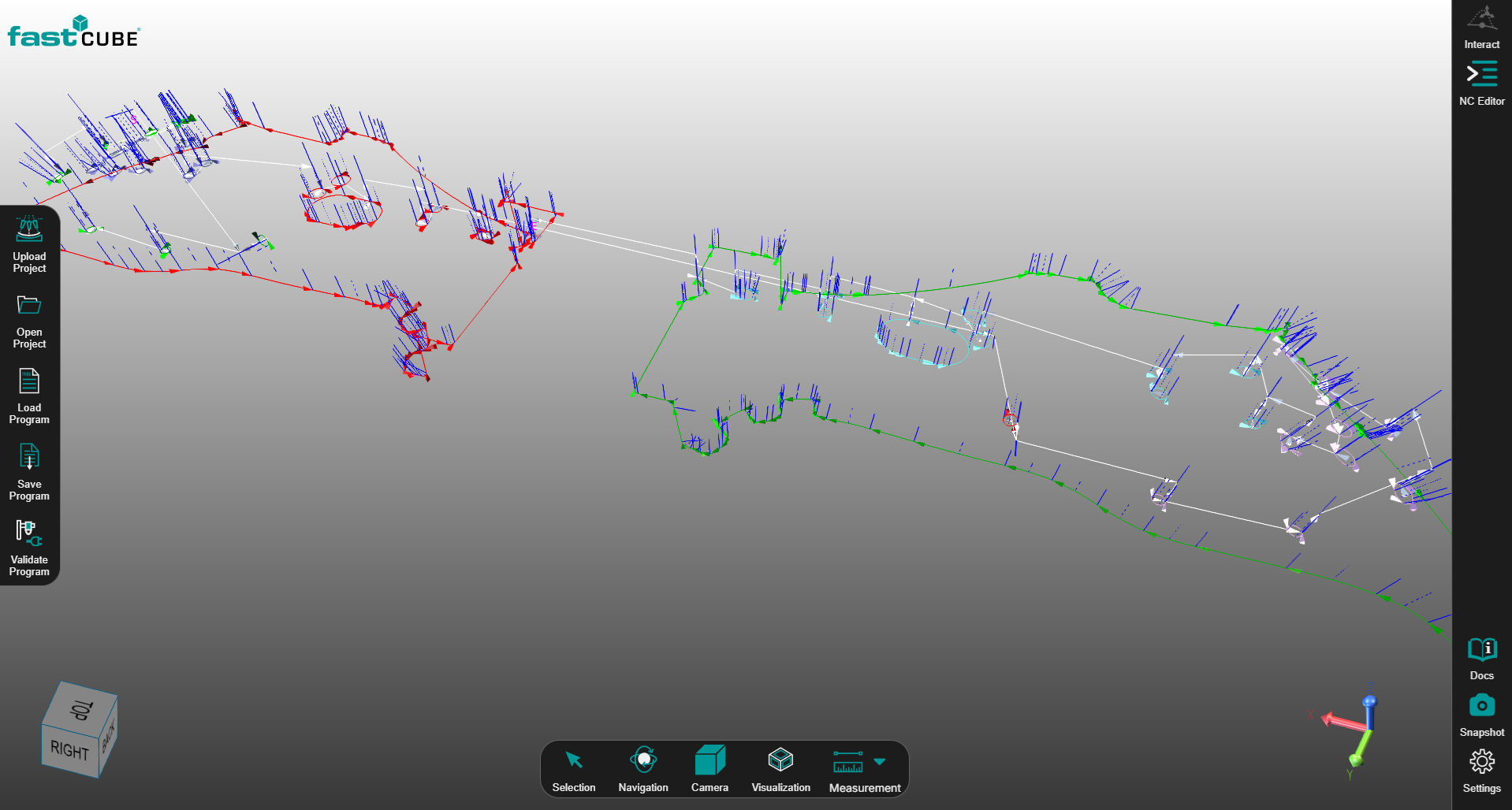
NC Program without Machine Geometry
Shows the NC program loaded independently, without any machine model.
Operator insights
- Each NC point is visually represented in the 3D Viewer, allowing intuitive two-way selection and accurate editing directly to or from the NC Editor panel.
- Programs can be loaded and worked on independently, even without a machine model from a
.cenpkgproject. - Use the 3D Viewer to visually inspect and verify toolpaths before making edits, ensuring accuracy and safety.