Pivot Manipulator
The Pivot Manipulator is the visual pivot used in the Pivot Teach workflow when the active reference system is Pivot (Tool Center Point). It appears in the 3D Viewer when a motion point or grouped feature is selected in the NC Editor or directly in the 3D Viewer.
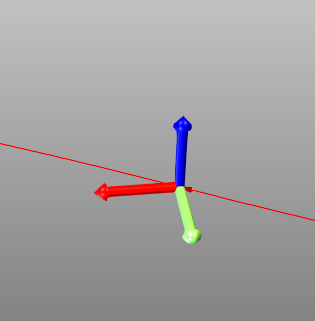
The Pivot Manipulator helps the operator define the pivot used for the transformation. This pivot controls how selected point(s) are moved when translation, rotation, or combined rototranslation values are applied in the Pivot Teach Panel.
Use the Pivot Manipulator when the selected point is not the best pivot for the intended correction, or when the transformation should follow a different local pivot position or orientation.
💡 Tip: The Pivot Manipulator is part of the Pivot Teach workflow. It is used to define and adjust the pivot for geometric transformations. It is not used to directly teach machine-axis values.
User value
Use the Pivot Manipulator when you want to:
- understand where the current pivot is located in the 3D Viewer
- move the pivot to a better position before applying a transformation
- control how selected points move relative to manipulator orientation
- check transformation behavior visually before pressing Accept
This is especially useful when the selected point is not the ideal pivot for the intended correction, or when movement should follow manipulator orientation.
When the Pivot Manipulator is available
The Pivot Manipulator is available when all of the following are true:
- a motion point or grouped feature is selected in the NC Editor or 3D Viewer
- the active reference system is Pivot
- the user is working in Pivot Teach workflow (Rototranslation)
When Pivot is active, the manipulator is visible and editable. If the reference system is changed to another frame, such as Base Frame, the manipulator and its panel are hidden, because the transformation is applied relative to the selected frame instead of the tool-related pivot.
For grouped features such as regshapes, the manipulator can snap to the feature center instead of a single point, because the grouped feature keeps one central pivot.
Pivot Manipulator Panel
The Pivot Manipulator Panel is located at the bottom of the NC Editor panel, inside the Pivot workflow panel.
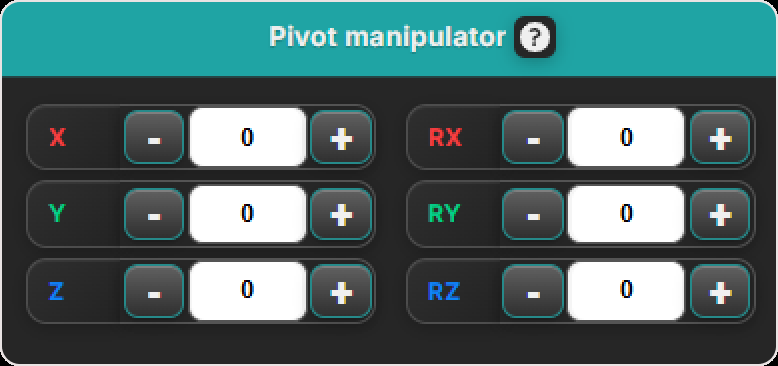
The panel allows precise control of Pivot Manipulator position and orientation. You can use it to:
- translate the manipulator to a new pivot position
- rotate the manipulator to adjust pivot orientation
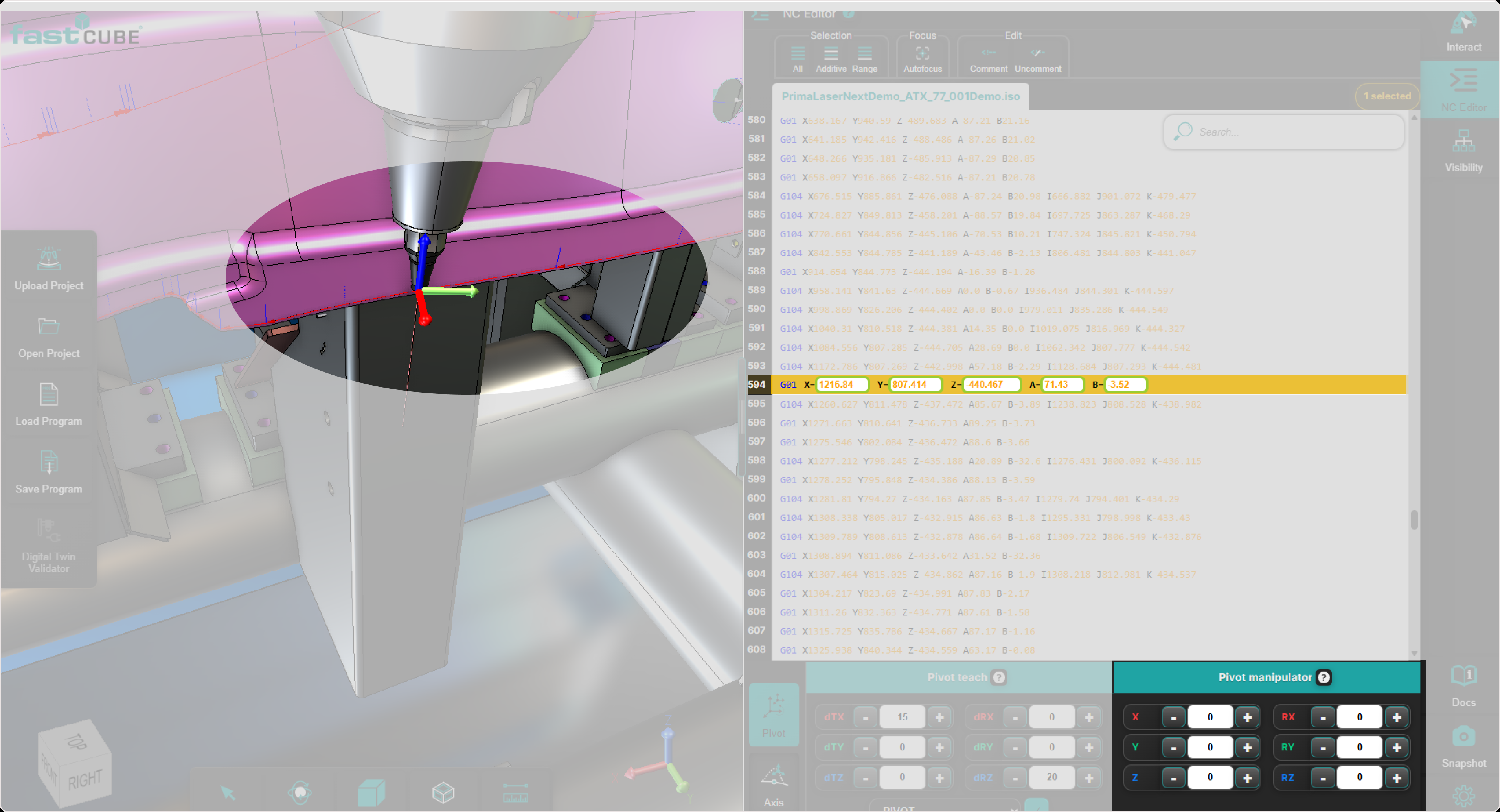
Rotating the manipulator changes the orientation of pivot axes used for the transformation. It does not mean tool orientation is directly changed by the Pivot Teach workflow. In transformation mode, selected points are repositioned while tool orientation is not modified.
How to use the manipulator
Step 1: Select a point or regshape in the NC Editor or 3D Viewer
Select a point in the NC Editor or directly in the 3D Viewer. The selected point becomes active, and the Pivot Manipulator appears at that location when Pivot is the active reference system. For regshape-related selections, the manipulator can snap to the regshape center.
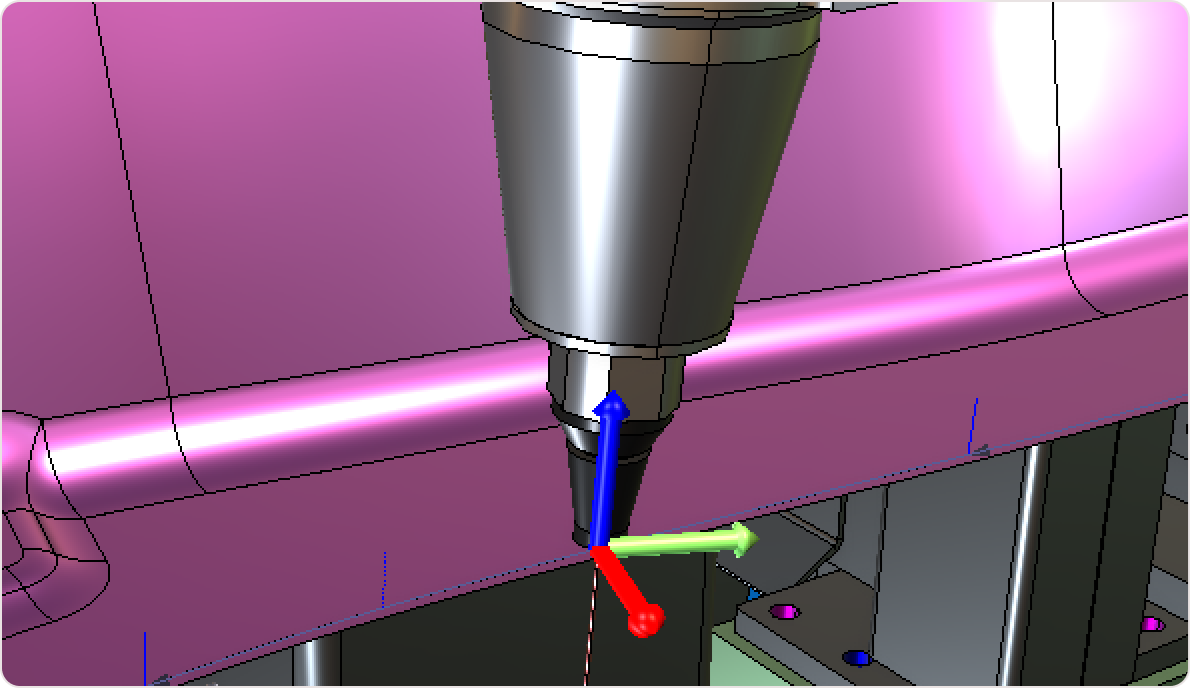
Step 2: Position the Pivot Manipulator
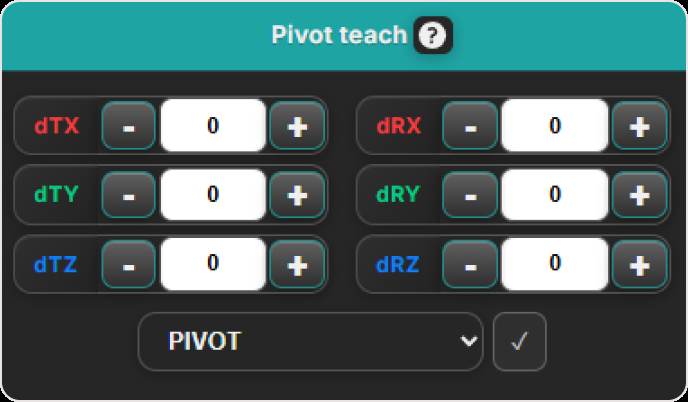
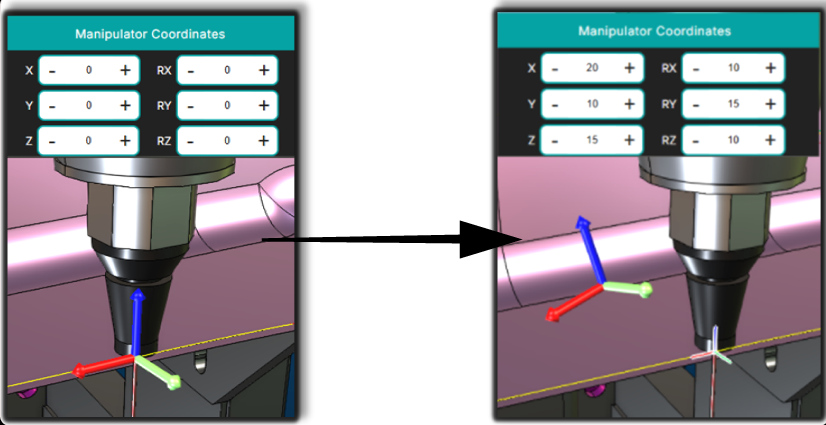
Use the Manipulator Coordinates Panel to define the pivot point correctly:
- translate the manipulator to a new position
- rotate it to adjust orientation
All changes are made with reference to the manipulator’s initial position and appear instantly in the 3D Viewer.
Step 3: Check the manipulator in the 3D Viewer
After positioning the manipulator, check the 3D Viewer before continuing.
Verify that:
- the manipulator is at the intended pivot position
- manipulator orientation matches the intended transformation direction
- the correct point or grouped feature is still selected
- movement will affect the intended toolpath region
This visual check helps avoid applying a transformation from the wrong pivot.
Step 4: Apply Pivot Teach
In the Rototranslation panel, the reference must be set to Pivot.
After positioning the Pivot Manipulator, continue with Pivot Teach (Rototranslation). In this workflow:
- selected NC points receive translation and/or rotation offsets
- transformation works relative to the selected reference system, such as Pivot or Base Frame
- the Pivot Manipulator acts as the visual pivot when Pivot is selected
- transformation result is previewed in the 3D Viewer
- updated point positions are written back after Accept
What changes when you move the Pivot Manipulator
Changing the Pivot Manipulator changes the transformation result because it changes the pivot definition.
Translation
When you apply a translation, selected points move relative to manipulator orientation. Selected elements are repositioned in X, Y, Z relative to the 3D manipulator orientation.
Rotation
When you apply a rotation, selected points rotate around manipulator axes. The transformation panel provides RX, RY, RZ controls for rotation when using the manipulator.
Combined movement
Translation and rotation can be combined in Pivot Teach, and the result is shown as a preview before confirmation.
The same numeric values can produce a different result if the Pivot Manipulator is in a different position or orientation.
Reference system behavior
The Pivot Manipulator works together with the Pivot Teach Panel only when the active reference is Pivot (Tool Center Point). If the active reference is changed to another frame, such as Base Frame, the manipulator and its panel are hidden because transformation is then applied relative to the selected frame instead of the tool.
What happens after Accept
After a rototranslation is accepted:
- updated point positions are written back into the NC program
- the Pivot Manipulator moves to the new point position and resets to its default state
- Manipulator Panel values are refreshed
This helps keep the visual pivot aligned with the new geometry after transformation.
Notes and limitations
- The Pivot Manipulator is used for geometric correction in Pivot Teach.
- It does not directly teach or write back new machine-axis values.
- If the active reference system is Base Frame, the manipulator is hidden even though transformations still apply correctly.
- On multi-selection, the manipulator is placed on the first selected point and all selected elements receive the same incremental transformation.
- For grouped features such as regshapes, the pivot can remain feature-based rather than point-based.
Operator insights
- Think of the Pivot Manipulator as the pivot control for Pivot Teach.
- The manipulator updates instantly with every selection or value change, so interactions are reflected live in the 3D Viewer with precise visual feedback.
- To reset Manipulator Panel values, select a new point from the NC Editor or 3D Viewer.
- After rototranslation is applied, the Pivot Manipulator automatically moves to the new point position, resets to its default state, and refreshes Manipulator Panel values.
- It is ideal for inspecting challenging tool positions, adjusting orientation, and correcting subtle trajectory deviations with confidence.