Validating Your NC Code
Validation is the final safety check before execution.
Validation is the final and most important step before sending an NC program to the real machine.
In Shopfloor Assistant, validation is performed by a Virtual Controller, which simulates the machining process using real machine limits, axis constraints, and collision geometry.
This ensures that the program is safe, reachable, and ready for execution before a single chip is cut.
Important: Program validation is currently available only for SINUMERIK controllers. If a SINUMERIK program is not loaded, the Validate Program button is disabled.
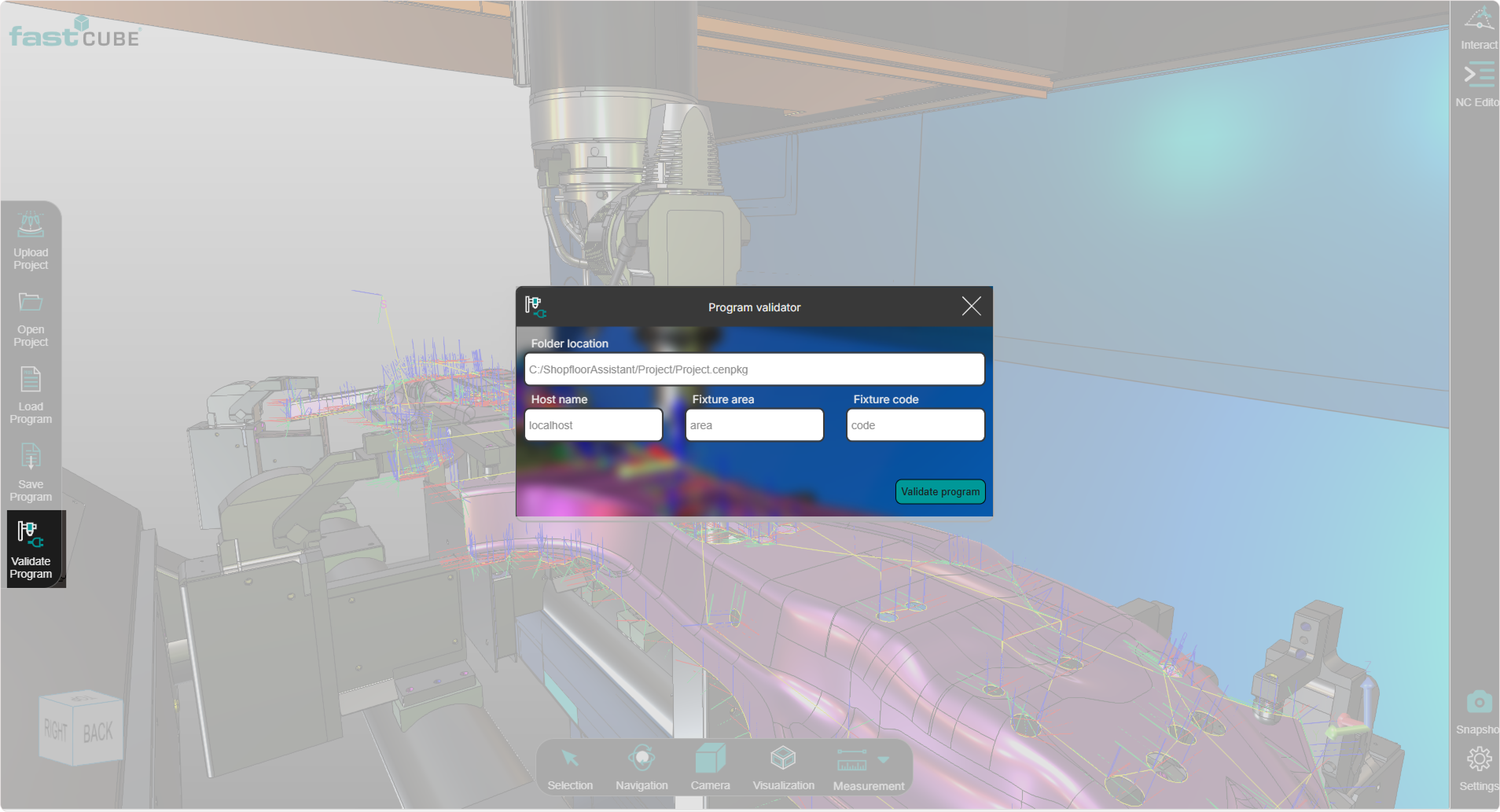
What does Validate Program do?
The Validate Program operation performs the following checks:
- Collision Detection - ensures the tool does not collide with the workpiece, fixtures, or machine components.
- Reachability Analysis - verifies that all points in the NC program are within the machine movement limits.
- Syntax and Structure Review - detects formatting errors, missing values, or unsupported commands.
How to Run Validation
Before you begin
The NC program must be saved.
Validation always uses the last saved version of the program. Unsaved edits are not included in the validation process.
Step 1: Click Validate Program
Open the Validation Setup Window from the left-side panel of the Shopfloor Assistant interface.

Note: The Validate Program button is enabled only when a SINUMERIK NC program is loaded. For other controllers, validation is not available and the button remains disabled.
Step 2: Fill in the required fields
Before starting validation, provide the required details so the Virtual Controller can simulate the NC program correctly.
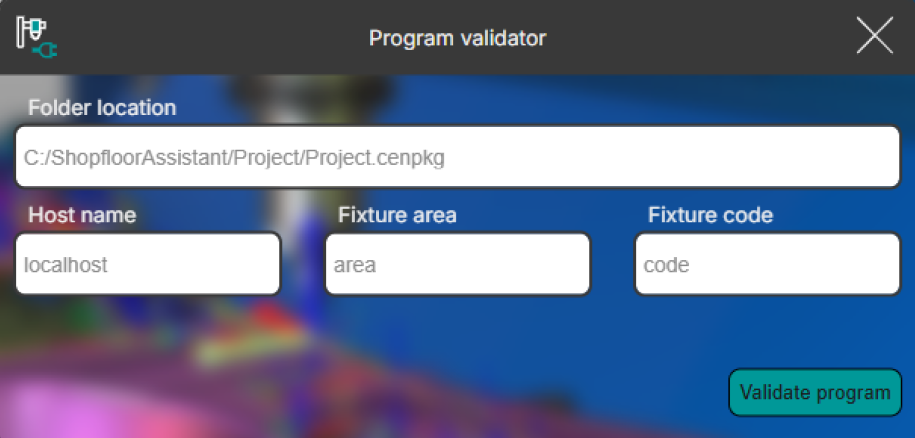
- Folder Location - Directory where the validation engine gets the project data (cenpkg file). This is filled automatically but can be changed.
- Host Name - Hostname or IP address of the machine running the validation service. This can also be set in the Installation window or in the Launch Application window settings.
- Fixture Configuration (Fixture area and Fixture code) - If your NC program includes fixture data, Shopfloor Assistant automatically detects and loads it.
Tip: The Validate Program button becomes active when all required fields are filled.
Step 3: Start validation
Press Validate Program to start validation on the Virtual Controller.
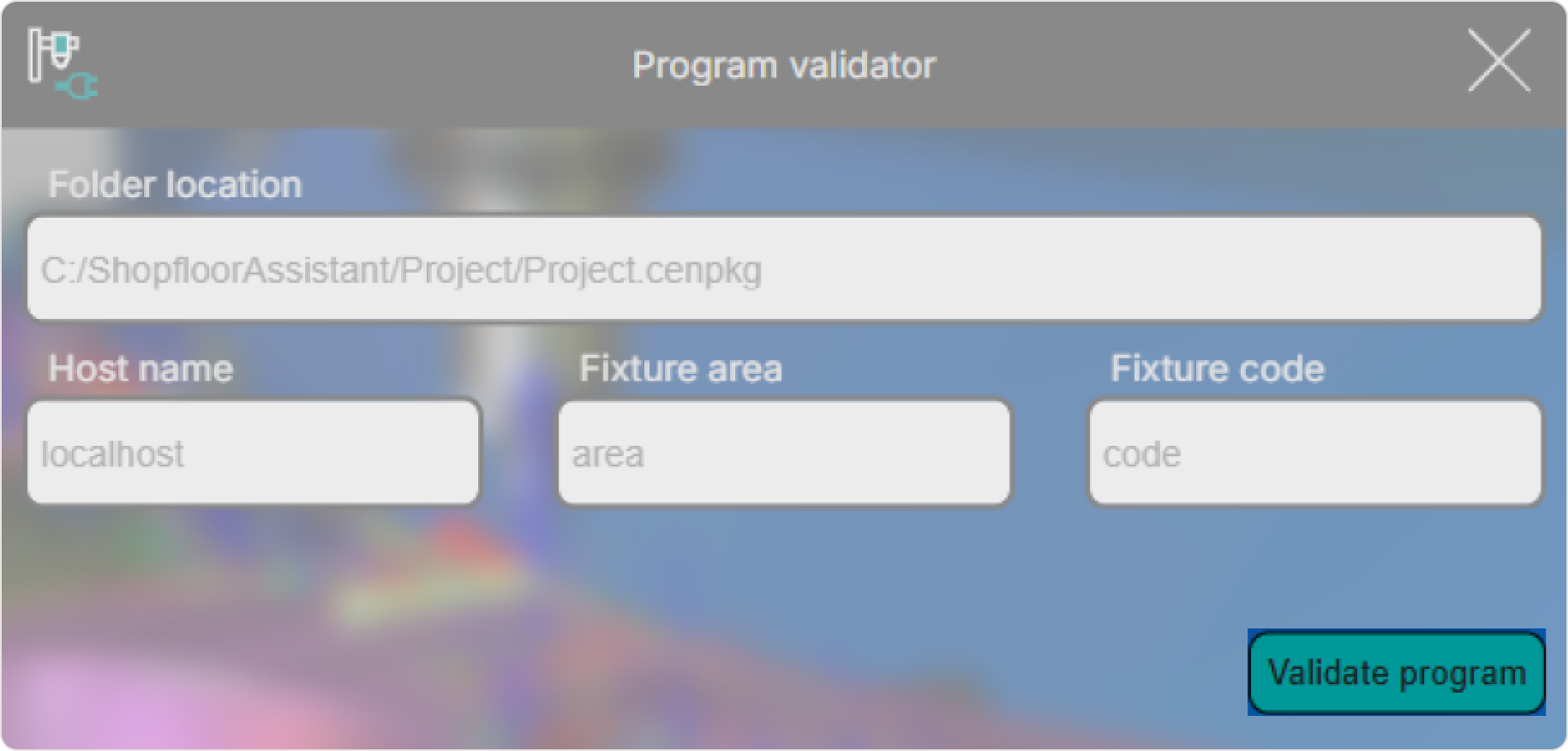
The system runs the validation and highlights any detected issues.
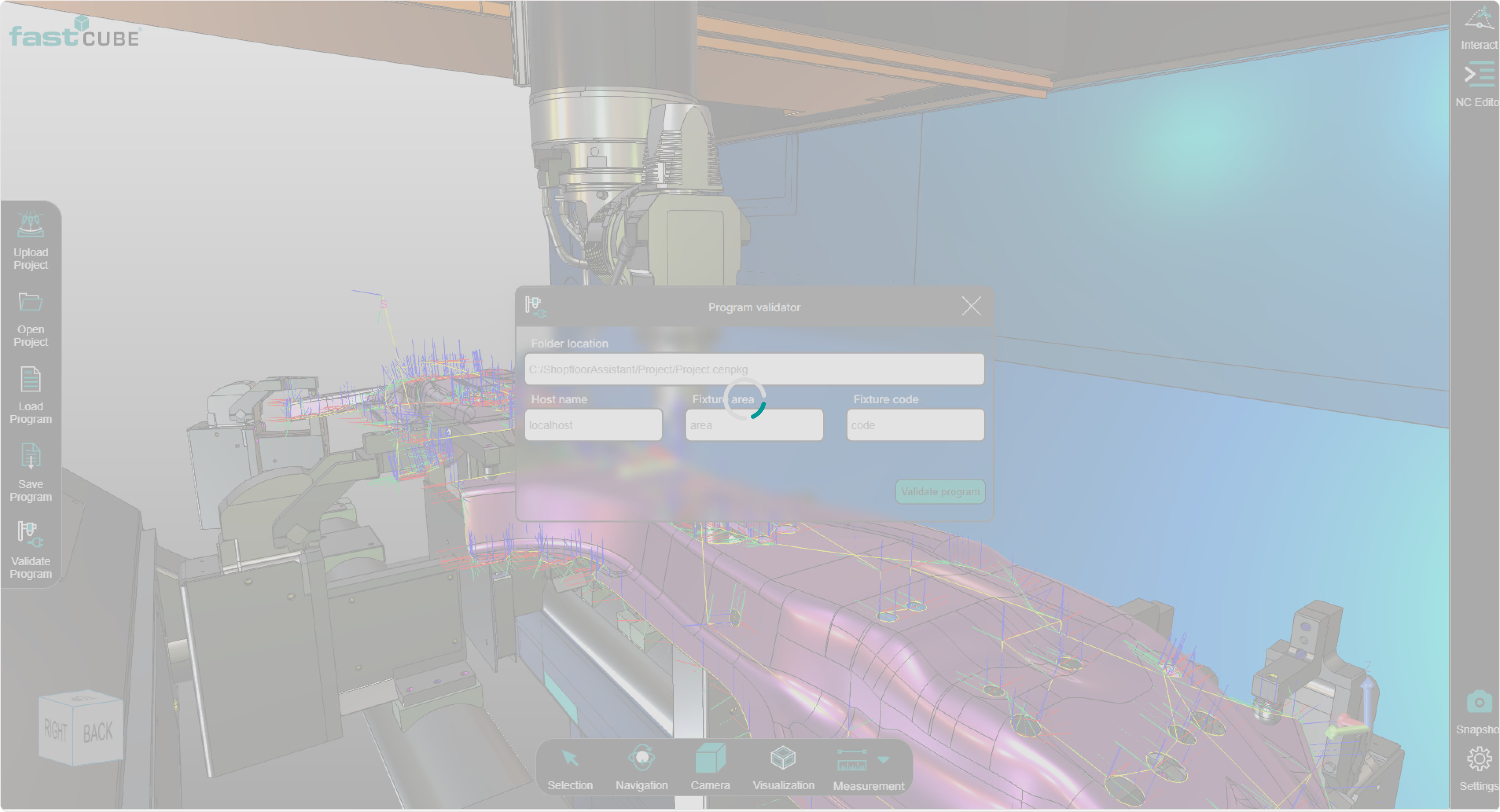
During validation, the Shopfloor Assistant user interface becomes temporarily disabled (grayed out), preventing interaction until the process is complete.
Once validation finishes, status notifications appear in the bottom-left corner of the validation window and indicate whether validation succeeded or errors were detected.
Validation results
You may see one of the following outcomes.
Validation failed with error code
Displayed when the Virtual Controller detects errors or cannot complete the simulation.

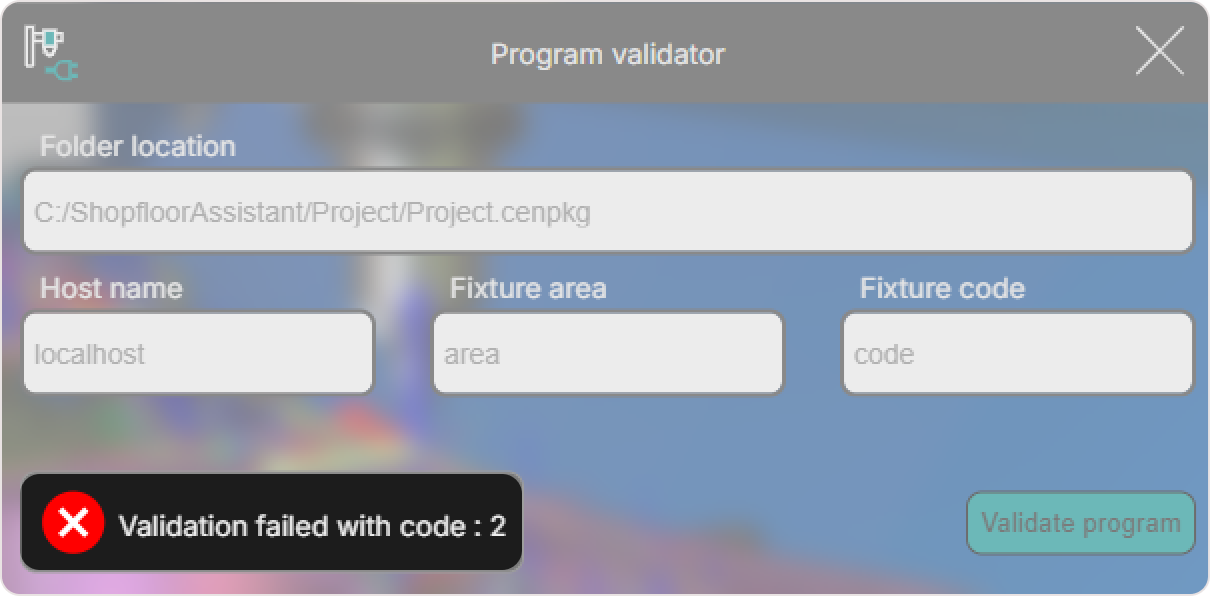
Error exit codes
| Code | Meaning |
|---|---|
| 0 | E2 closed normally from the X button |
| 1 | E2 closed unexpectedly |
| 2 | Unexpected errors (communication error or bad request) |
| 3 | Shopfloor Assistant internal error |
| 200 | License validation failed |
| 4001 | Automatic Program Validation failed (timeout) |
| 4002 | Automatic Program Validation generic error |
Validation completed successfully
Displayed when the validation engine returns exit code 4000.

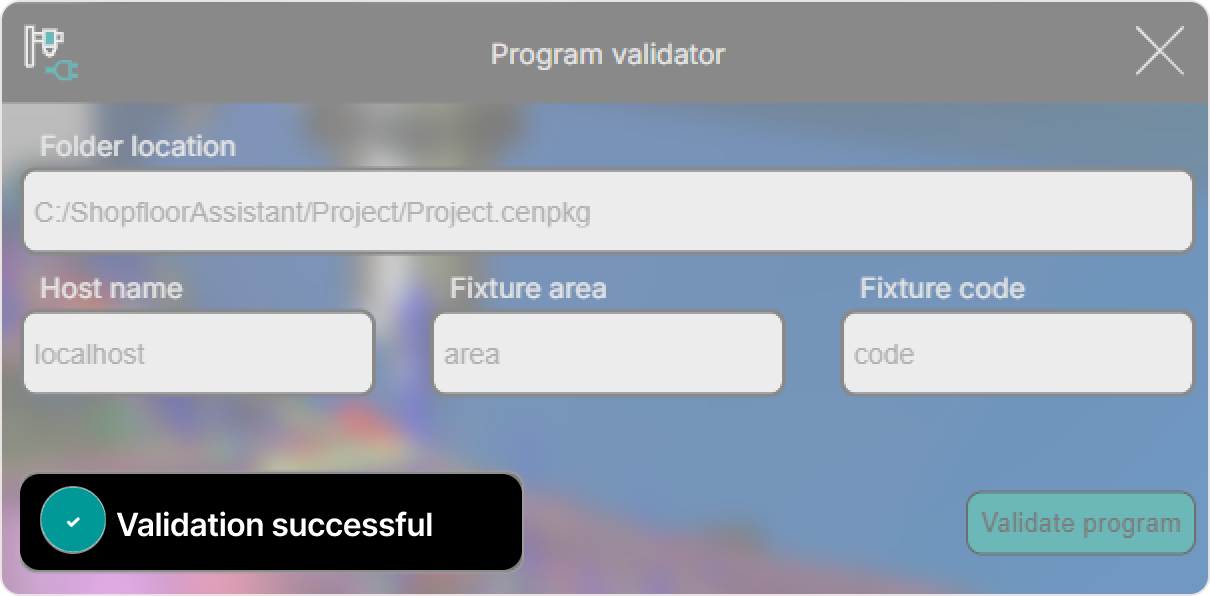
This confirms that the NC program passed validation checks.
Operator insights
- Always save the NC program before validation. Only saved changes are used by the Virtual Controller.
- Double-check Folder Location, Host Name, and Fixture Area and Code before starting.
- Avoid interacting with the UI during validation. Do not change selections, edit points, or switch panels.
- Run validation after major edits to ensure safety before execution.