Previewing Program Differences
The Preview Differences function allows you to review the differences between the original program and the current modified program before continuing.
This is useful when you want to understand what changed, compare the original and current program content, and visually verify the impact of the modifications in the 3D Viewer.
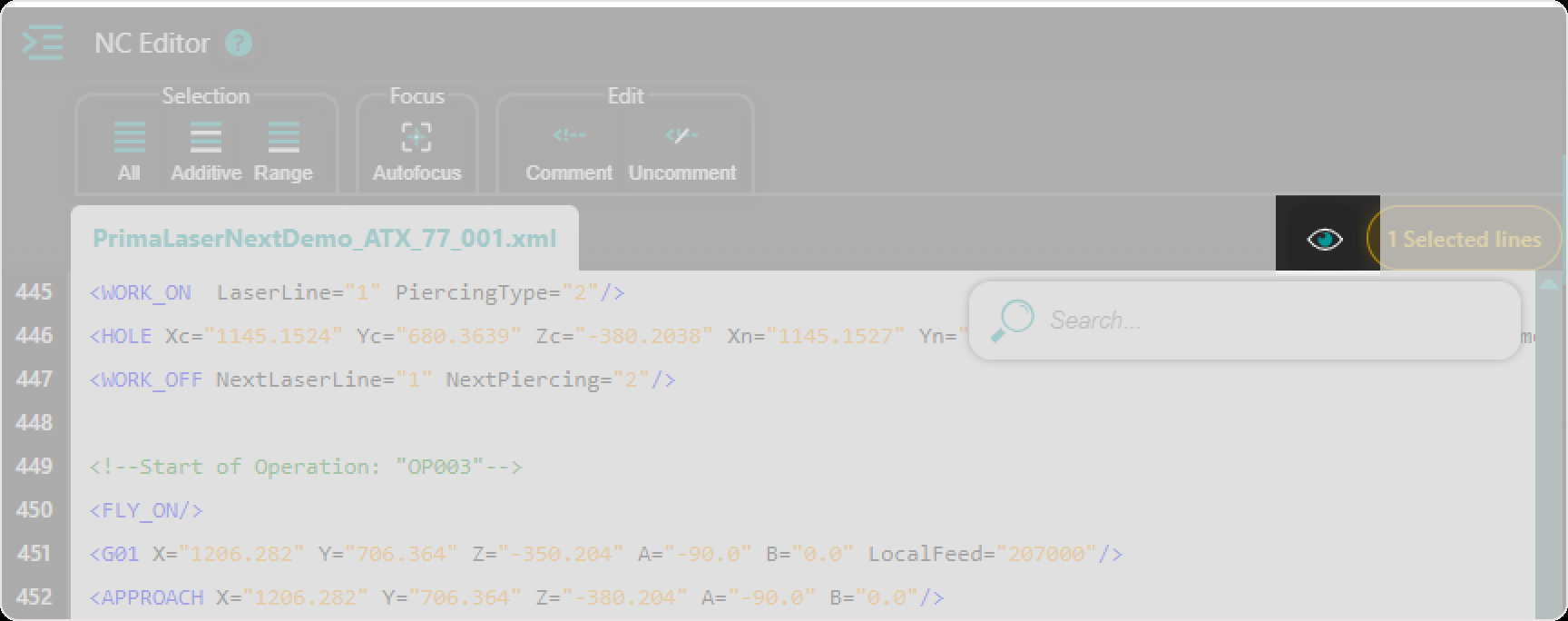
The Preview Differences button is available in the NC Editor.
What Preview Differences helps you do
Use Preview Differences when you want to:
- compare the original program with the current modified program
- review changed NC lines before saving
- understand which program sections were modified
- visually compare the original and current toolpath in the 3D Viewer
- verify the spatial impact of edits before continuing
- reduce the risk of saving unintended changes
How to Use Preview Differences
Step 1: Open Preview Differences
In the NC Editor, click the Preview Differences button.
The application switches to a comparison view.
In this mode, Shopfloor Assistant shows the differences between the original program state and the current modified program state.

Step 2: Review the 3D difference preview
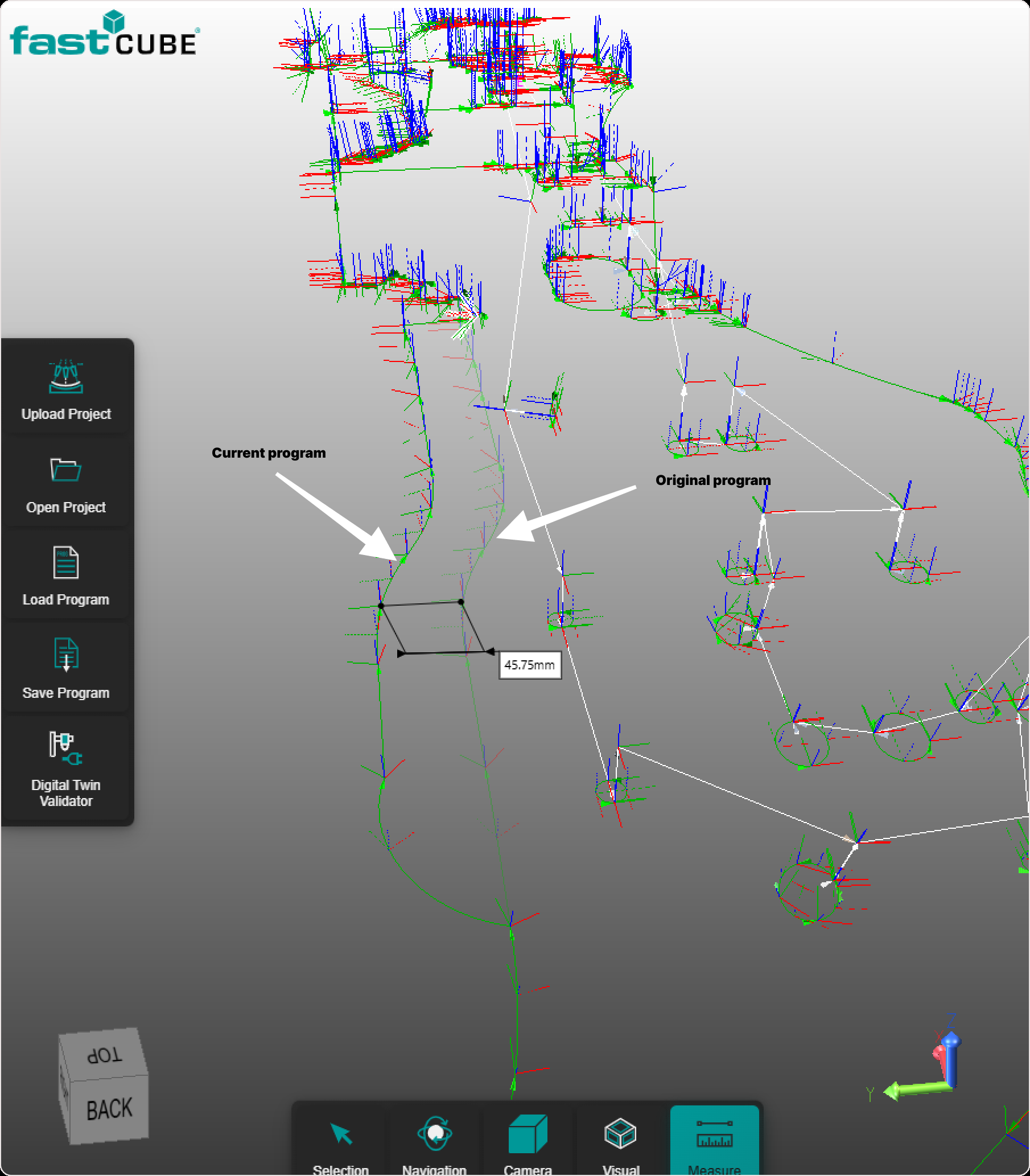
When Preview Differences is active, the 3D Viewer displays a visual comparison between:
- the original program toolpath
- the current modified program toolpath
This allows you to review how the modifications affect the visible toolpath and production context.
Use the 3D Viewer to check:
- where the modified toolpath differs from the original one
- whether the updated path follows the expected position
- whether the change affects the intended area only
- whether the modified result is visually correct before saving or continuing.
Step 3: Review the NC comparison view
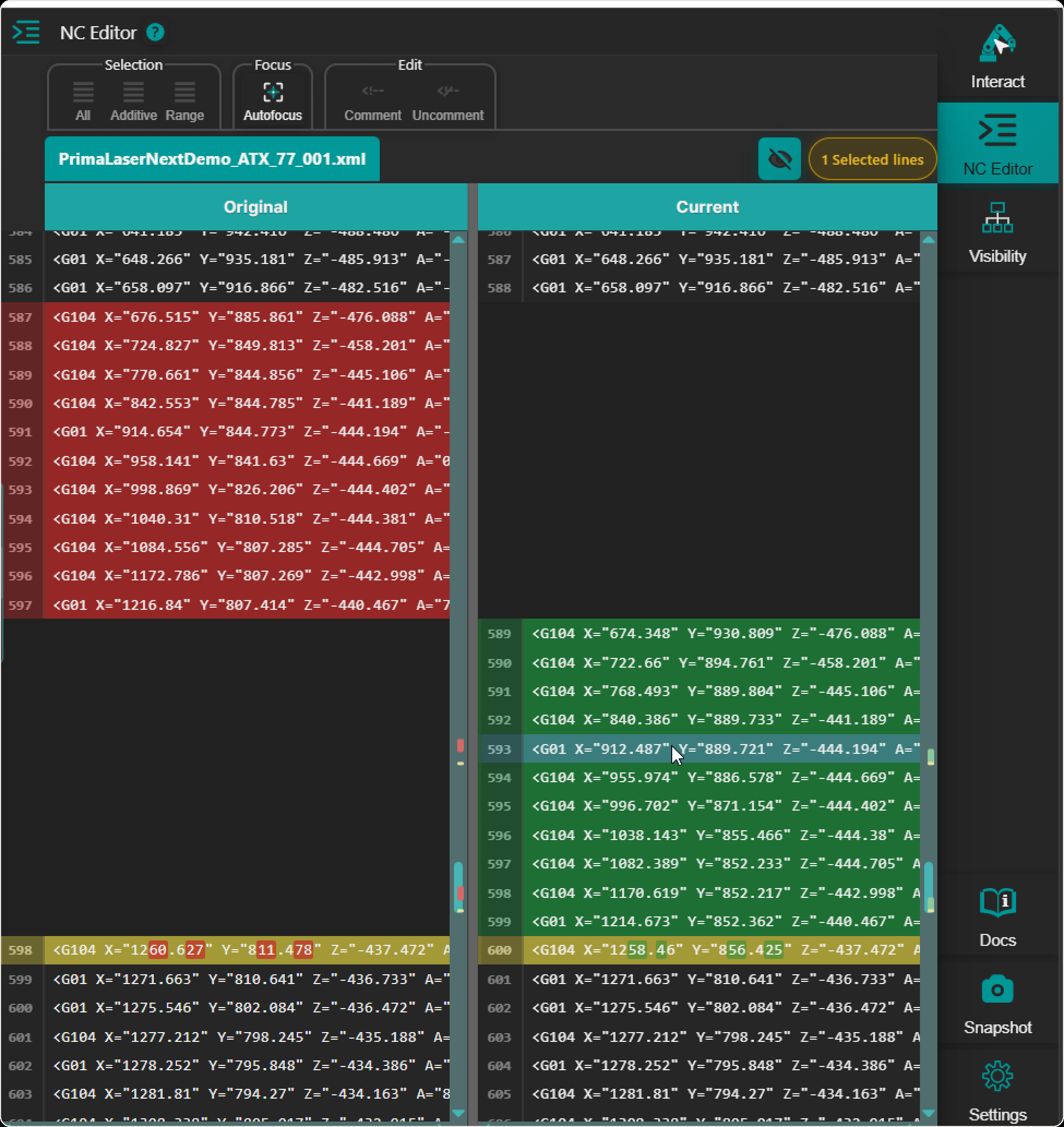
The NC Editor also shows a program comparison view.
The comparison is displayed in two columns:
- Original - the program state before the modifications
- Current - the current modified program state
This view helps you compare the program content line by line and identify what changed.
Use this view to check:
- changed lines
- inserted or removed content
- modified motion values
- updated commands or events
- differences between the original and current program structure.
Step 4: Use hover highlight for 3D understanding
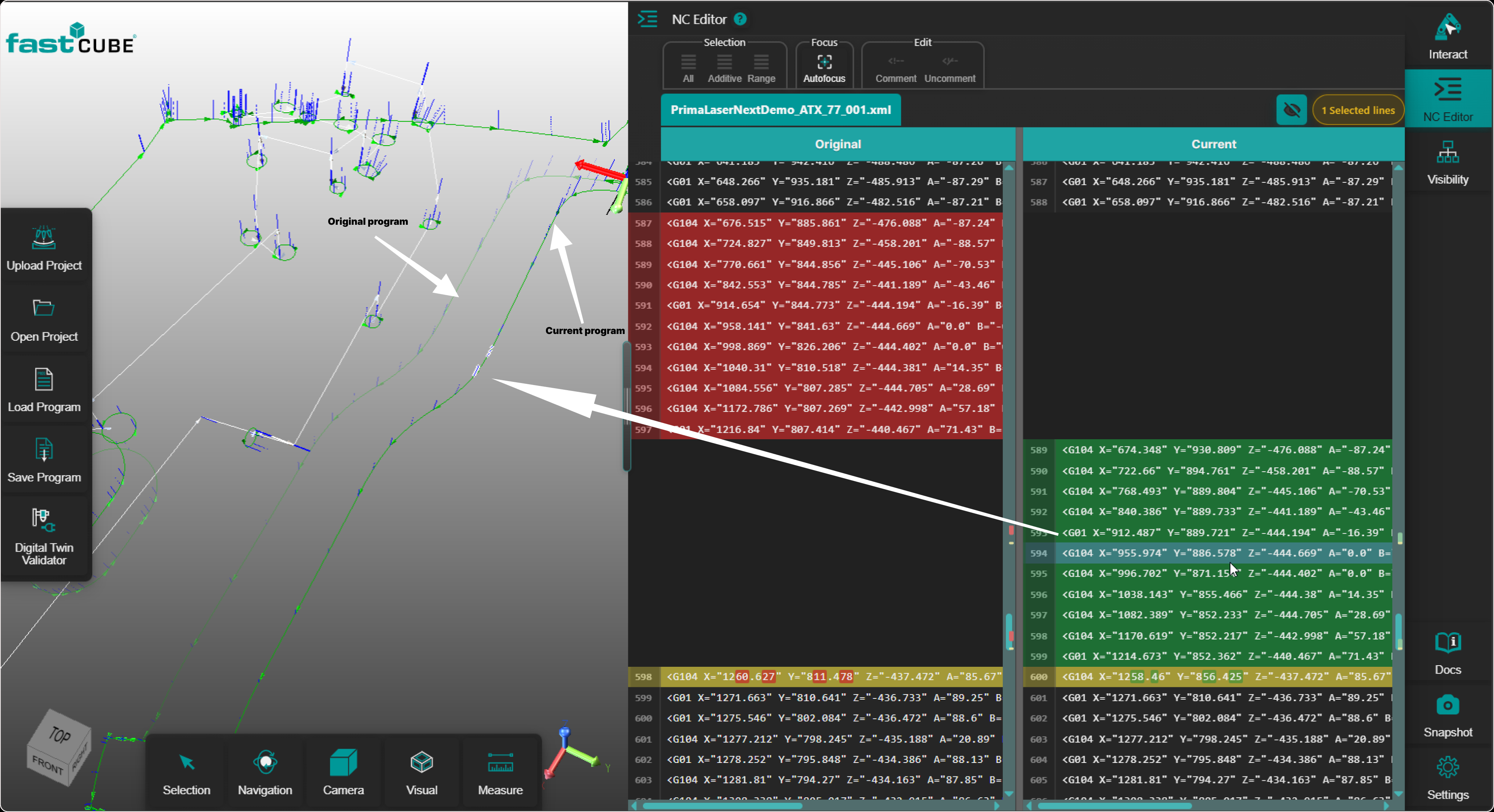
In the comparison view, moving the mouse over supported lines in the Current program can highlight the corresponding motion or toolpath element in the 3D Viewer.
This helps you connect the changed program content with the visible result in 3D.
Use this interaction when you want to understand exactly where a changed line is located in the toolpath.
Step 5: Continue after review
After reviewing the differences, decide whether the current program state is correct.
If the result is correct, you can continue with the next workflow step, such as saving or validating the program.
If the result is not correct, return to the editing workflow and adjust the program before continuing.
Operator insights
- Preview Differences helps you compare the original program with the current modified program.
- The 3D Viewer shows a visual comparison between the original and modified toolpath.
- The NC comparison view shows the original program and current program side by side.
- Use the Current program side to understand the active modified state.
- Hovering supported lines in the Current program can highlight the related motion or toolpath element in the 3D Viewer.
- Preview Differences is a review function. It does not modify the program by itself.
- Always review both the NC comparison and the 3D Viewer before saving important changes.
- If the difference preview does not match the intended result, return to the editing workflow and adjust the program.