Insert Commands in the Program
The Insert Command function allows you to add new NC lines directly in the NC Editor.
This is useful when you need to extend the program with additional content, add comments, insert supported motion commands, add event-related commands, or manually enter a custom NC line without editing the surrounding program structure manually.
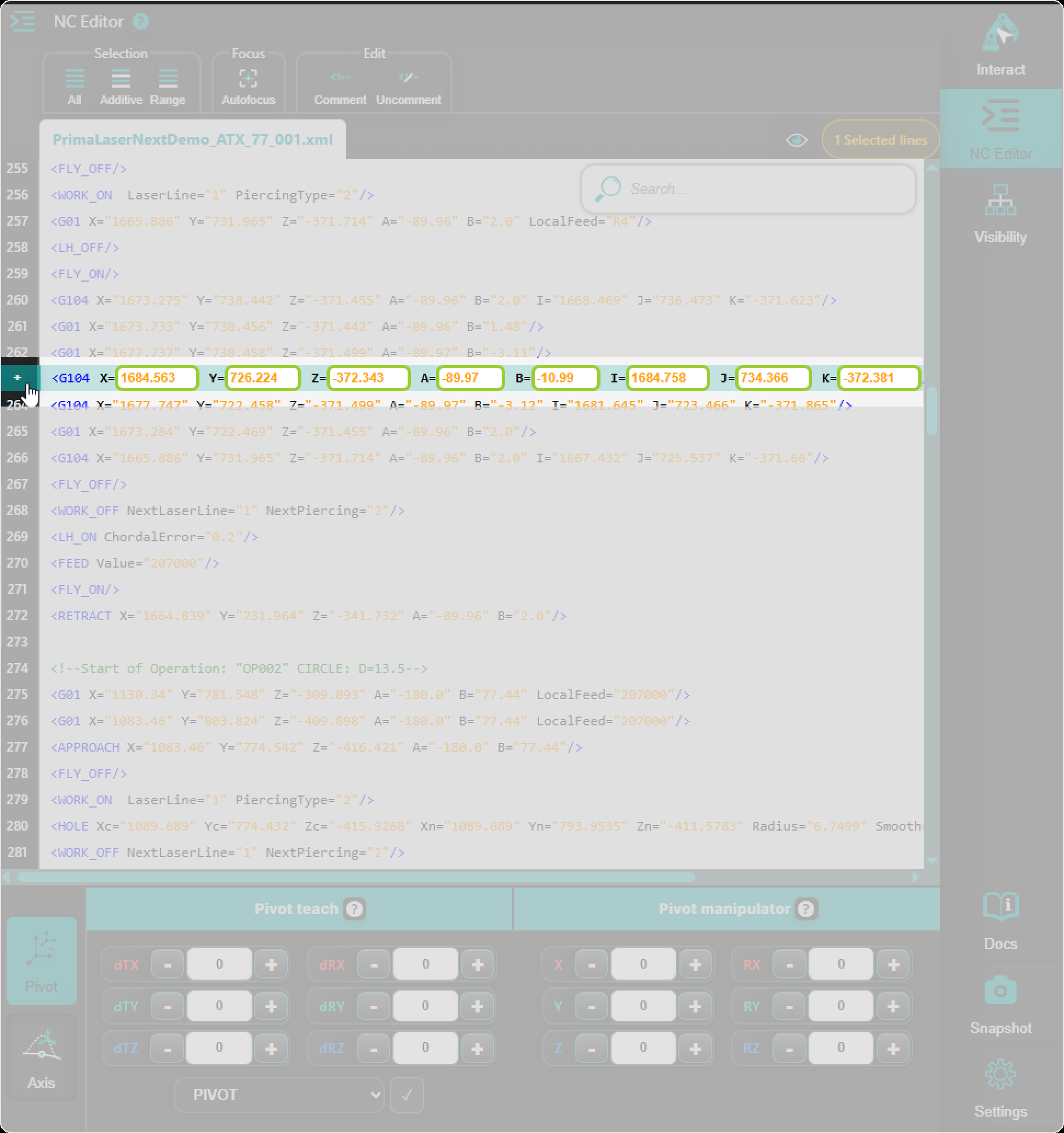
The Insert Command action is available from the plus icon displayed on the left side of the selected line in the NC Editor.
Note: Insert Command is available only when a single line is selected.
Available command types
The Insert Command workflow supports the following command types:
- Empty
- Comment
- Motion
- Linear motion
- Circular motion
- Event
- Custom
Each command type provides a different way to add content to the NC program.
Use predefined command types whenever possible. Use Custom when the required command is not covered by the predefined options or when you need to paste an existing program line directly.
When to use Insert Command
Use Insert Command when you want to:
- add a new empty line for structure or readability
- add a comment to document a local change or program section
- insert a supported motion command
- add a supported event-related command
- paste or type a custom NC line directly
- extend the program without manually rewriting nearby lines
How to Use Insert Command
Step 1: Select one NC line
In the NC Editor, select the line after which the new command should be inserted.
Insert Command is available only for a single selected line. If multiple lines are selected, the Insert Command action is not available.
Review the selected line carefully before continuing, because the new command is always inserted on the next line.
Step 2: Open Insert Command
Use the plus icon displayed on the left side of the selected line.
The Insert Command panel opens below the selected line and allows you to define the command that should be inserted.
Step 3: Select the command type
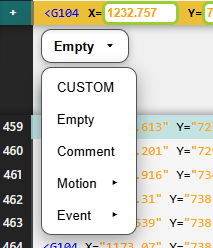
Choose the command type that matches the content you want to insert.
- Empty - Use Empty to insert an empty line into the NC program. This can be useful when you want to visually separate program sections or prepare space for additional manual content. An empty line does not create a new toolpath point in the 3D Viewer.
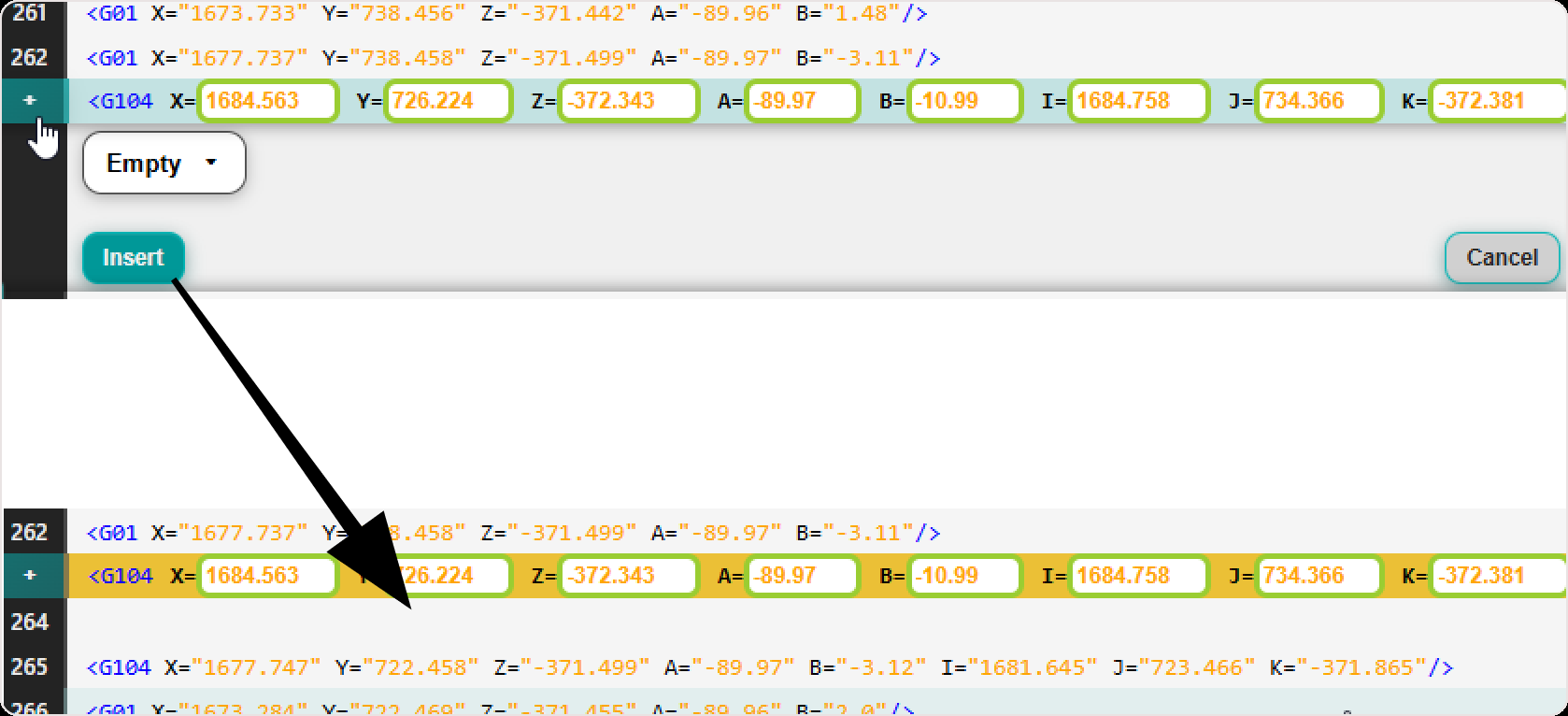
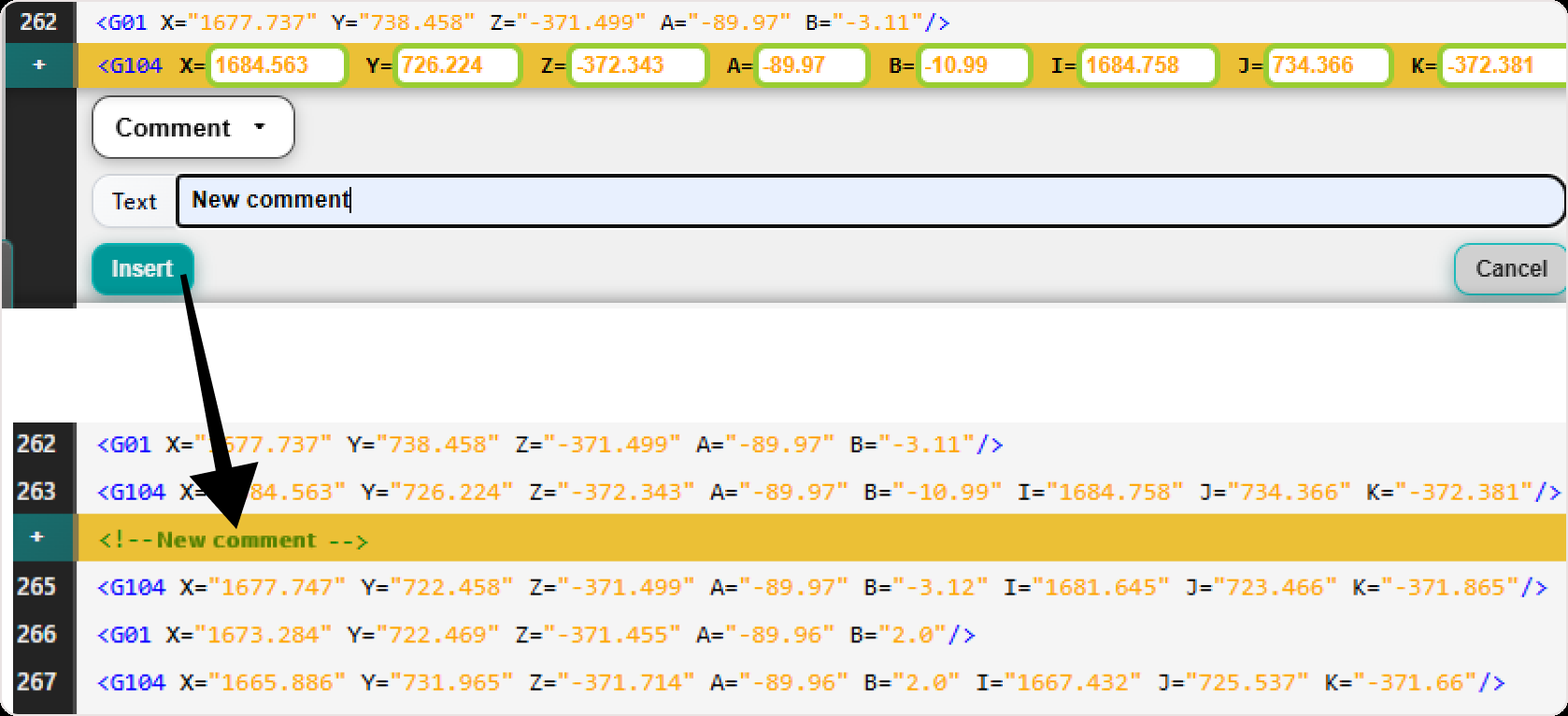
- Comment - Use Comment to insert a comment line. Enter the comment text in the available text field. This can help document local changes, mark program sections, or add information for other operators, programmers, or engineers. A comment line does not create a new toolpath point in the 3D Viewer.
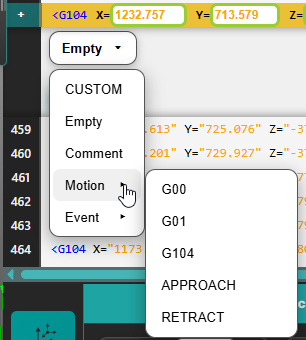
- Motion - Use Motion to insert a supported motion command.
The Motion command type supports:
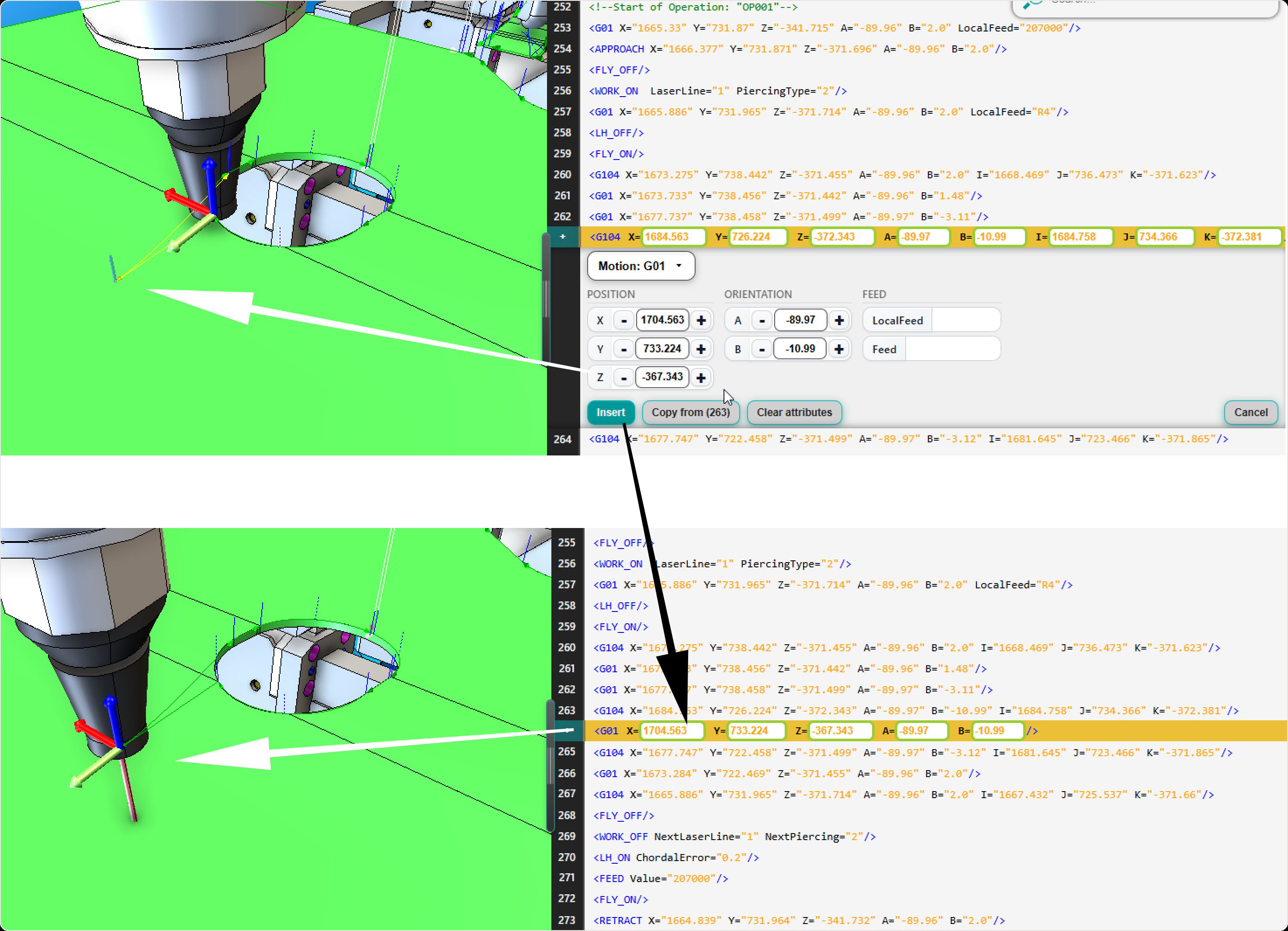
- Linear motion (G00, G01, Approach, Retract) - provides position, orientation, and feed-related fields.
-
Circular motion (G104, G14) - provides position, machine angle, via-position, and feed-related fields.
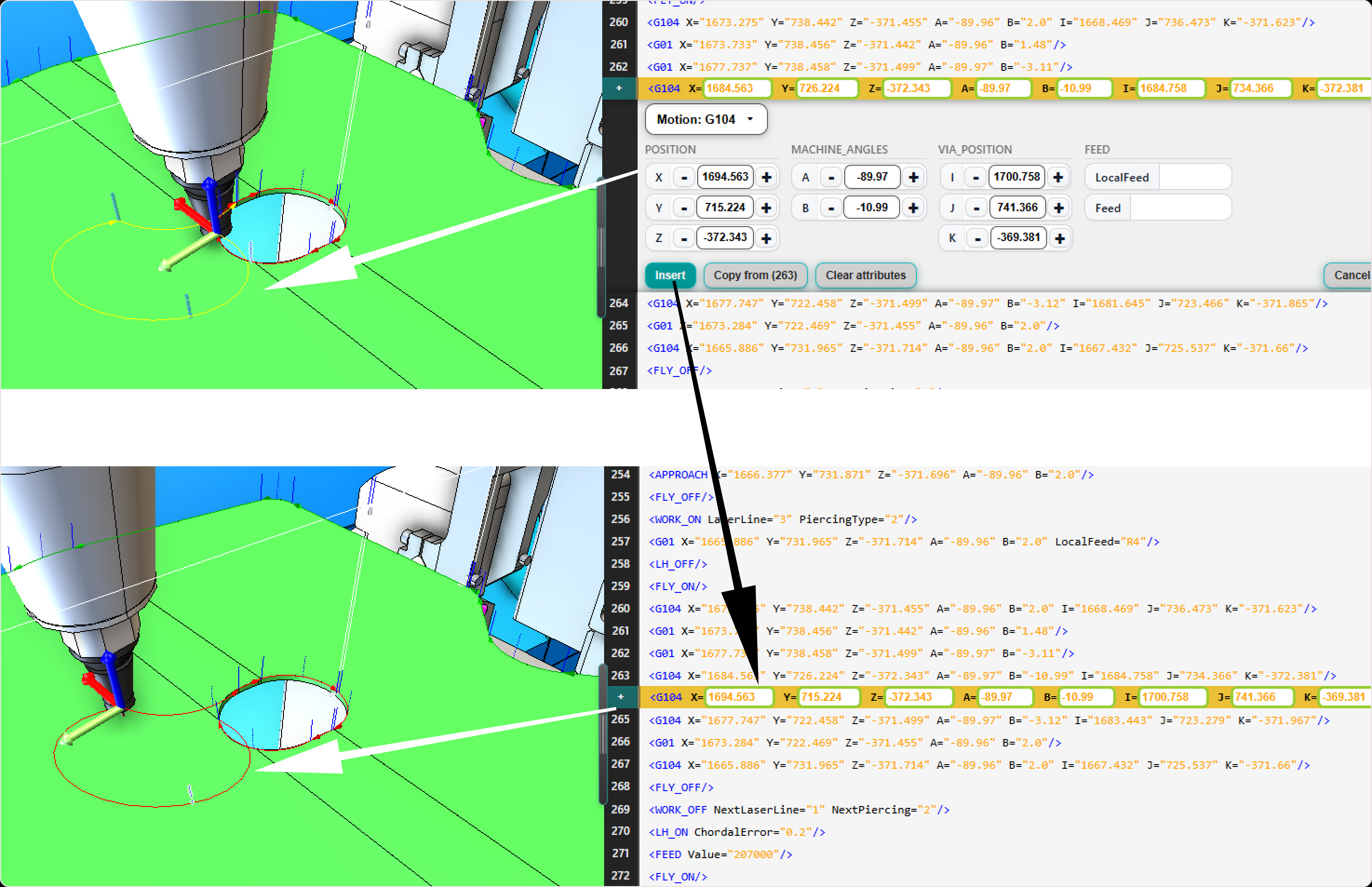
Use this option when a new movement needs to be added using the supported motion structure.
When a motion command is selected, the values are automatically initialized based on the first previous motion point found above the selected line. This provides a useful starting point and reduces the need to enter all values manually.
The operator can then modify each value individually.
The Motion command also provides additional actions:
- Copy from line - copies motion values from another selected motion line.
- Clear attributes - clears the available attributes so the operator can define only the required values.
After selecting a supported motion command, a preview is shown automatically in the 3D Viewer.
This preview helps the operator verify the new motion before inserting it into the NC program.
The active program representation is updated only after the command is inserted.
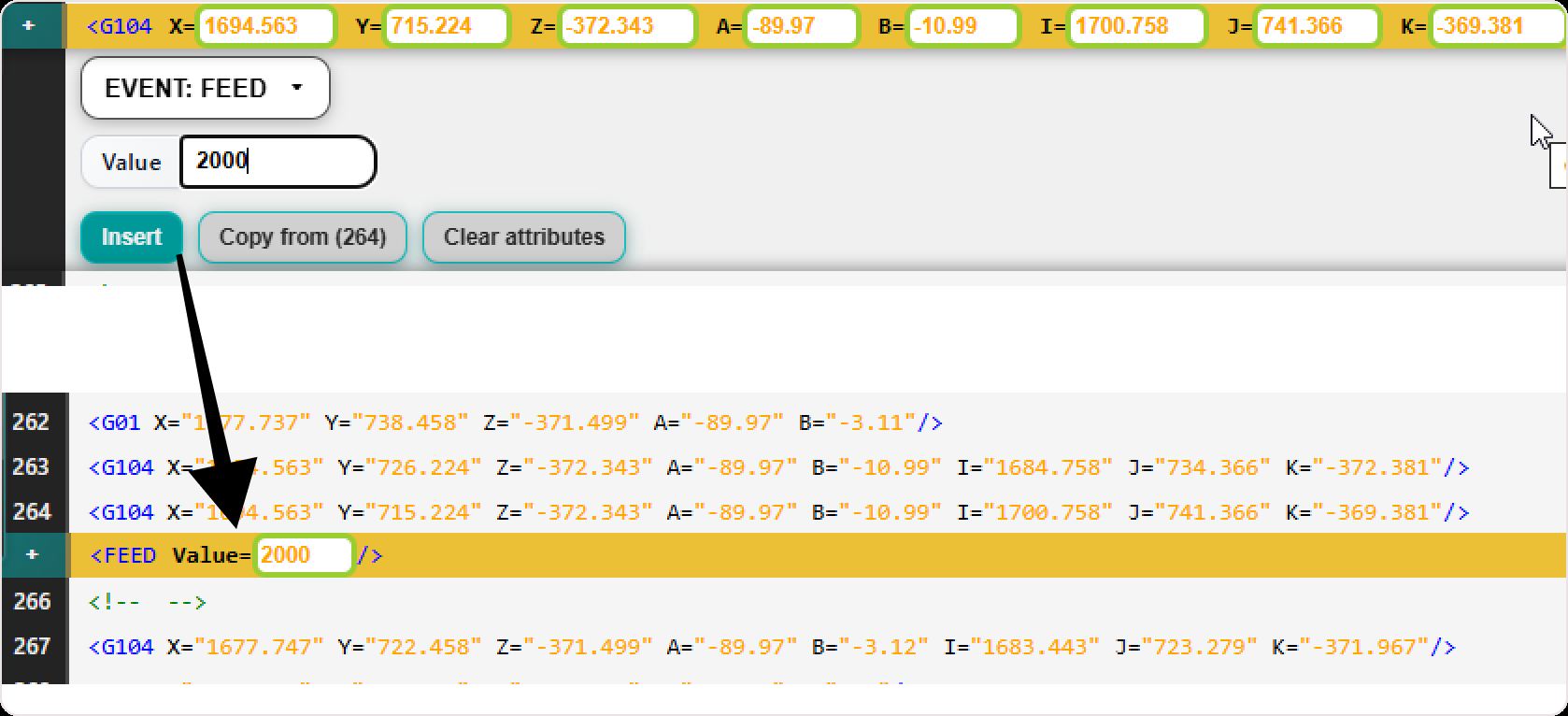
- Event - Use Event to insert a supported event-related command.
The Event command type can include predefined events such as:
- Work_on/Work_off
- Fly_on/Fly_off
- Laser_on/Laser_off
- other supported event commands, depending on the selected controller and configuration
Events can represent process-related actions or controller-specific instructions that are part of the program flow.
Depending on the event type, the command may affect program behavior without necessarily changing the visible toolpath in the 3D Viewer.
- Custom - Use Custom when you need to manually enter or paste an event-related line.
This option gives the operator flexibility when the required command is not covered by the predefined command types or when an existing program line should be reused.
Use Custom carefully. The inserted line should match the expected controller and program syntax.
If the custom line contains a supported motion command, the active program representation and the 3D Viewer may be updated accordingly. If the custom line is not recognized as supported program content, it may be inserted as text but may not create a visual toolpath update.
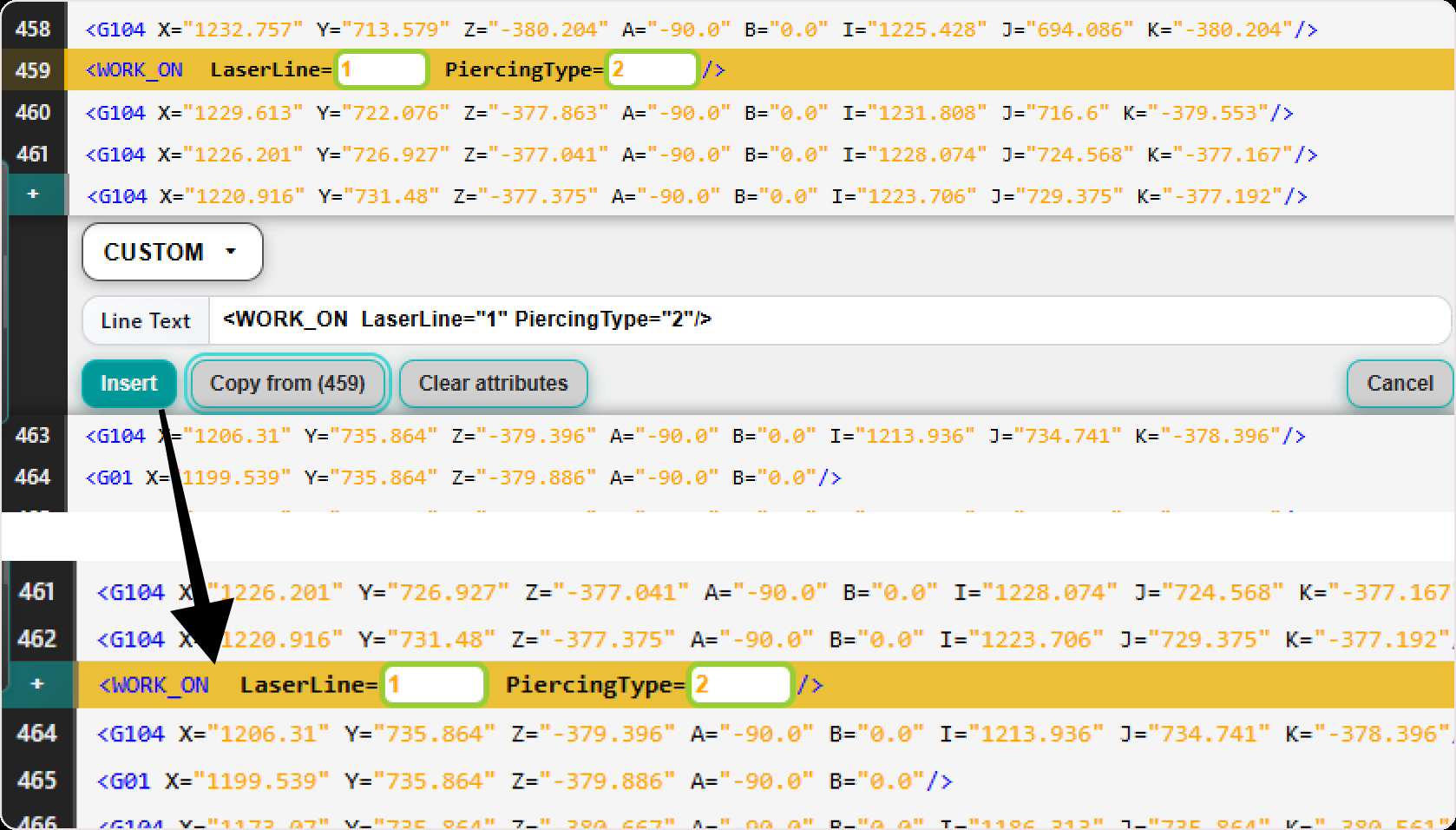
The Custom command also provides additional actions:
- Copy from line - copies values from another selected program line.
- Clear attributes - clears the Line text field.
Step 4: Define the command content
After selecting the command type, enter the required values or command content.
The available fields depend on the selected command type.
For predefined command types, fill in the required fields shown in the Insert Command panel.
For Motion commands, review the automatically copied values and adjust only the values that should be changed.
For Custom or Event: Custom, type or paste the complete line directly.
Before inserting the command, check that the content is complete and that the values match the intended program location.
Step 5: Insert the command
Confirm the action to insert the new command into the NC program.
The new command is always inserted on the line directly after the selected line in the NC Editor.
If the inserted command affects the active program representation, the program data is updated and the toolpath or contour display may be recalculated automatically.
Step 6: Review the updated program
After inserting the command, review the updated NC program in the NC Editor.
For Motion commands, the 3D Viewer already provides an automatic preview before insertion. After pressing Insert, review the updated active toolpath again to confirm that the command was inserted correctly and that the final program state matches the preview.
If the inserted command creates or changes motion behavior, also review the result in the 3D Viewer.
Check that:
- the command was inserted after the correct line
- the inserted line has the expected syntax
- the surrounding program structure is still correct
- the toolpath or contour display was updated as expected
- the new command does not introduce an unintended movement or process behavior
Use the NC Editor and the 3D Viewer together to verify the inserted command before saving or continuing with further edits.
Operator insights
- Insert Command is available from the plus icon on the left side of the selected NC line.
- Insert Command is available only when a single line is selected.
- The new command is always inserted after the selected line.
- Use predefined command types whenever possible.
- Use Custom carefully, because manually entered lines must follow the expected controller and program syntax.
- Motion commands are initialized using the first previous motion point found above the selected line.
- Motion values can be adjusted individually before insertion.
- Use Copy from line when you want to reuse values from another motion line.
- Use Clear attributes when you want to remove prefilled values and define only the required attributes.
- Motion commands provide an automatic 3D preview before insertion.
- Use the motion preview to verify position, orientation, and path behavior before pressing Insert.
- Empty and Comment lines do not create new toolpath points in the 3D Viewer.
- Event commands may affect program behavior even if they do not create visible toolpath changes.
- Always review the inserted command before continuing.
- Inserted commands can change the behavior of the NC program, so use this function carefully.