Pivot Teach Panel
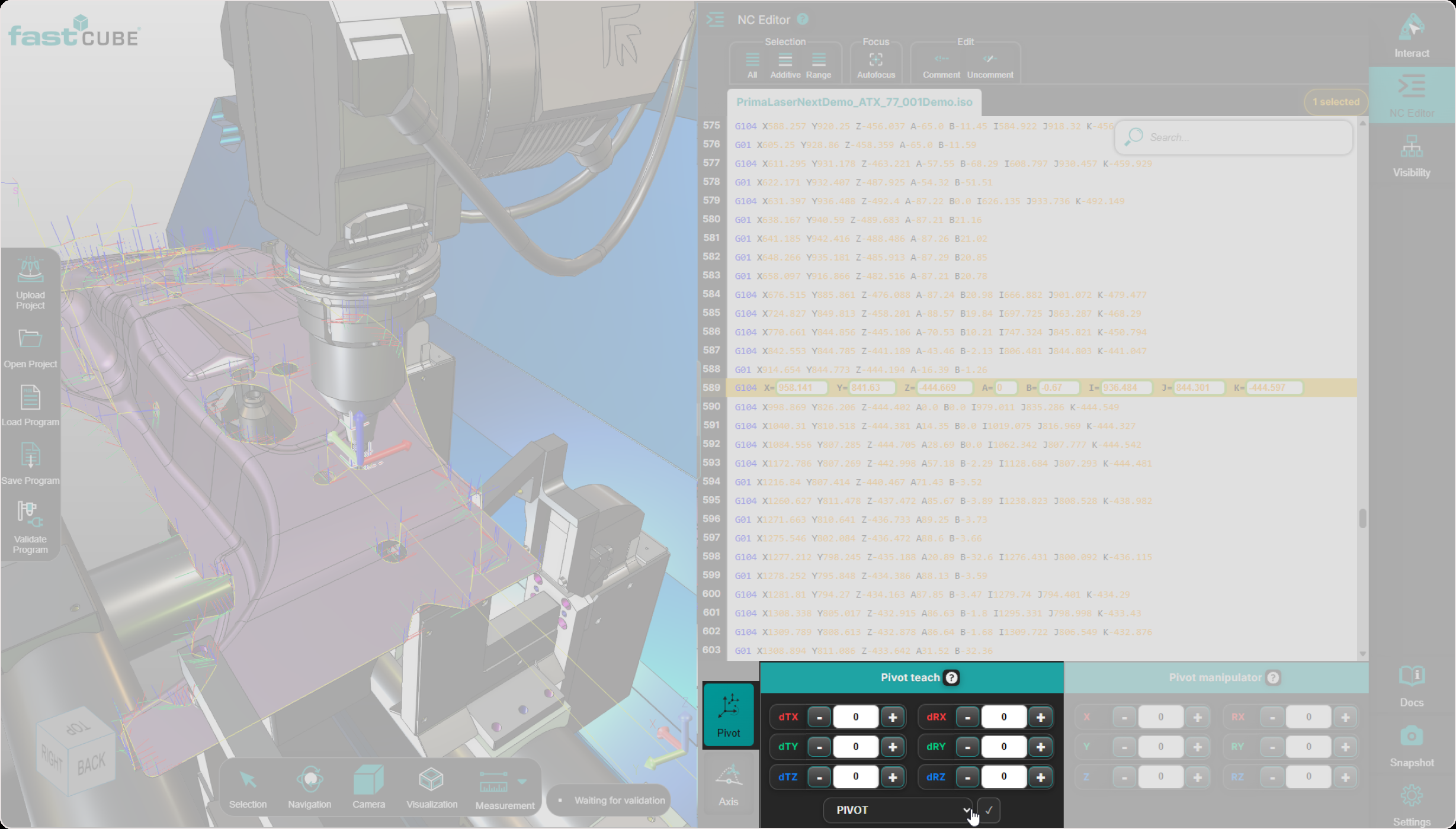
The Pivot Teach Panel is located at the bottom of the NC Editor Panel and becomes active as soon as one or more points—or an entire regshape block—are selected and the Pivot Teach icon is enabled.

When the Pivot Teach icon is selected, the Pivot Teach Panel opens and allows the operator to apply geometric transformations to the selected point or points.
The panel is used to apply the following transformation types:
- Translation
- Rotation
- Rototranslation
These transformations are applied relative to a chosen reference system (pivot point).
Workflow persistence
Once the Pivot Teach workflow is activated, it remains active when the user selects a different point.
This means:
- the user does not need to click the Pivot Teach icon again.
- newly selected points are automatically handled by the active Pivot Teach workflow.
This behavior allows efficient correction of multiple points in sequence using the same workflow and offset logic.
Purpose of the Pivot Teach Panel
The purpose of this panel is simple: it changes the position of the selected point or points in space.
It updates the point position in X, Y, Z relative to the active pivot or frame. During this workflow, tool orientation remains unchanged.
Transformations are calculated relative to the active reference system:
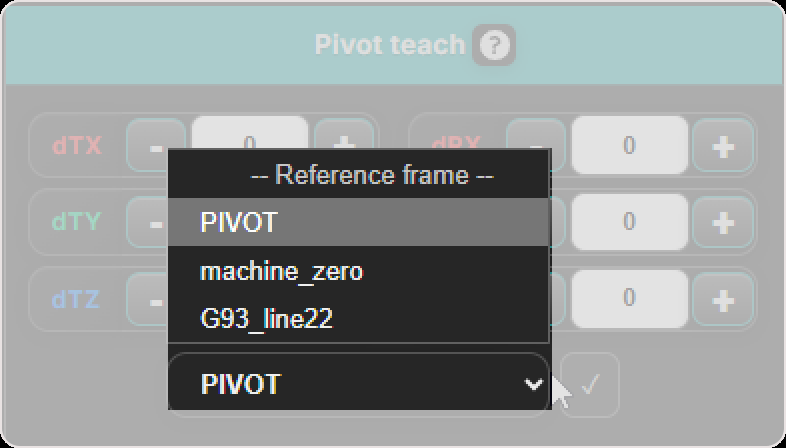
Reference system
Transformations are calculated relative to the active reference system.
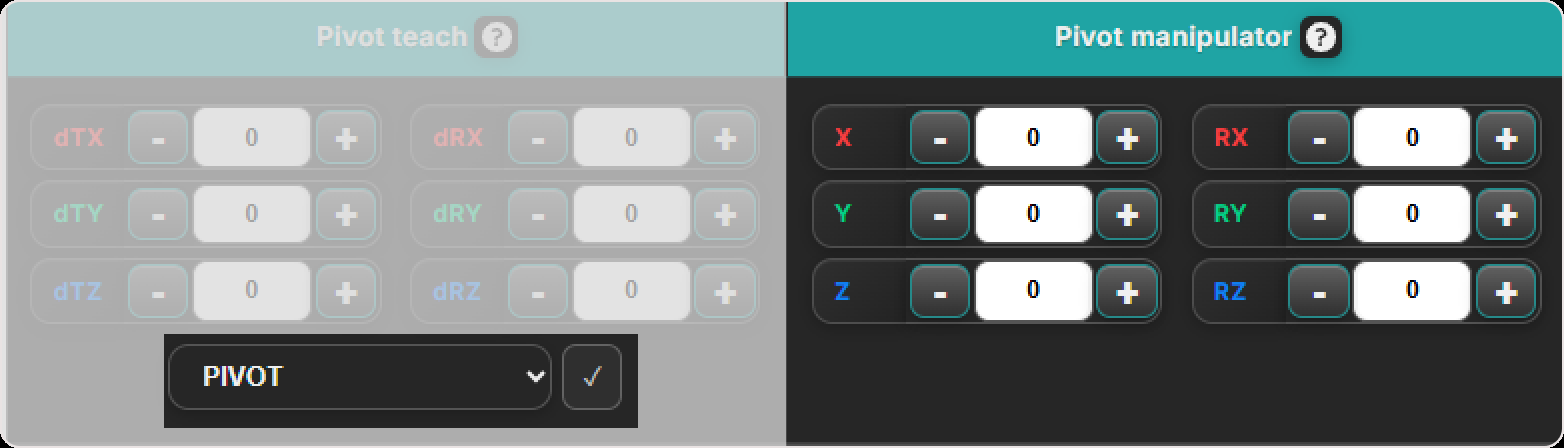
- Pivot, where the Manipulator acts as the pivot. The Panel works in tandem with the Pivot Manipulator Panel. In this mode, the Pivot Manipulator is visible and acts as the visual pivot.
- Base Frame, where transformations are applied relative to the fixed machine frame. In this mode, the Pivot Manipulator is hidden, but the transformation still applies relative to the selected frame.
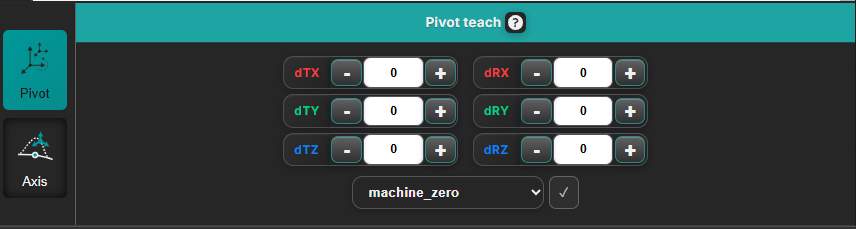
Once Accept is pressed, the transformation is committed, and the updated point positions are shown immediately in the 3D Viewer.
Note: The Pivot Teach Panel changes point position only. It does not change tool orientation during the transformation.
How to Use the Pivot Teach Panel
The Pivot Teach Panel permits the following transformation types:
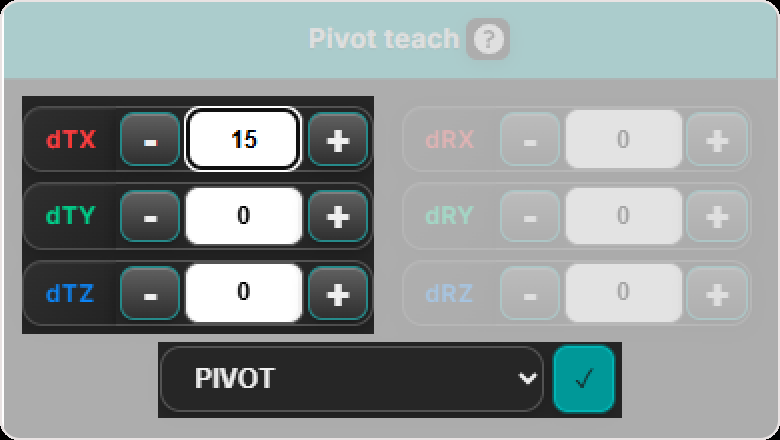
- Translation - Translate one or more points by applying an offset (dTx, dTy, dTz) relative to the active pivot point (Pivot or Base Frame). During translation, only the position is updated — the tool orientation remains unchanged.
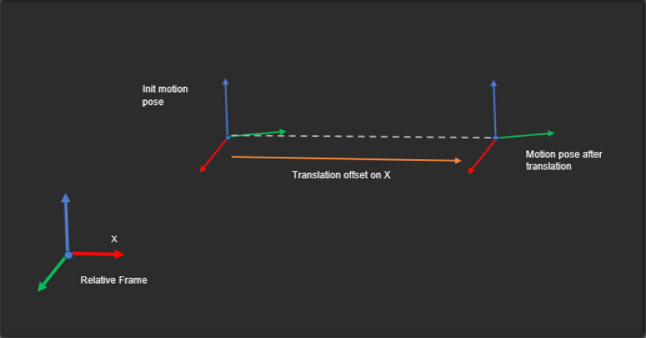
How to apply a translation:
- Select the point or points you want to translate, either from the NC Editor or directly from the 3D Viewer.
- Choose the reference system (pivot point) — Pivot or Base Frame — in the Pivot Teach Panel.
- Enter the translation offsets (dTx, dTy, dTz) in the corresponding axis fields.
- Confirm changes — Press Accept to apply the translation and update the 3D Viewer and NC program.


- Rotation - Orbit one or more points around the active pivot point (Pivot or Base Frame) by applying angular offsets (dRx, dRy, dRz). Only the point positions are affected — tool orientation remains unchanged. Points follow an arc defined by the rotation axis and the pivot reference.
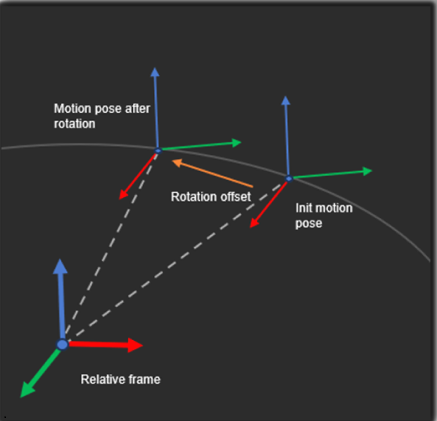
How to apply a rotation:
- Select the point or group of points you want to rotate in the NC Editor or 3D Viewer.
- Choose the reference system Pivot or Base Frame — in the Pivot Teach Panel.
- Enter rotation values (dRx, dRy, dRz) in degrees for the axes you want to rotate around.
- Confirm changes — Press Accept to apply the rotation and update the 3D Viewer and NC program.

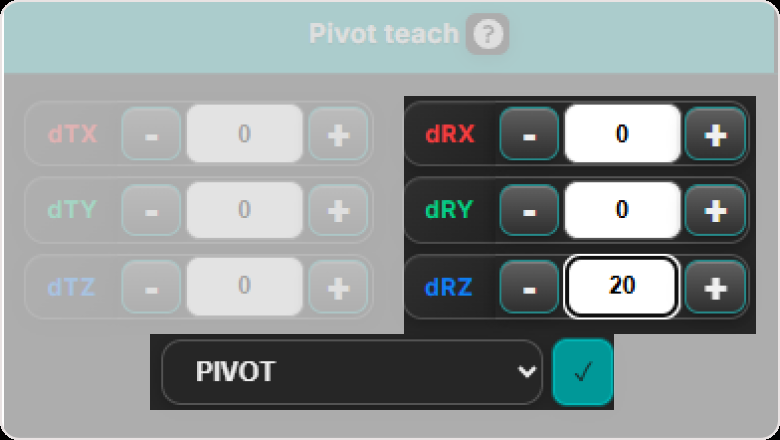

- Rototranslation - Applies a combined transformation that first rotates one or more points around the active pivot point (Pivot or Base Frame), and then translates them along the rotated local axes. Tool orientation remains unchanged throughout the process. The final point positions reflect both the rotational and translational adjustments and are written back into the NC program.
How to apply a Rototranslation:
- Select the point or group of points you want to transform — from the NC Editor or 3D Viewer.
- Choose the reference system (pivot point) — Pivot or Base Frame — in the Rototranslation Panel.
- Enter rotation values (dRx, dRy, dRz) to define the rotational component.
- Enter translation offsets (dTx, dTy, dTz) to define the movement along the rotated axes.
- Confirm changes — Press Accept to apply the combined transformation. The updated positions will be immediately reflected in the 3D Viewer and stored in the NC program data.
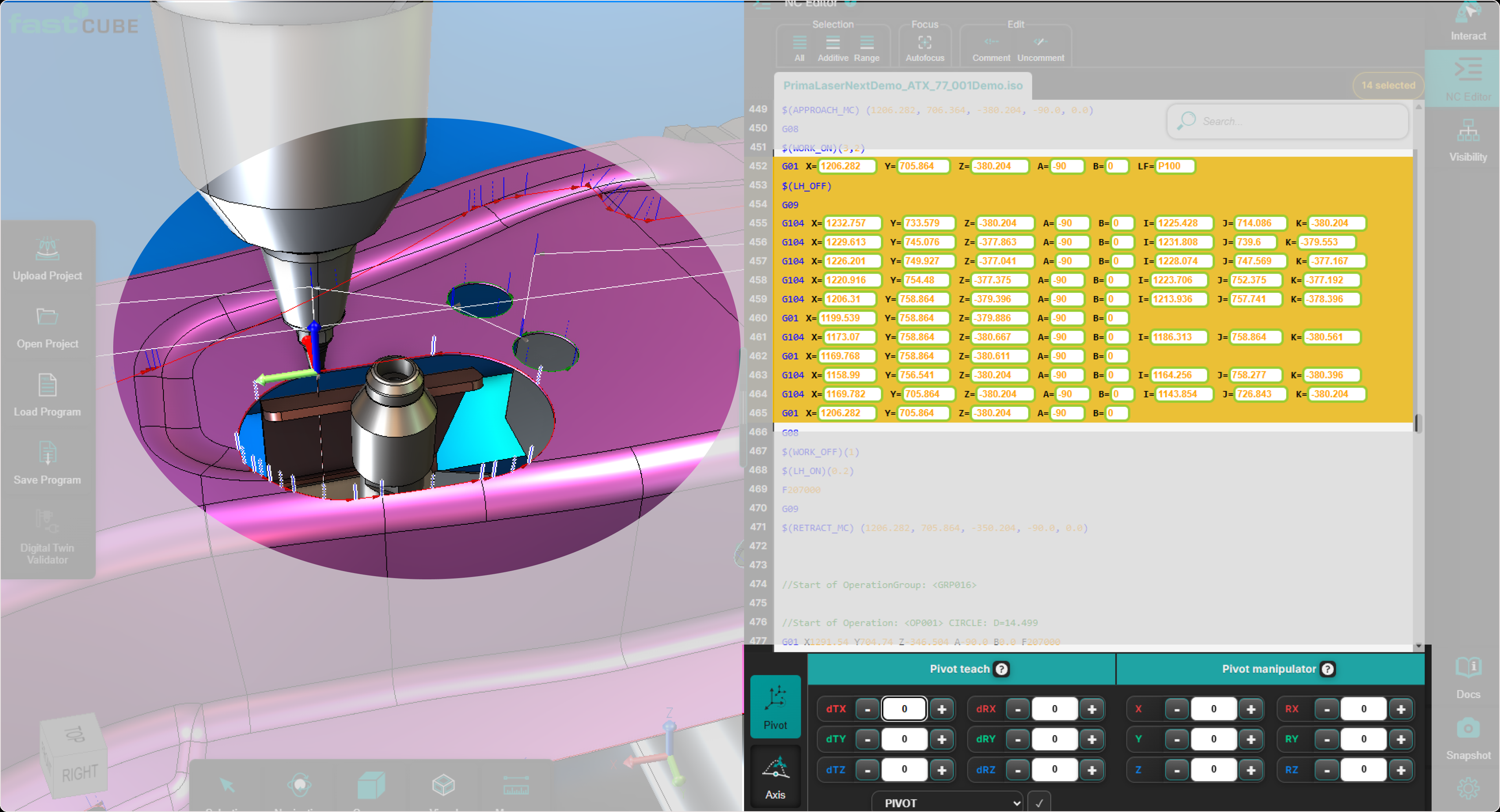
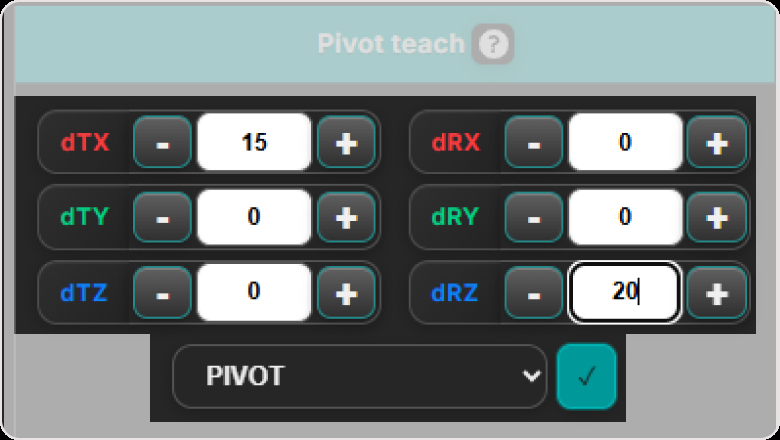
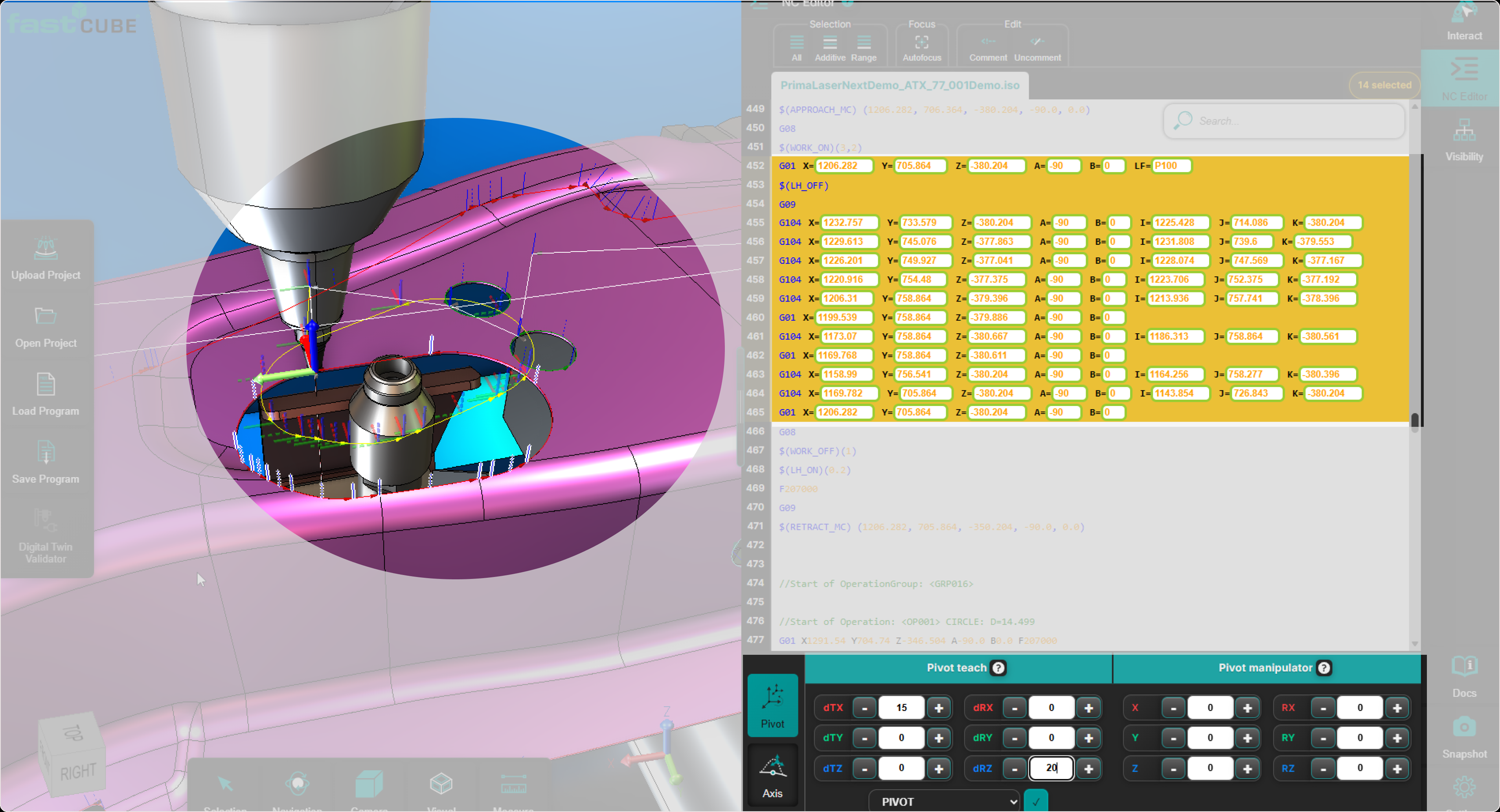
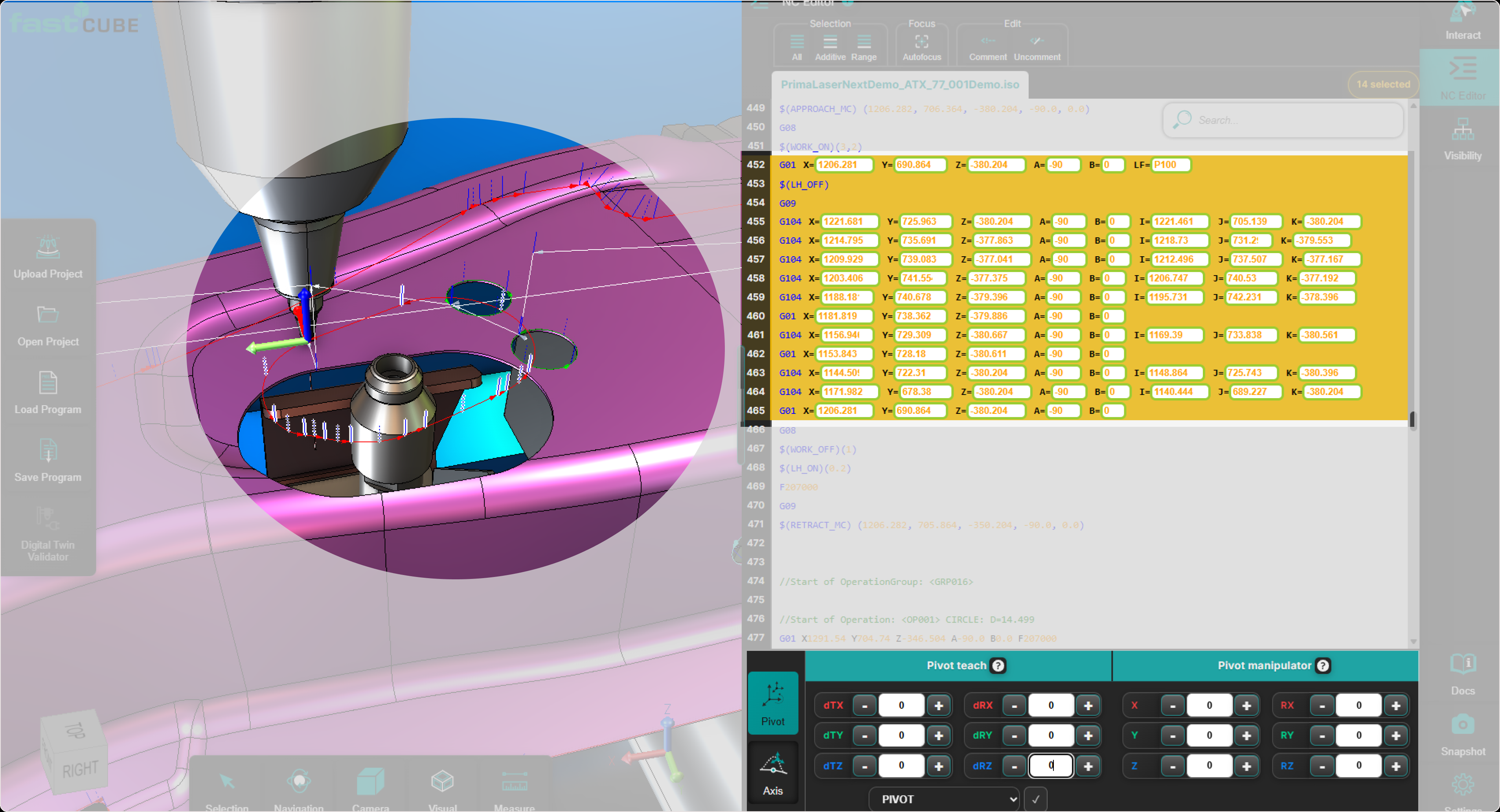
Preview and Confirmation
When transformations are applied from the Pivot Teach Panel, Shopfloor Assistant displays a temporary preview of the resulting toolpath in the 3D Viewer. This preview allows the operator to verify the geometric impact of the transformation before committing the modification to the NC program. The original toolpath remains unchanged until the transformation is confirmed.
During preview:
- The transformed toolpath is displayed separately from the original toolpath.
- The preview reflects the current transformation values.
- No changes are written to the NC program yet.
After reviewing the result, the operator can either:
- Press Accept to confirm the transformation.
- Or change the values or selection and preview again.
If the edit is discarded, the preview is removed and the original toolpath remains unchanged.
Operator insights
- Only point positions are modified — the tool orientation remains unchanged for the full duration of the transformation.
- Always check the active reference system before applying any transformation.
- Using Pivot vs. Base Frame produces very different results, so confirm the correct reference (pivot) is selected.
- Use Pivot for fine local adjustments, especially when refining toolpaths relative to the tool’s orientation or correcting subtle misalignments.
- Regshape blocks maintain geometry automatically. When a regshape is selected, Rototranslation keeps the internal structure consistent across all points.
- The manipulator moves only after Accept. If Pivot is active, the manipulator resets to the updated first-selected point after each applied transformation.
- Rototranslation depends on the active frame definition. The selected frame defines the pivot behavior and coordinate system.
- For multi-selection, check all highlighted points. Make sure only the intended points are selected.
- For regshapes, expect grouped behavior. The transformation should keep the feature structure consistent.
- Use Pivot Teach for geometry movement, not machine-axis teaching. Use Axis Teach when the goal is to update resulting machine-axis values.