Automatic Collision Detection
Purpose
The Automatic Collision Detection feature helps users identify collisions directly in the 3D Viewer during manual inspection and interactive workflows. It provides immediate visual feedback when elements of the loaded setup intersect, allowing users to review potential problems without running a full validation cycle. This supports safer and faster decision-making during daily work.
The feature operates continuously during machine interaction and provides immediate visual feedback when collisions occur, all without the need to run full program validation.
Collision detection is available during:
- manual machine joint interaction
- point selection in the NC Editor
- point selection in the 3D Viewer
- position changes triggered by editing NC points
The detection mechanism runs automatically and does not require full program simulation or validation.
System Behavior
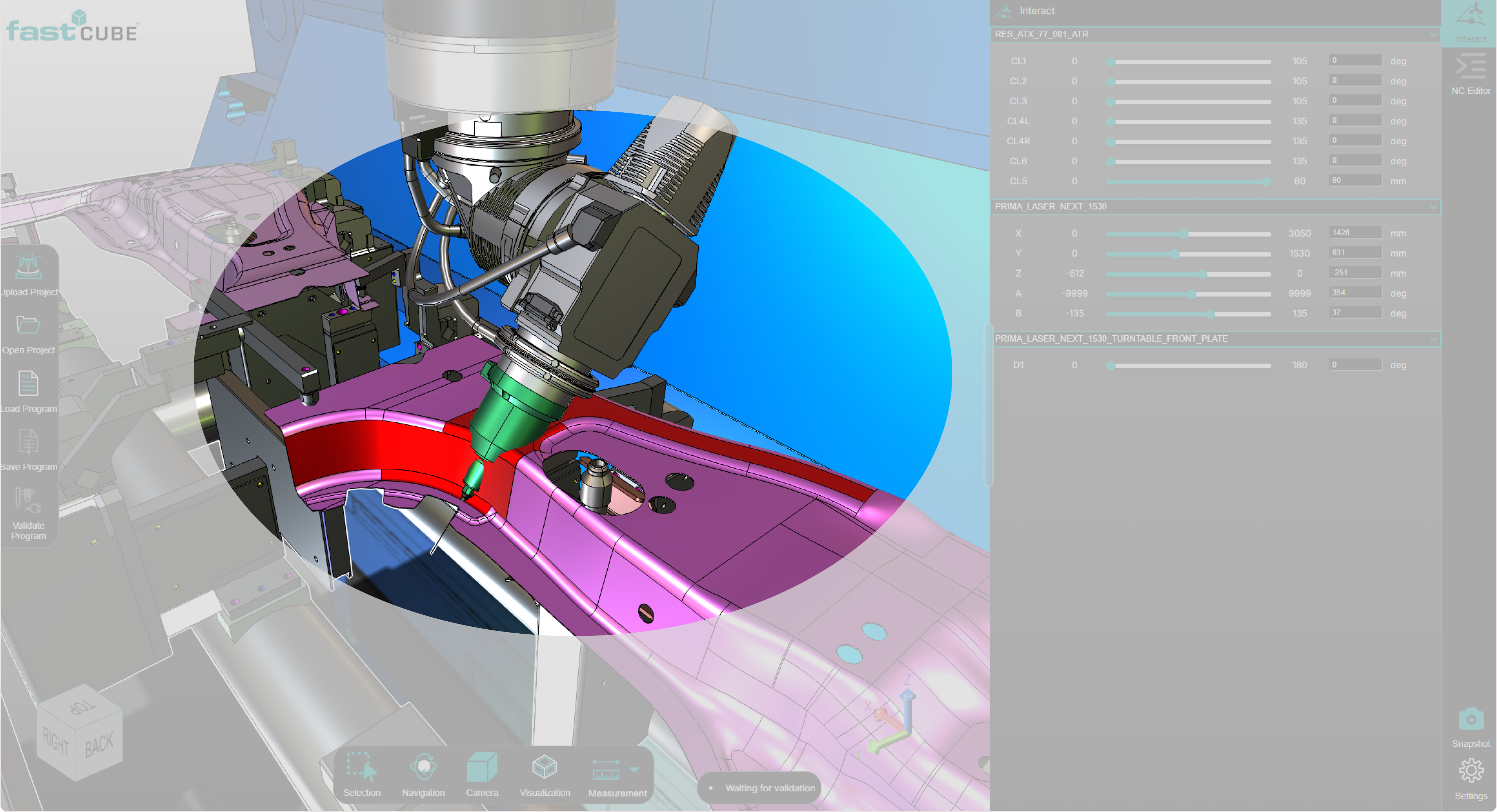
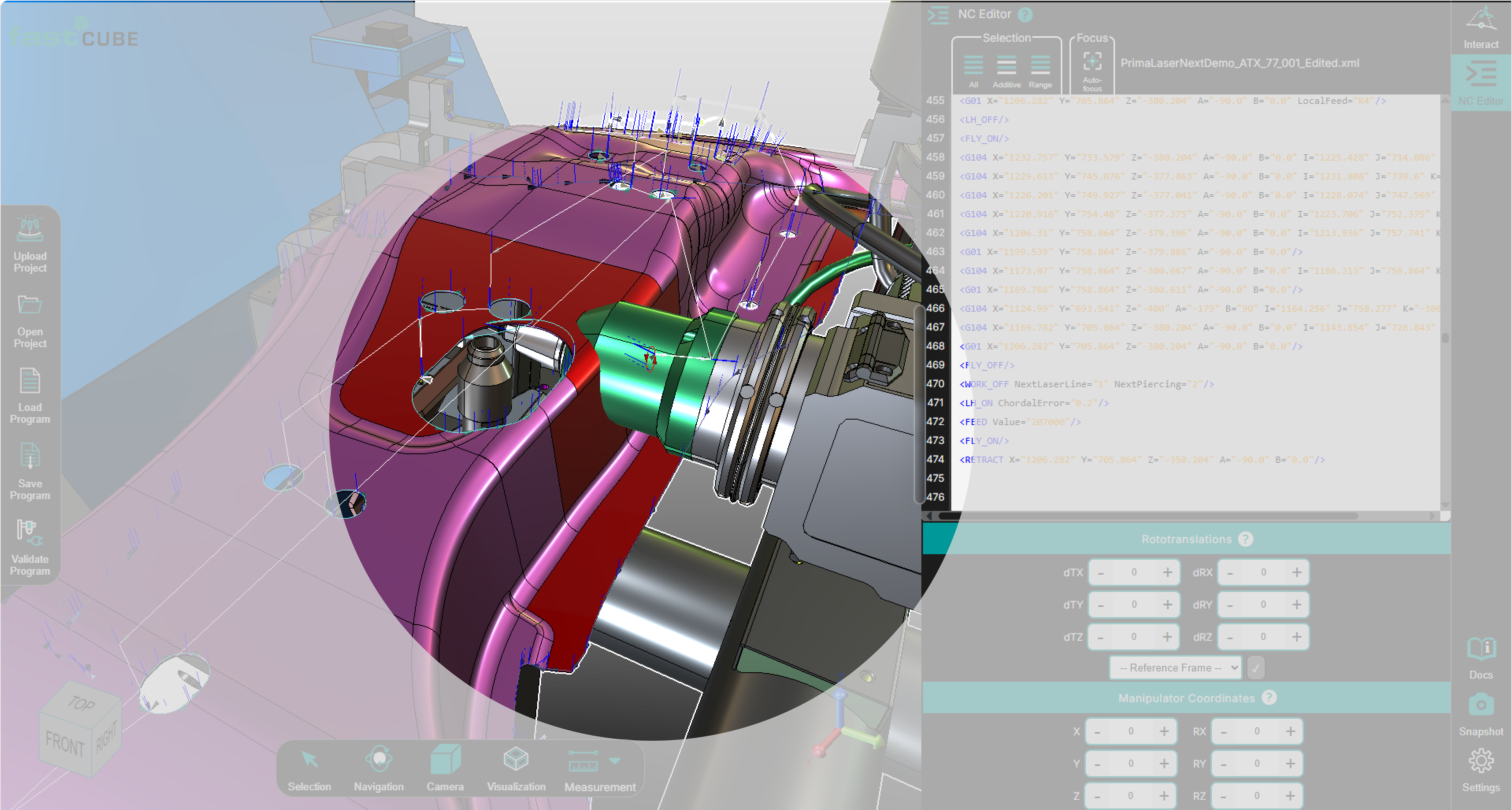
When a collision is detected, the affected bodies are highlighted directly in the 3D Viewer. Colored overlays appear on the intersecting surfaces, making it easier to understand where the interference occurs and inspect the situation visually. The view remains fully interactive, so users can continue to rotate, zoom, and analyze the scene.
Procedure
Step 1 — Select a Machine Position
A position can be selected by:
- selecting a motion point
- selecting a line in the NC Editor
- selecting a point directly in the 3D Viewer
- changing joint values using the Interact Panel
Step 2 — Scene Updates in the 3D Viewer
The loaded setup moves to the selected or updated position. This gives the user immediate visual context for reviewing the result.
Step 3 — Collision Check Is Triggered Automatically
The system automatically checks whether any visible parts of the setup intersect at the current position. No separate simulation or validation run is required for this visual feedback.
Step 4 — Inspect the Collision Result
If a collision is detected, the affected bodies are highlighted with colored overlays in the 3D Viewer. Users can inspect the result directly in the scene by rotating, zooming, or changing the view orientation.
What the User Sees
When collision detection identifies an interference:
- the intersecting bodies are highlighted
- colored overlays appear on the affected surfaces
- the user can immediately inspect the collision location in the 3D Viewer
This makes it easier to review the collision visually and understand which parts of the setup are involved.
💡 Tip: Use the Interact Panel to manually move the machine and observe live behavior for additional collision testing. No simulation or validation engine is required.
Operator insights
- Use collision detection during manual inspection to identify issues early.
- No simulation or validation engine is required during collision detection.
- Colored overlays indicate contact. Rotate and zoom to fully inspect the area.
- The 3D Viewer remains interactive, allowing rotation, zoom, and inspection of the collision area.
- Combine collision detection with the Interaction Panel for reachability testing and advanced checks.