Axis Teach Preview
When applying corrections from the Axis Teach Panel, Shopfloor Assistant displays a temporary preview of the resulting position and motion in the 3D Viewer. This preview allows the operator to verify the impact of the teach correction before committing the modification to the program. The original program remains unchanged until the correction is confirmed.
This feature enables you to:
- visualize the impact of teach corrections in the 3D Viewer
- compare the original program state with the temporary preview result
- verify position, orientation, trajectory behavior, and clearances before applying the change
- ensure that corrections reflect the intended machine or robot kinematic behavior before saving
The preview works together with the NC Editor and the Axis Teach Panel, providing immediate visual feedback while the operator adjusts offset values. The preview reflects the current edited state and is updated when additional edits are made.
How to use preview toolpath changes
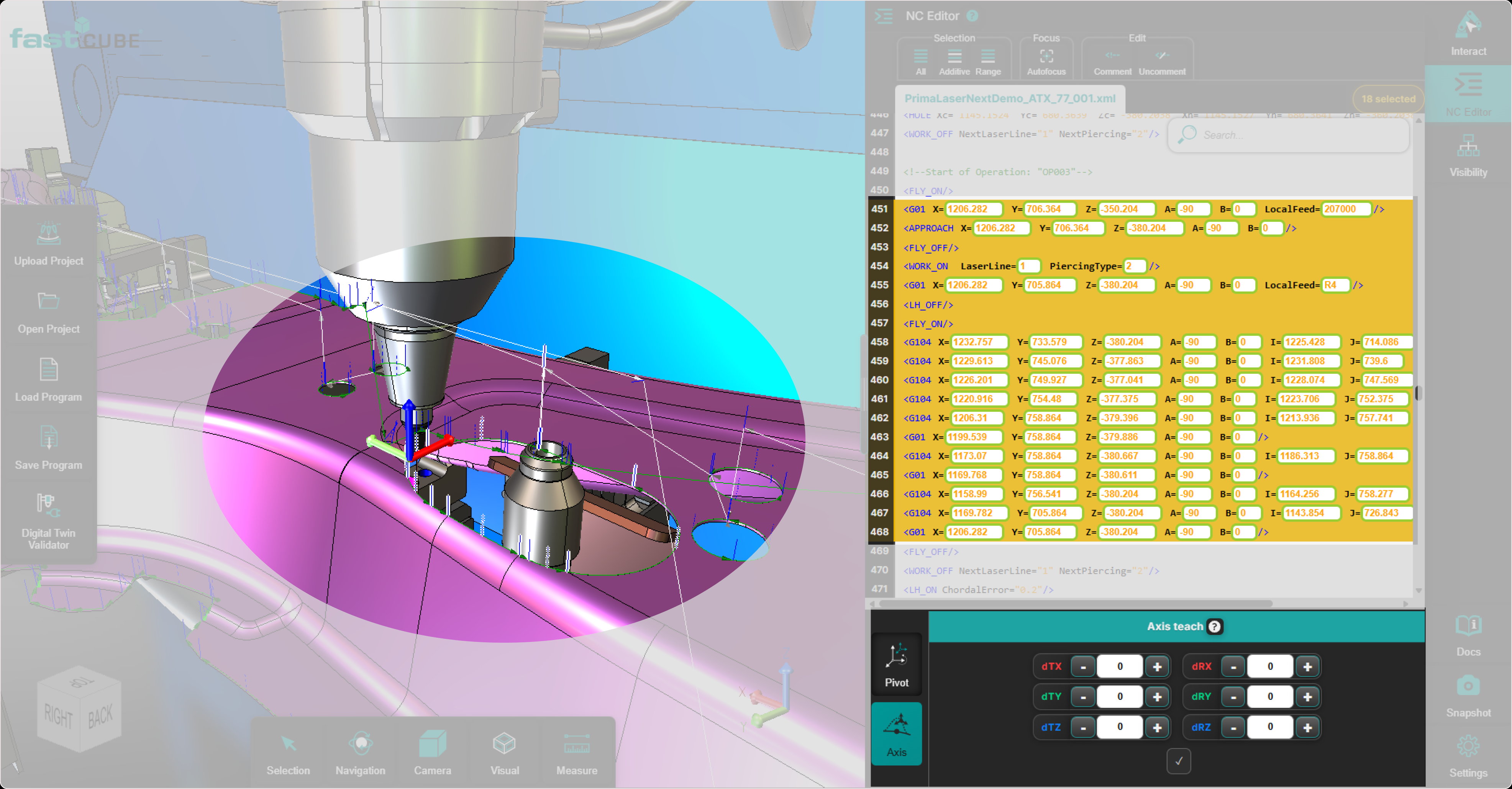
Step 1: Select the elements to modify
Select a point, multiple lines, or a structured block (for example, regshape) from:
- the NC Editor
- or directly from the 3D Viewer
The selection defines which elements will be affected by the transformation.
Step 2: Enter teach offset values
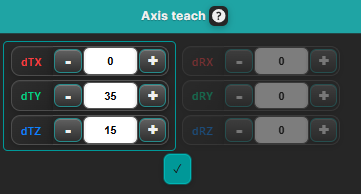
In the Axis Teach Panel, define the correction using offset values:
- translation offsets (for example X, Y, Z)
- orientation or rotation offsets (for example A, B, C, depending on the active kinematic model)
The entered values are interpreted as offsets relative to each point’s current position and orientation.
Step 3: Preview the resulting position and motion
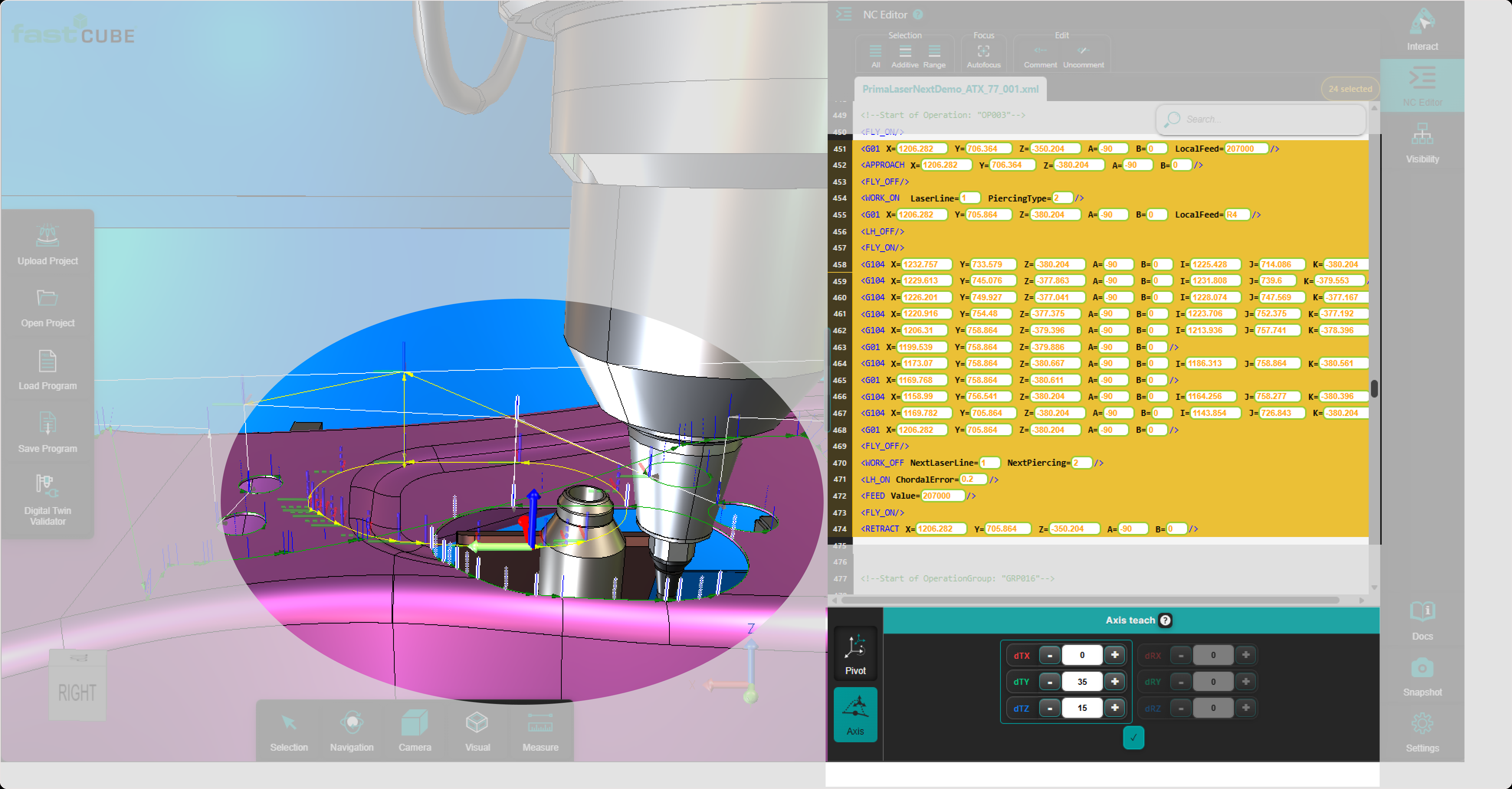
The system calculates the resulting machine or robot axis values and displays a preview of the corrected result in the 3D Viewer.
During preview:
- the modified position and orientation are displayed temporarily
- the preview reflects the current offset values entered in the panel
- the Manipulator acts as a visual reference for the updated position and orientation
- each selected point is processed independently using its own local axis context
- no changes are written to the program yet
The preview is useful for validating:
- the new point position
- orientation behavior
- trajectory continuity
- reachability and clearance
- potential collision risks
The operator can review the result and decide whether to apply or discard the correction.
Visual representation
- Original program state: displayed using the standard program visualization
- Preview result: displayed as a temporary result in the 3D Viewer, clearly indicating that the correction has not yet been applied
The preview clearly distinguishes between the current program data and the temporary teach correction result.
Step 4: Apply or discard the correction
After reviewing the preview, the operator can either confirm the transformation or cancel it.
Option 1: Apply the correction
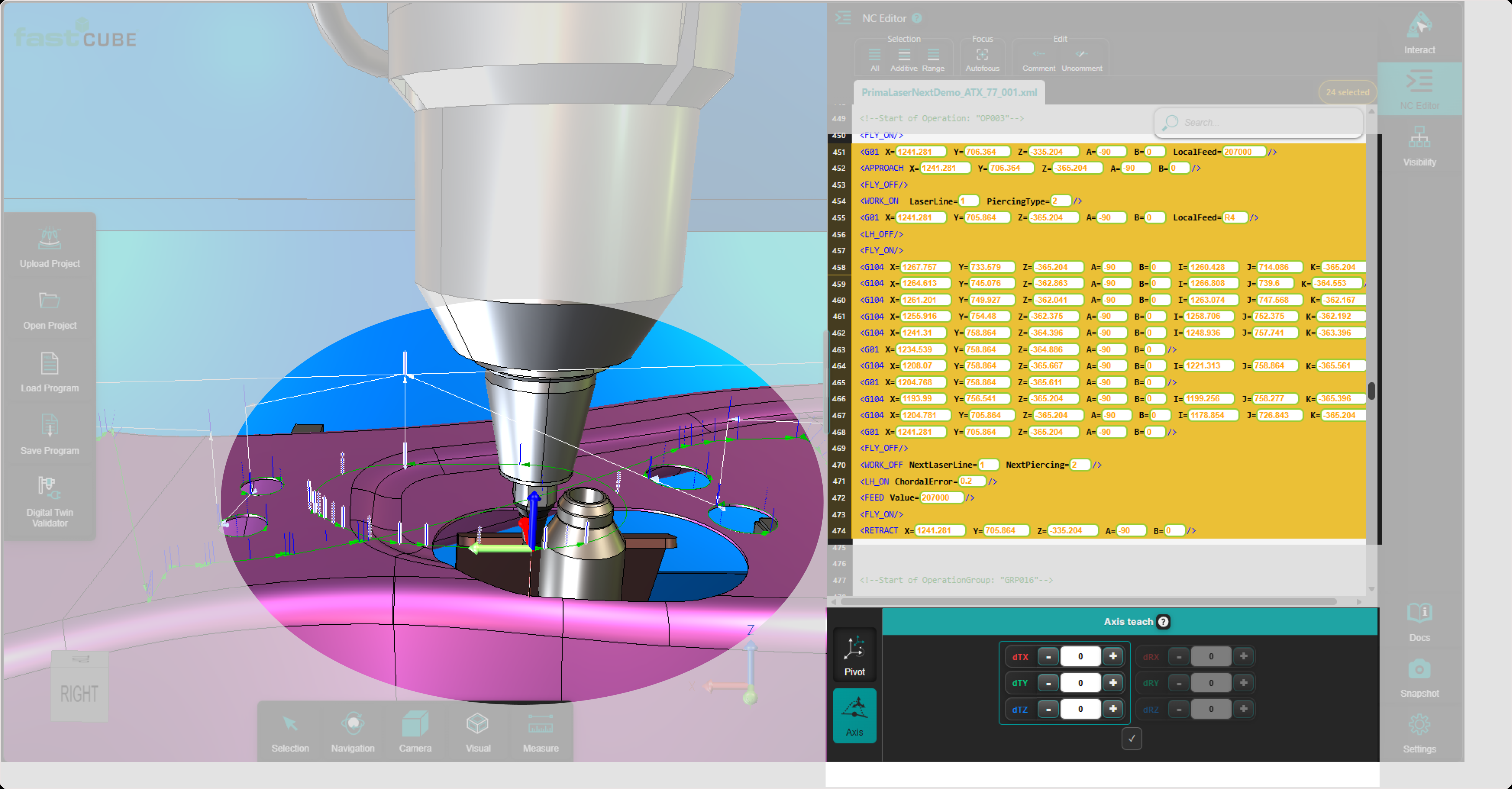
Press Accept in the Axis Teach Panel to confirm the correction.
When the correction is applied:
- the resulting machine or robot axis values are written into the program
- the preview becomes the new active program state
- the 3D Viewer refreshes using the updated program data
Use Accept only after verifying the correction in the 3D Viewer.
Validate the result in the 3D Viewer
Check the updated toolpath carefully:
- geometry correctness
- tool orientation
- distances and clearances
- overall trajectory behavior
Use navigation, rendering modes, and measurement tools for detailed inspection.
Option 2: Discard the correction
If the preview does not match the intended result, the operator can cancel the operation.
The preview is automatically cleared when one of the following actions occurs:
- selecting a different point
- selecting a different NC line
- changing the selection in the 3D Viewer
- clearing or adjusting the offset values in the Axis Teach Panel
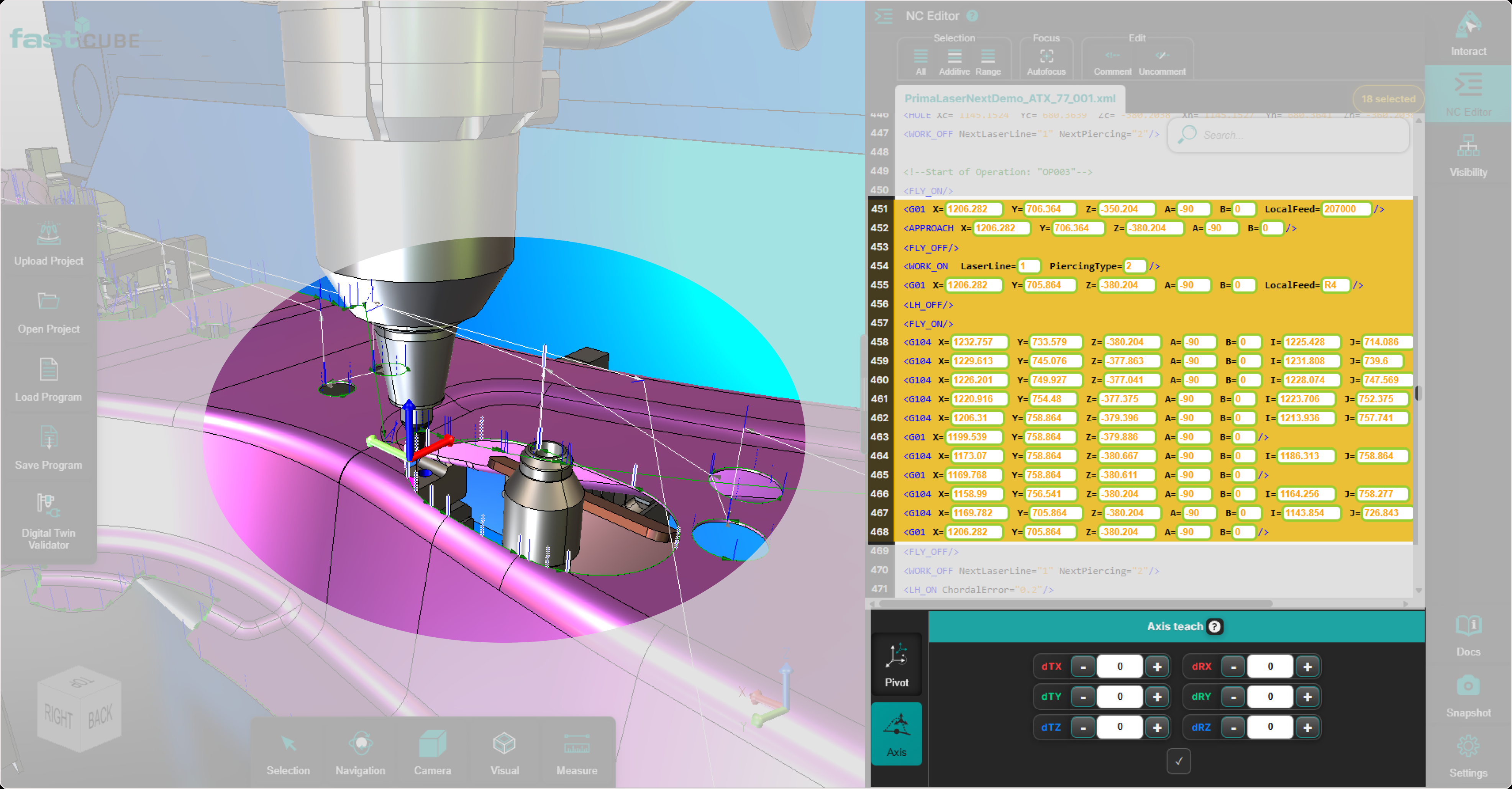
Discarding the preview:
- removes the temporary preview toolpath
- restores the original toolpath visualization
- leaves the program data unchanged
This allows the operator to safely test different transformation values without modifying the program.
Operator insights
- Axis Teach preview allows you to validate teach corrections before modifying the program.
- No axis values are written until Accept is pressed.
- The preview is offset-based, not absolute.
- Each selected point is previewed using its own local axis context.
- Always inspect position, orientation, reachability, and clearance during preview.
- Multiple preview attempts can be performed safely before confirming the final result.
- Use Axis Teach for machine- or robot-oriented teaching.