Launching Shopfloor Assistant
After the installation is complete, starting Shopfloor Assistant takes only a few seconds. This section explains how to launch the application and verify that all components are running correctly.
Start Shopfloor Assistant
Locate the file FastCube.Launcher.exe on your desktop or inside the installation folder and double-click it to start the application.
Step 1 — Component initialization
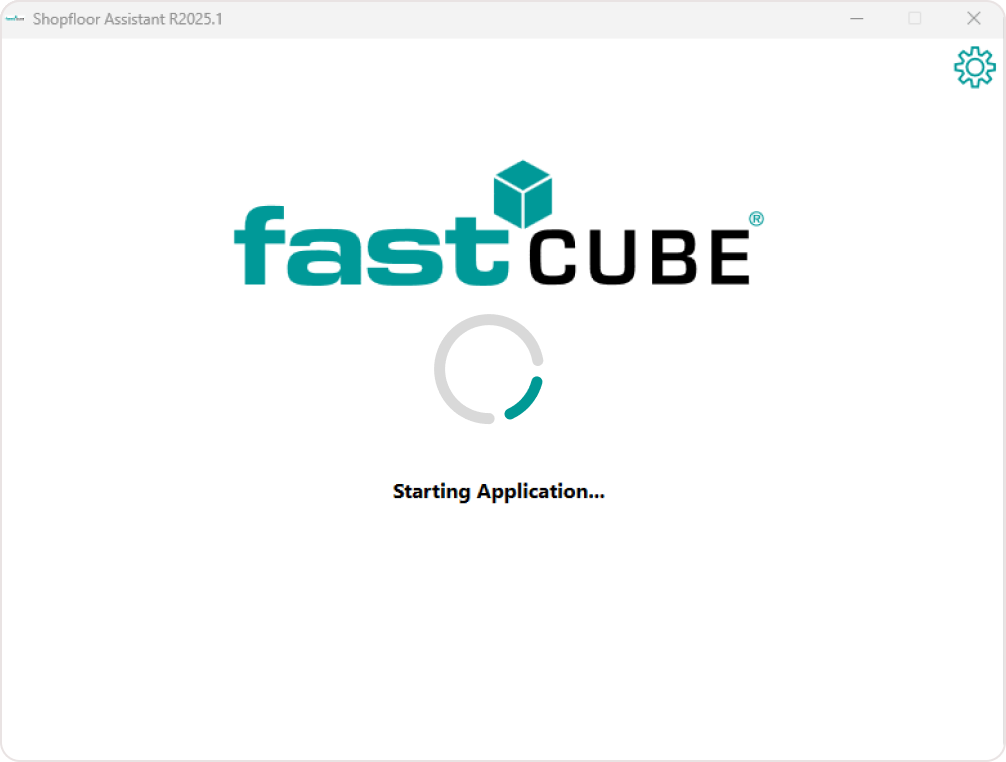
A launcher window opens and a status bar appears. This indicates that the launcher is initializing the services and components required to run Shopfloor Assistant.
Step 2 — Components ready
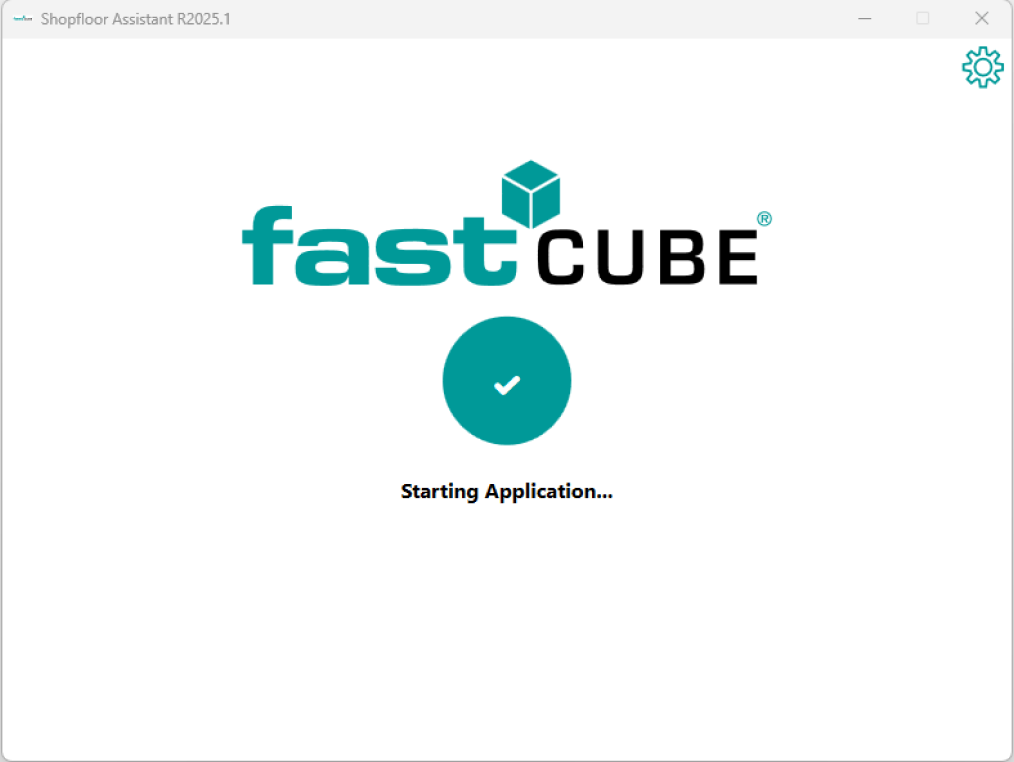
When initialization finishes, the status bar displays “OK”, confirming that the environment is ready.
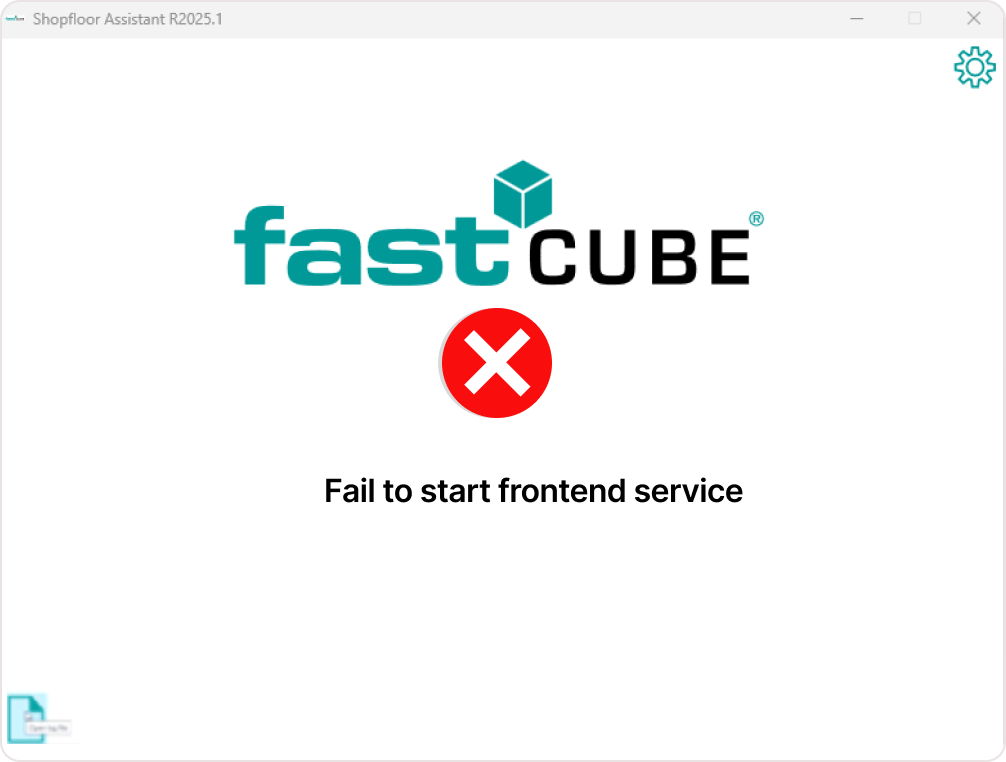
If any startup errors occur, it will appear directly in the launcher window.
You can open the detailed log using the Log File button located in the bottom-left corner.
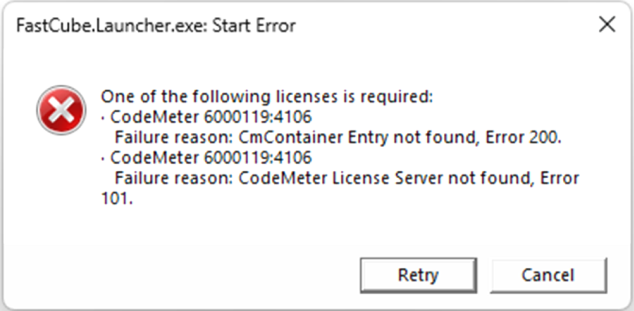
If Shopfloor Assistant fails to start due to a missing or unavailable license, an error dialog will be displayed indicating that the required CodeMeter license could not be found. This situation can occur for one of the following reasons:
- The required license container is not available on the local machine.
- The CodeMeter License Server cannot be reached or is not running.
- The license is not installed or has expired.
In this case, Shopfloor Assistant cannot continue to launch until a valid license is detected.
Step 3 — Adjust Environment Variables and Language Settings
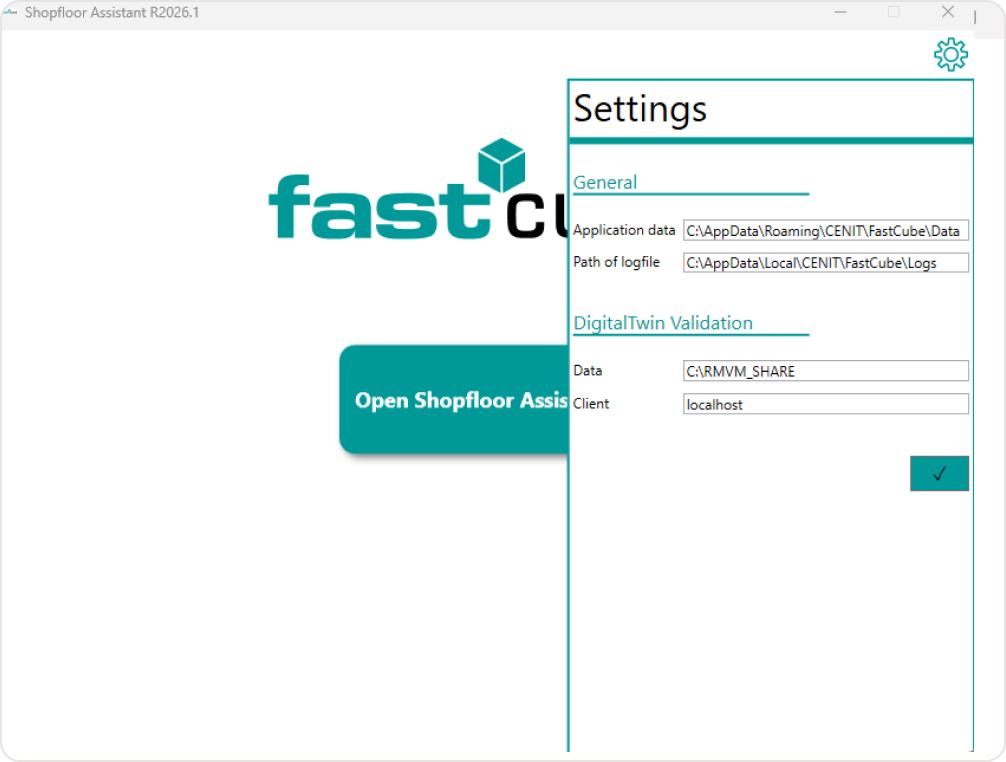
The environment variable and application settings are available in the Settings panel, which can be accessed from the top-right corner of the Shopfloor Assistant Launcher window (gear icon).
These settings allow you to adapt Shopfloor Assistant to your local system, IT environment, and user preferences.
Available Settings
1. General Paths
Application data Defines the location where Shopfloor Assistant stores application-specific data (projects, temporary files, configuration).
Log file path Specifies where log files are written. This is useful for troubleshooting and support.
These values are preconfigured during installation and typically do not need to be changed.
2. Digital Twin Validation
Data Path to the shared directory used for Digital Twin Validation data exchange.
Client Defines the local or network client address used for communication with the validation service.
These settings are relevant for environments where Virtual Controller Validation is used, for both CNC machines and robotic systems.
3. Language Selection
Shopfloor Assistant supports multiple user interface languages.
- Open the Language drop-down in the Settings panel.
- Select the desired language from the list (for example: English, Deutsch, Italiano, 中文).
The selected language defines the UI language used throughout the application (menus, dialogs, labels).
Note: Language selection applies to both machining and robotics workflows and does not affect NC or robot program content.
Applying Changes
- If you modify any environment variables or the language setting, you must restart the Shopfloor Assistant Launcher for the changes to take effect.
- Changes are not applied dynamically while the launcher is running.
- After the user accepts the changes, the Shopfloor Assistant application restarts automatically to apply the updated configuration.
Step 4 — Access the User-interface
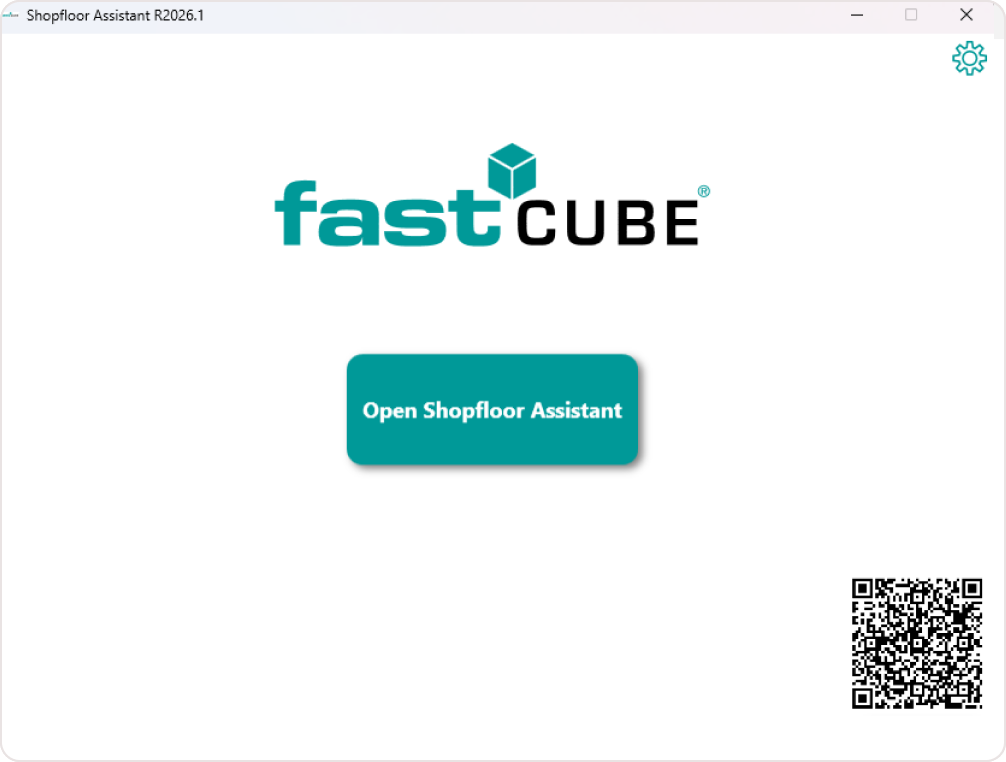
After all the components are initialized, the installer window will display a button labeled “Open Shopfloor Assistant”. When you click the button, a new tab automatically opens in your default web browser at http://127.0.0.1:50000/.
Step 5 — Explore the User-interface
Once the browser opens, the Shopfloor Assistant interface appears.
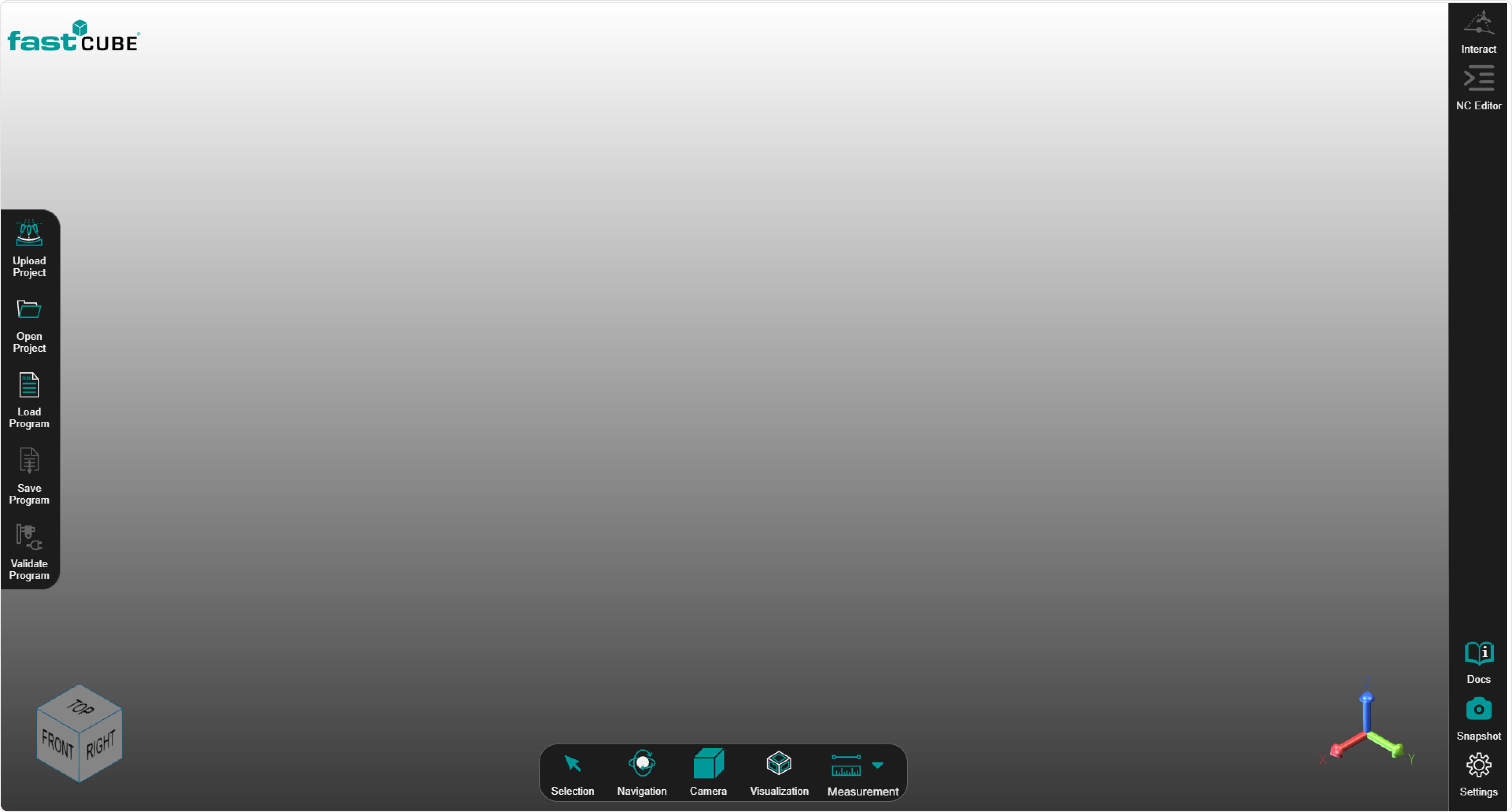
| Checkpoint | Expected result |
|---|---|
| 3D viewer loads | The center area shows a neutral grey workspace and an orientation cube (FRONT / RIGHT / TOP) |
| No errors | No pop-up or console errors appear |
| Panels visible | The left, bottom, and right panels are visible and responsive |
Operator insights
- Run as administrator to avoid permission issues.
- If the launcher doesn’t start, check antivirus or firewall settings.
- If the browser doesn’t open the Shopfloor Assistant tab automatically, simply open your browser manually and enter the http://127.0.0.1:50000/ address in the address bar.
- Ensure your environment variables are correctly configured in the launcher.
- The user interface is designed to be intuitive. Each panel is labeled and responsive.