Interaction with Machine Joints
Purpose
The Interaction Panel allows users to manually move the available joints of the loaded setup and inspect the result directly in the 3D Viewer. This supports manual setup analysis by making it possible to review positions, evaluate reachability, and better understand movement behavior without executing the loaded program.
The panel is located in the top-right corner of the Shopfloor Assistant interface.
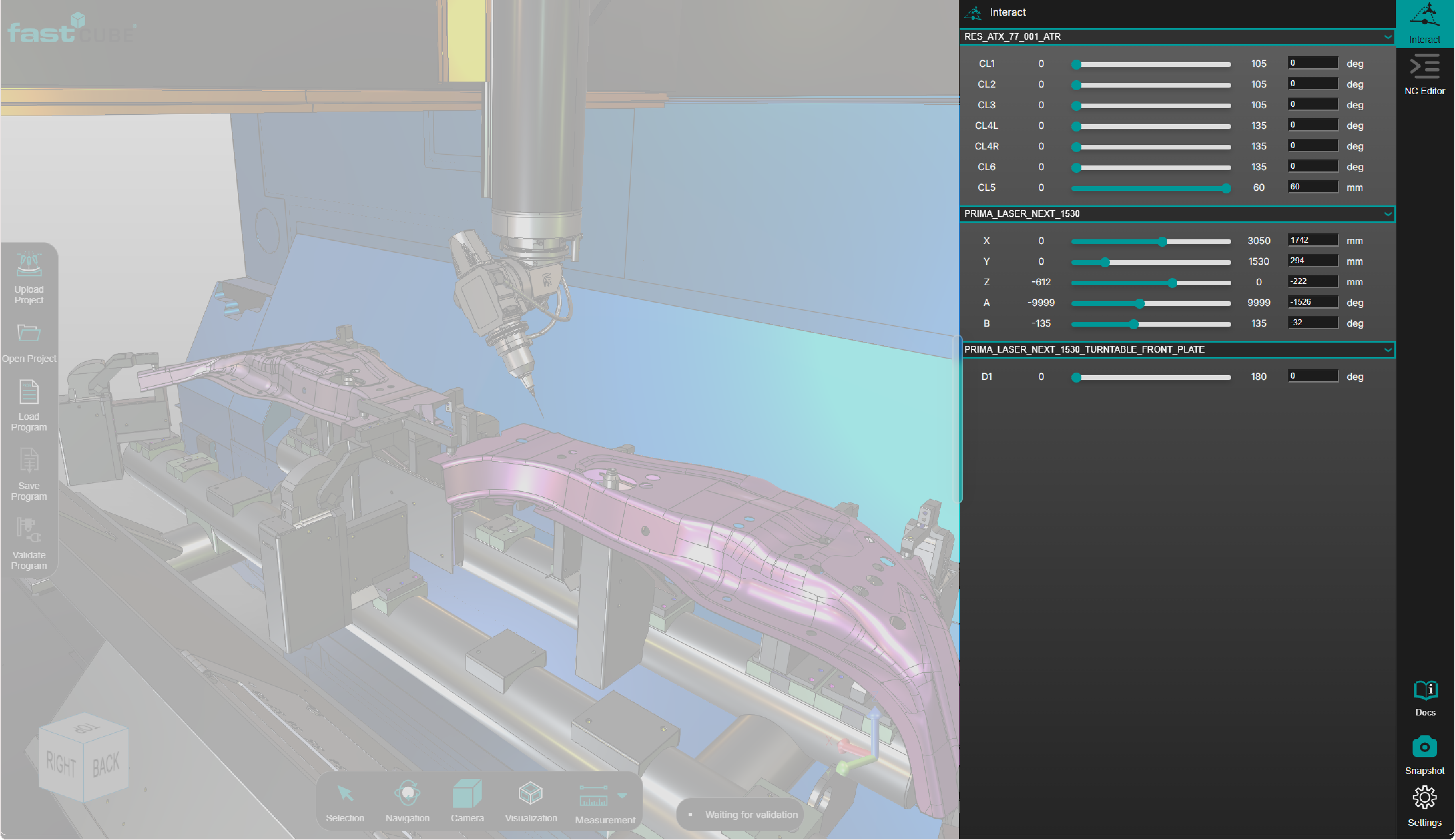
The Interaction Panel enables manual manipulation of machine axes, including:
- standard axes (X, Y, Z, A, B)
- additional axes such as rotary tables or external machine axes
This functionality is intended for inspection and understanding of the current setup, not for editing the program itself. It helps users analyze working positions, review movement limits, and confirm whether the setup can safely reach the expected location before continuing with other tasks.
Typical use cases include:
- reachability verification
- inspection of machine posture
- forward kinematics checks
- manual collision testing
System Behavior
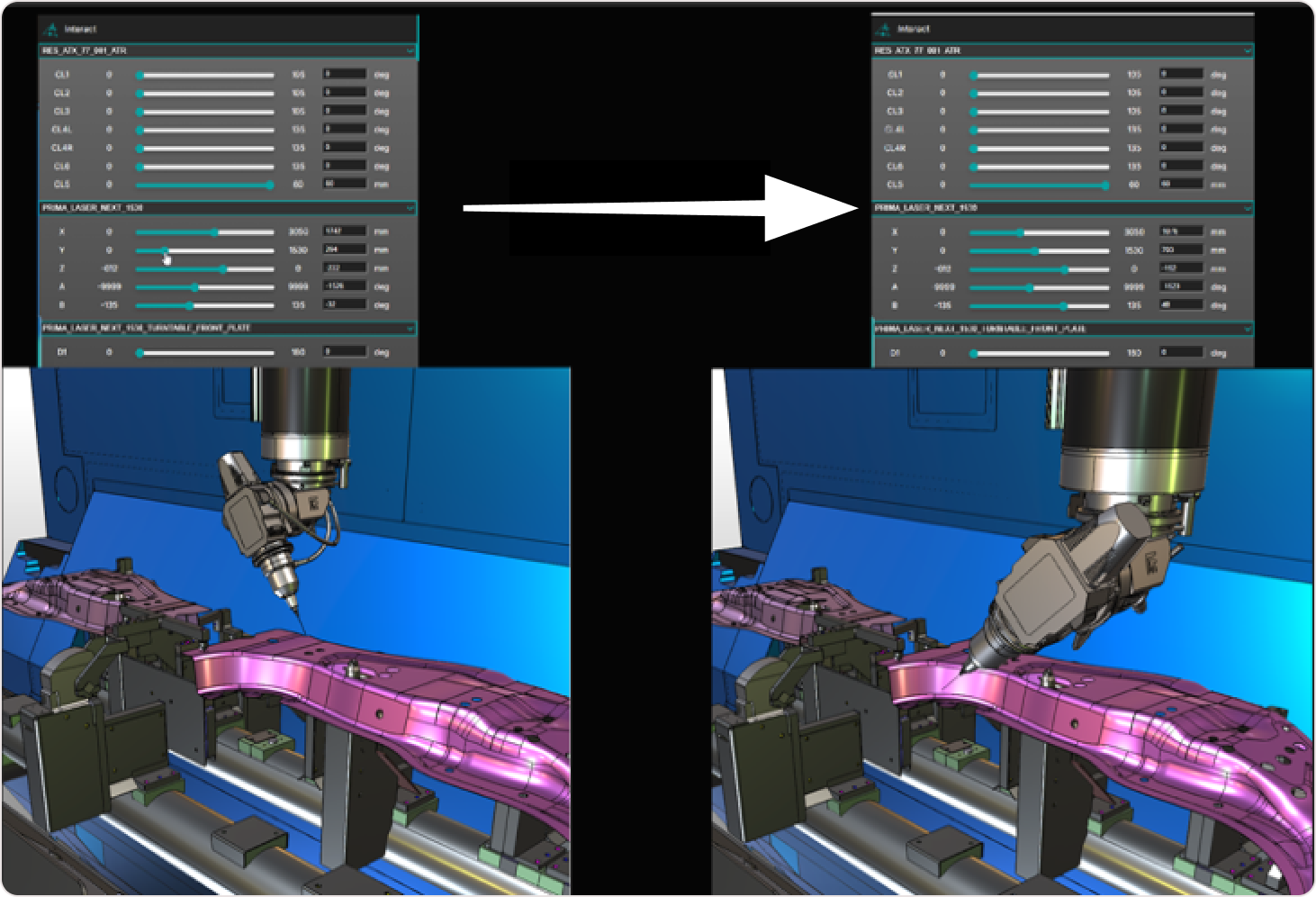
When a joint value is modified in the Interaction Panel, the machine model updates immediately in the 3D Viewer.
The viewer provides real-time visual feedback, allowing the operator to observe:
- tool orientation
- part accessibility
- fixture interaction
- potential collision situations
The machine motion shown in the viewer reflects the current joint configuration defined in the Interaction Panel.
Procedure
Step 1 — Open the Interact Panel
Click the Interact Panel button located in the top-right corner of the user interface.
Step 2 — Select a Joint
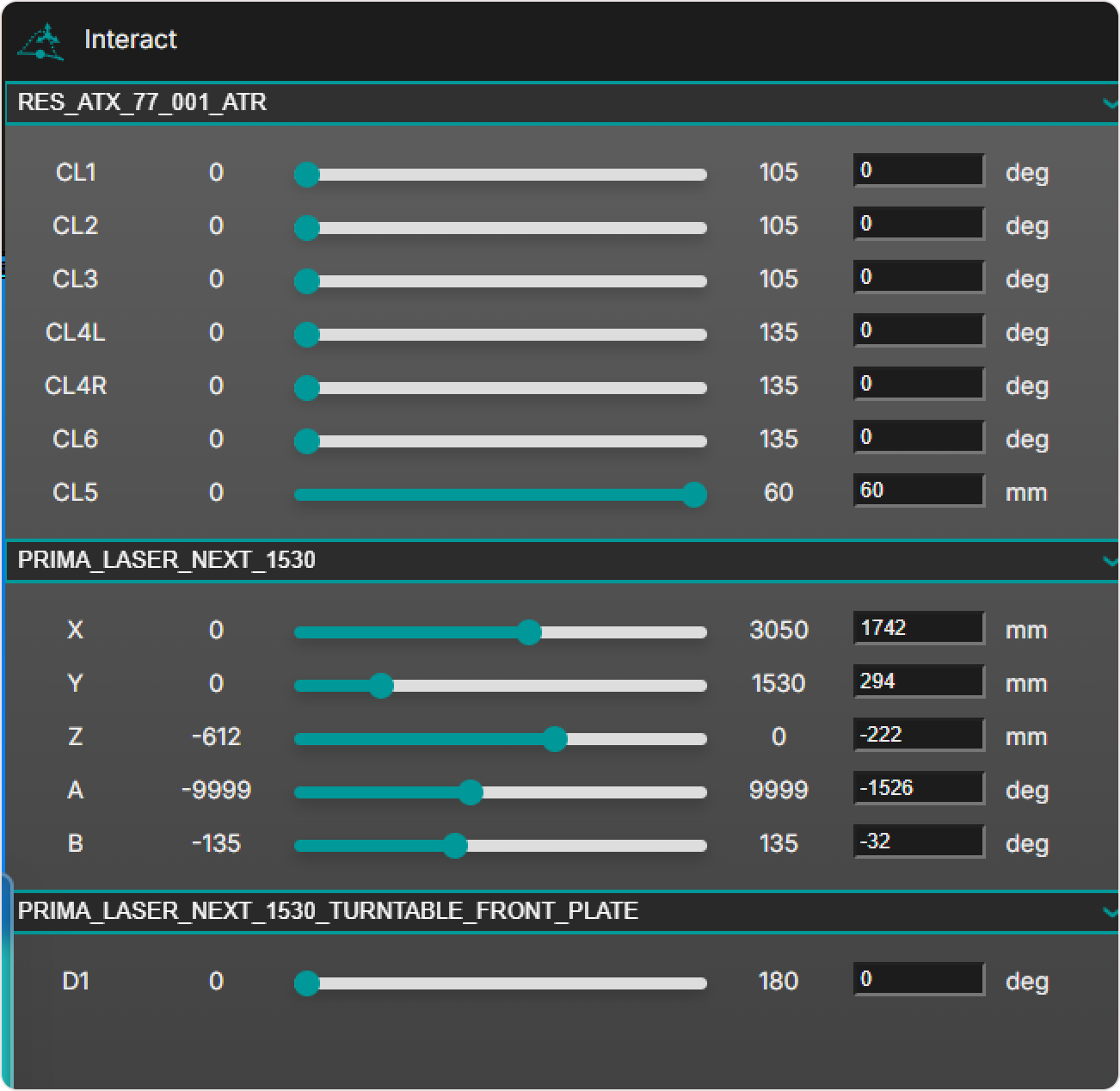
Choose the machine axis you want to manipulate from standard axes (X, Y, Z, A, B) or any custom axes defined in the project.
Step 3 — Adjust the Joint Position
Use the available sliders or input fields to adjust the position of the selected joint.
The machine model updates immediately in the 3D Viewer.
Step 4 — Inspect the Machine Configuration
Observe machine behavior in the 3D Viewer while adjusting joint positions.
Evaluate:
- reachability
- tool orientation
- fixture clearance
- potential collision situations
Operator insights
- Use the Interaction Panel for manual inspection and setup analysis.
- This panel is intended to support review and understanding of the current setup, not program editing.
- Combine with the 3D Viewer to get a complete visual understanding of machine movements and constraints.