Pivot Teach Workflow
Pivot Teach (Rototranslation) is the workflow used for pivot-based geometric correction of one or more selected points. It allows you to move selected points to a new position in space by applying translation, rotation, or a combined rototranslation relative to a selected pivot or reference system, while the tool orientation remains unchanged.
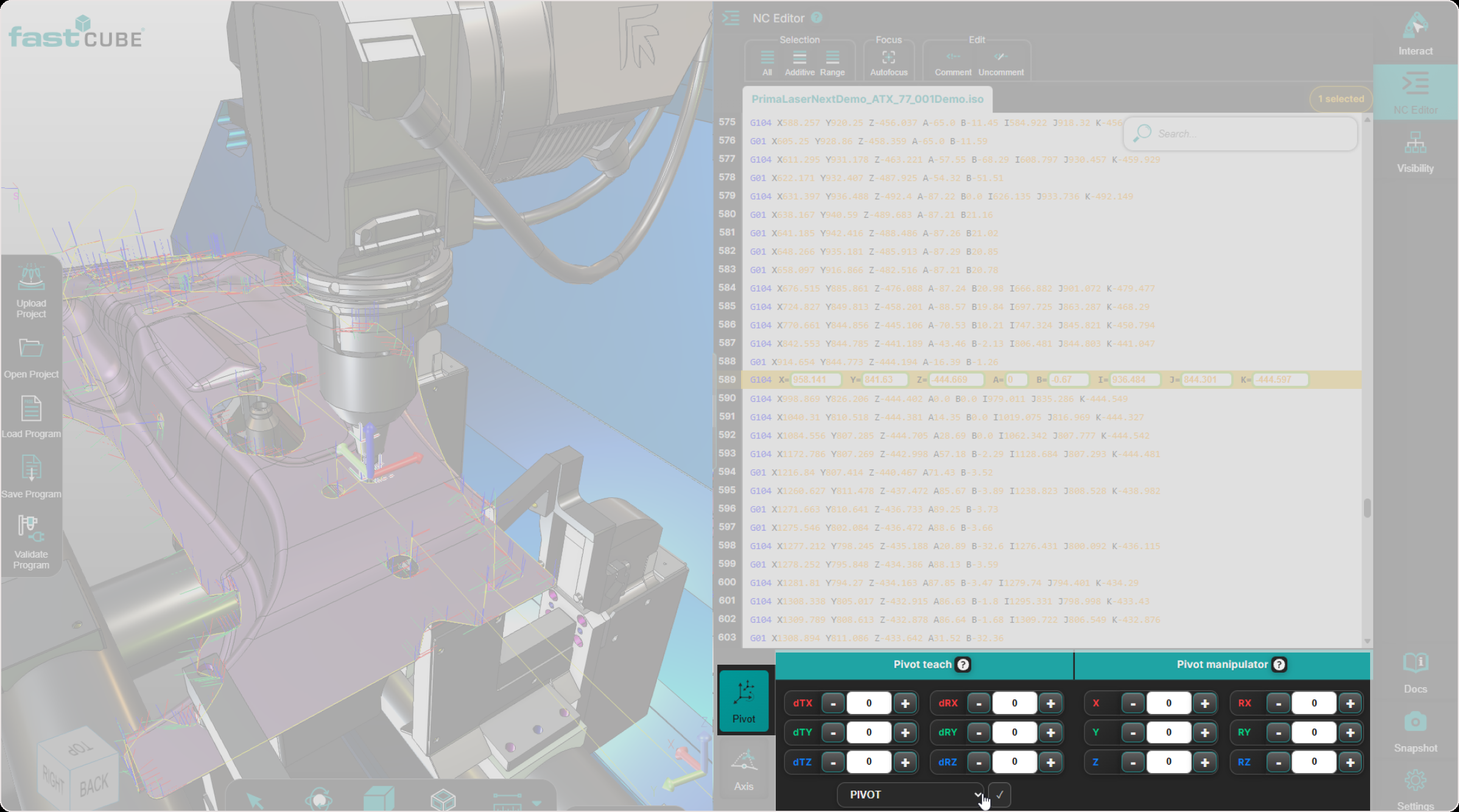
Use Pivot Teach when the goal is to:
- Reposition selected toolpath points.
- Apply a pivot-based movement.
- Correct a local or grouped path position.
- Preview the result before writing the change into the program.
What Pivot Teach does
Pivot Teach can apply:
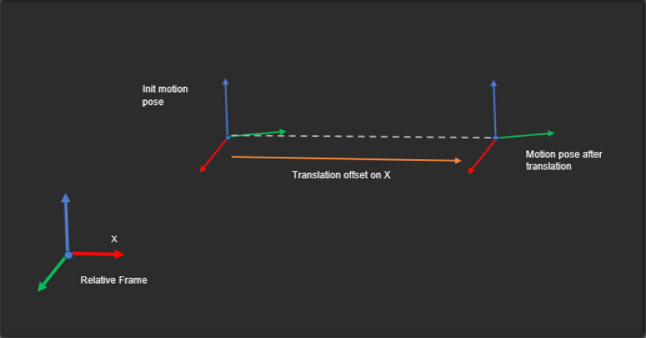
- translation offsets to move selected points in the direction of the pivot axis system.
- rotation offsets to calculate a new point position around the pivot axis system.
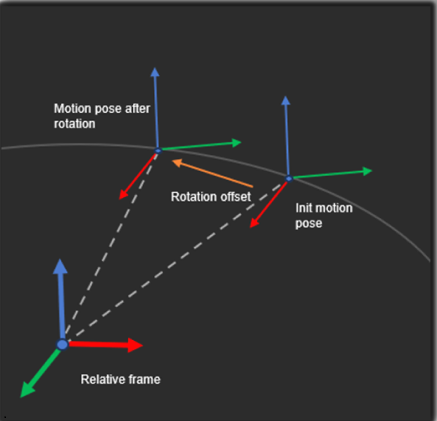
Even when rotation values are used, the result of this workflow is still a change in point position. The workflow does not change the tool orientation during the transformation. Only point positions are modified and tool orientation remains unchanged.
What the pivot means
The pivot is the reference used to calculate the movement.
If the pivot changes, the result changes. In the current implementation, Pivot Teach works relative to the selected reference system, such as Pivot or Base Frame, and when Pivot is selected, the Manipulator is used as the visual pivot.
Plain-language explanation
Think of Pivot Teach workflow like this:
- You select one or more points.
- You choose or adjust the pivot axis position.
- You translate selected points in the direction of the pivot axis system.
- You can also rotate selected points around the pivot axis system.
- The final result is a change in X, Y, Z point position.
- Tool orientation stays unchanged.
In other words, Pivot Teach lets you translate and or rotate one or more selected points around a chosen pivot. The result is shown first as a preview in the 3D Viewer, and the program is updated only after Accept.
💡 Tip: Pivot Teach is used for geometric transformation of selected points. It does not directly teach or write back new machine-axis values. Updated point positions are written back into the NC program only after Accept.
Reference systems
Pivot Teach works relative to the selected reference system.
The main reference systems are:
-
Pivot - where the Pivot Manipulator acts as the visual pivot. Use this for local corrections relative to the selected point or tool-related reference.
-
Base Frame - where the transformation is applied relative to the selected frame. In this mode, the Pivot Manipulator is hidden, but the transformation still applies correctly.
Preview before confirmation
Before the modification is committed, Shopfloor Assistant shows a preview in the 3D Viewer.
The system provides a 3D preview for rototranslation operations. No modification is written before Apply, and the preview reflects the current edited state.
This gives the operator a simple confirmation step: “Did the selected point move to the correct place?”
What happens after Accept
After the operator confirms the transformation:
- Updated point positions are written back into the NC program.
- The result is shown in the 3D Viewer.
💡 Tip: Always check the active reference system before pressing Accept. The same values can produce different results depending on whether Pivot or Base Frame is active.
Typical workflow
Use the following sequence when working with Pivot Teach:
-
Select the point or points - Select one point, multiple points, or a structured block such as a regshape.
-
Choose the reference system - Select Pivot or Base Frame, depending on how the correction should be applied.
-
Adjust the Pivot Manipulator if needed - When Pivot is active, use the Pivot Manipulator to define the pivot position and orientation.
-
Enter transformation values - Enter translation, rotation, or combined rototranslation values in the Pivot Teach Panel.
-
Check the preview - Review the temporary toolpath preview in the 3D Viewer.
-
Press Accept - Confirm the transformation only after the preview matches the intended result.
This sequence keeps the workflow easy to understand: select -> define pivot -> preview -> accept.
Operator insights
- Use Pivot Teach for geometric correction. It is best for moving selected points or path regions to a new position.
- Check the reference system first. Pivot and Base Frame can produce different results.
- Use the preview before Accept. The preview shows the result before the program is updated.
- Do not use Pivot Teach for machine-axis teaching. Use Axis Teach when the goal is to calculate and write back machine-axis values.
- For multi-selection, verify all selected points. Use the 3D Viewer to confirm that only intended points are affected.
- For regshapes, keep grouped behavior in mind. Transformations should preserve intended feature structure.
- If the preview looks wrong, do not press Accept. Change values, adjust the pivot, or review the selection.
- Workflow for Pivot Teach - Multi-Line Pivot Teach Workflow.