Synchronize Events

With the Synchronize Program(s) command it is possible to keep existing OLP programs consistent after customizing updates, preserving the expected behavior of events, rules, and attributes.
For example after plugin or Python-based customizing changes (such as enum extension, added attributes, or updated event rules), existing programs can be synchronized without rebuilding them from scratch.
Workflow:
-
Open an existing scenario with OLP programs (point, surface, and curve technologies are supported).
-
Update the customizing (for example external plugin update or Python-based update).
-
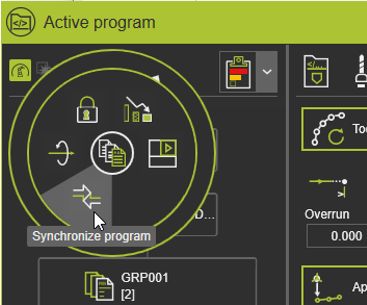
Open the active program dashboard and execute
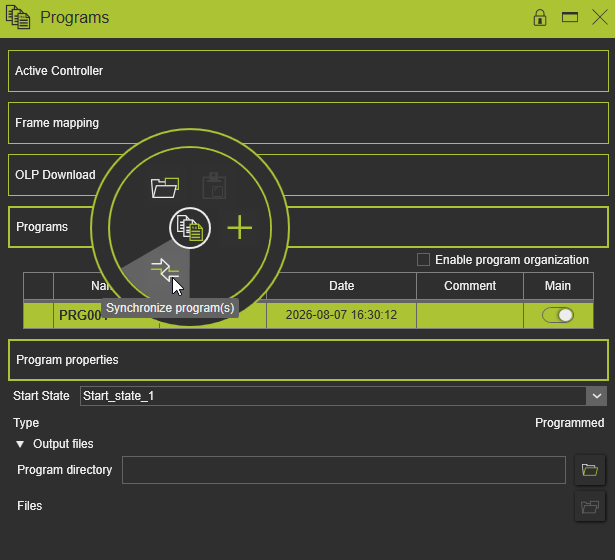
Synchronize Program(s)from the program-level pie menu, or open the programs dashboard and execute it from the pie inside this dashboard. -
Synchronize
Programming Defaultswith the current program so added, changed, and deleted attributes and event parameters are applied. -
Optional: If
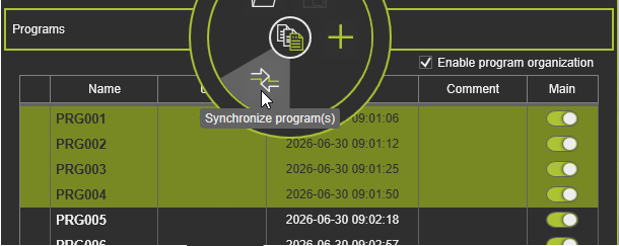
Enable program organizationis active, select multiple programs and synchronize them in one step. -
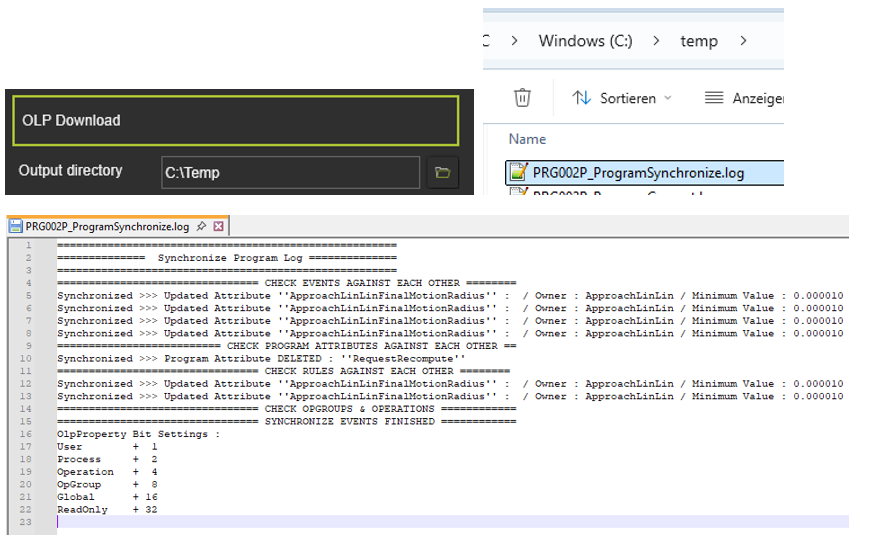
Review the synchronization result in the warning popup, E2 Log, and generated program synchronization log file.
Synchronize command in Active Program Dashboard:
Synchronize command in Programs Dashboard:
Multiple program synchronization:
Synchronization warning message:

Synchronization messages in E2 Log:
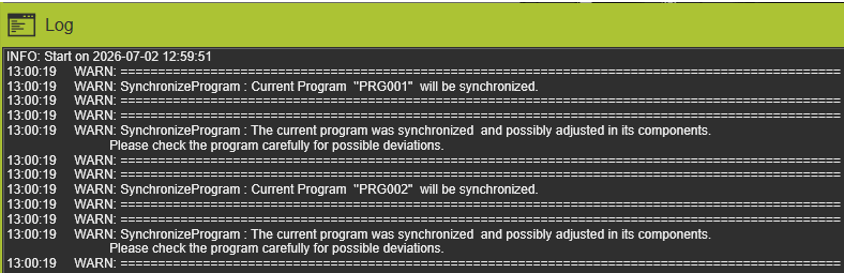
Program synchronization log file ([programname]_ProgramSynchronize.log):