Organize programs
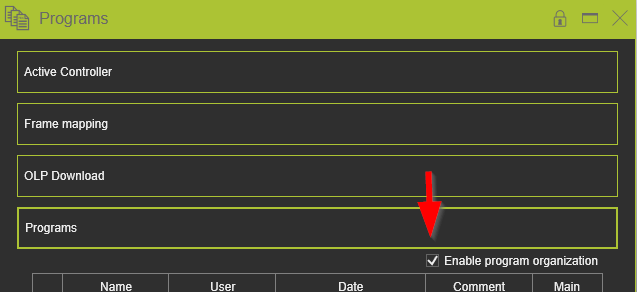
Use Program Organization mode in the Programs Dashboard to organize and manage programs without activating them.
When Enable program organization is checked, you can select multiple programs, change their order, arrange subprograms under their corresponding main programs, and delete multiple programs at once.
You can also sort programs using the available program information, such as name, user, or date.
Note: When Program Organization mode is disabled, the Programs Dashboard uses the standard behavior. Clicking a program activates it.
Enable Program Organization
Open the Programs Dashboard and check Enable program organization.
The Programs Dashboard switches to organization mode. Programs can now be selected and reorganized without being activated.
Select Programs
In Program Organization mode, you can select one or multiple programs.
- Hold Ctrl and click to select individual programs.
- Hold Shift and click to select a range of programs.
The selected programs can then be reorganized or deleted together.
Reorganize Programs
To change the program order:
- Check Enable program organization.
- Select the program or programs you want to move.
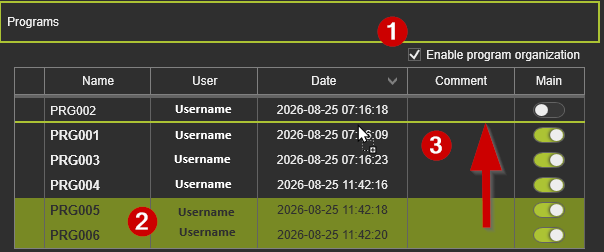
- Drag & Drop the selection to the desired position in the Programs Dashboard.
The programs are reordered according to the selected position.
For workflows containing main programs and subprograms, place the subprograms directly below their corresponding main program to create a clear program structure.
Sort Programs
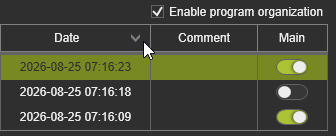
Programs can be sorted using the available columns in the Programs Dashboard, for example by:
Name/ User/ Date
Use the corresponding column to change the sorting of the program list.
Delete Multiple Programs
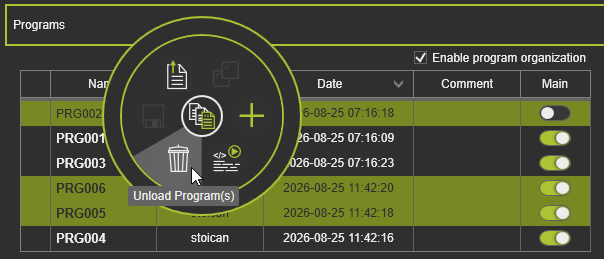
Program Organization mode allows multiple programs to be deleted in one operation.
- Check Enable program organization.
- Select the programs you want to delete using Ctrl or Shift.
- Delete the selected programs.
The selected programs are removed from the Programs Dashboard.
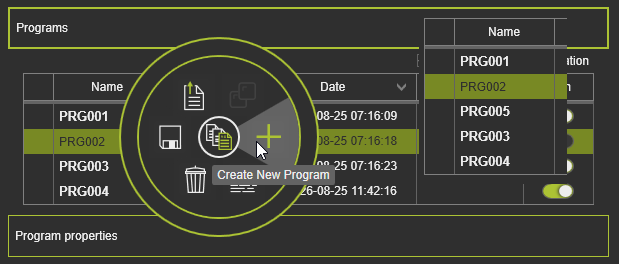
Create New Programs
When a new program is created, it is automatically inserted directly after the currently selected program.
This makes it easier to create related programs or subprograms in the desired position without reorganizing the complete program list afterward.
Disable Program Organization
Uncheck Enable program organization when you have finished organizing the program list.
The Programs Dashboard returns to its standard behavior, where selecting a program activates it.