Display filters

The FASTSUITE Edition 2 software knows many different objects, all with their specific content, such as geometrical elements, kinematic chains, connection adapters, process geometry, etc. All these objects can be displayed or hidden in the 3D View without needing to select them (individually). The software in principle automatically displays the workbench specific and required objects.
The Display filter command opens a set of filter commands to toggle specific 3D features between the show and hide workspace. It will automatically grabs all the features of that specific group of objects. When the group of features is shown, the corresponding toggle icon is highlighted (green background color).
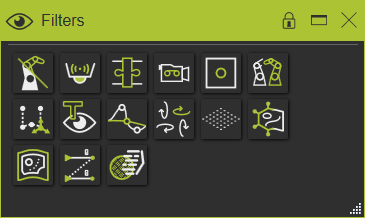
There is a display filter for:

Kinematic skeleton

Sensors

Adapters

Cameras

Frames

Inactive elements

Toolpath and operations

Object names

Toolpath optimizations

Special features

Layout grid

Process simulation object

Process geometry

Operation visualization

Material flow objects
To toggle multiple different objects in the same operation, the Display Filter menu remains open after each toggle until it is closed by clicking outside the menu bar.
Shortcut method
While working in the 3D space there is an alternative way to call the display filter dialog. When pressing the  -key the toggle dialog of the display filters will appear after a short delay at the mouse.
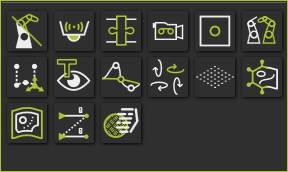
While keeping the -key pressed, the objects can be displayed or hidden with their toggle buttons. Releasing the keyboard button, or picking somewhere or something else, will close the dialog. The specific options are not available here.